128 — Model 6755i Series IP Phone User Guide
Troubleshooting Solutions
restart your phone, press the key to cancel.
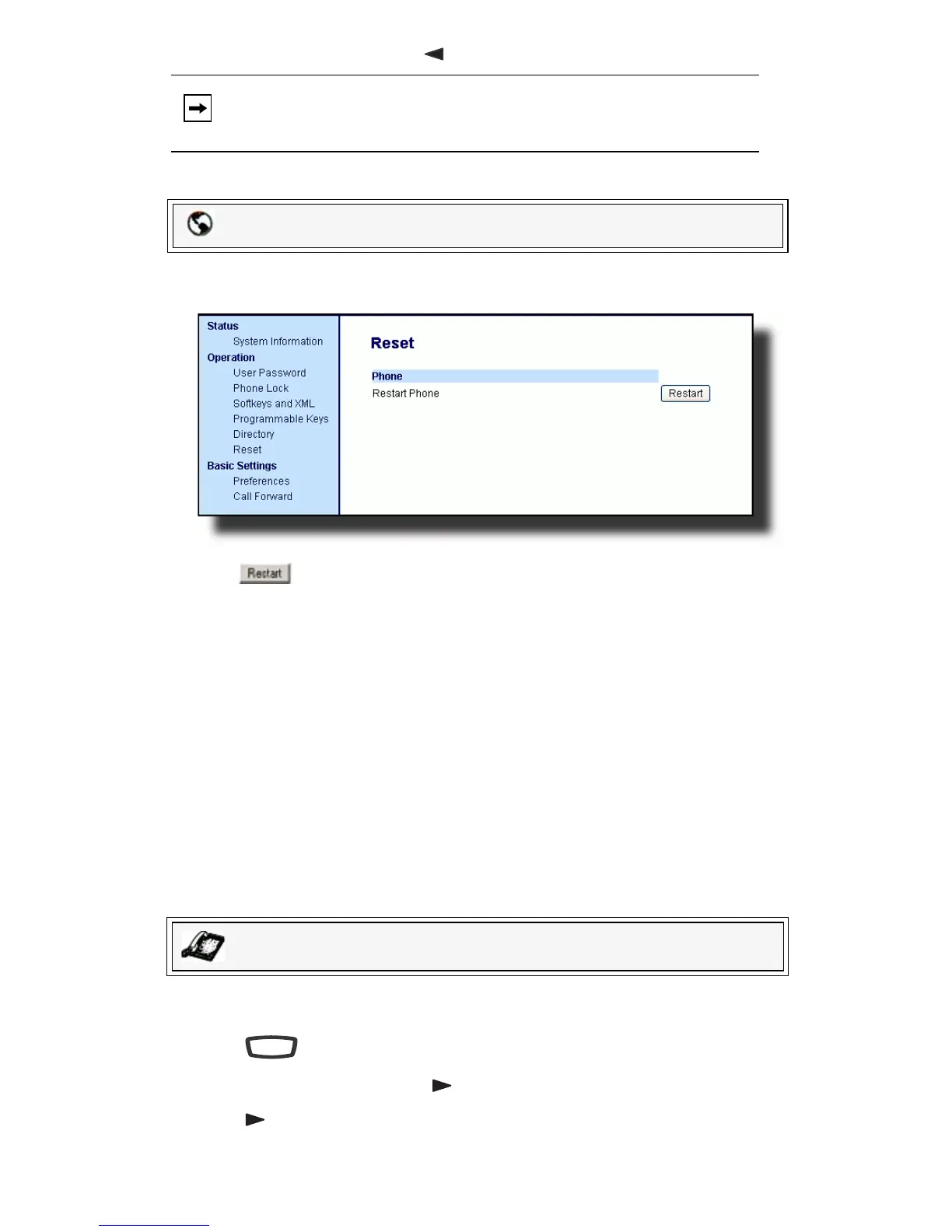
1. Click on Operation->Reset.
2. Click
.
3. Click OK at the confirmation prompt.
How do I lock my phone?
You can lock your phone to prevent the phone from being used or configured
using any of the following:
• At the path Options->Phone Lock on the IP Phone UI.
• At the path Operations->Phone Lock on the Packet8 Web Phone UI.
• At a configured key on the phone. For more information about configuring a
Lock/Unlock key on your phone, see "Phone Lock Key" on page 67.
Use the following procedures to lock an IP phone and prevent it from being used
or configured.
Lock the Phone
1. Press on the phone to enter the Options List.
2. Select Phone Lock and press .
3. Press to set the phone to lock.
Note: Your phone is out of service temporarily during the restart and down-
loading process.
Packet8 Web Phone UI
IP Phone UI
Options



 To Next Page