Page | 9
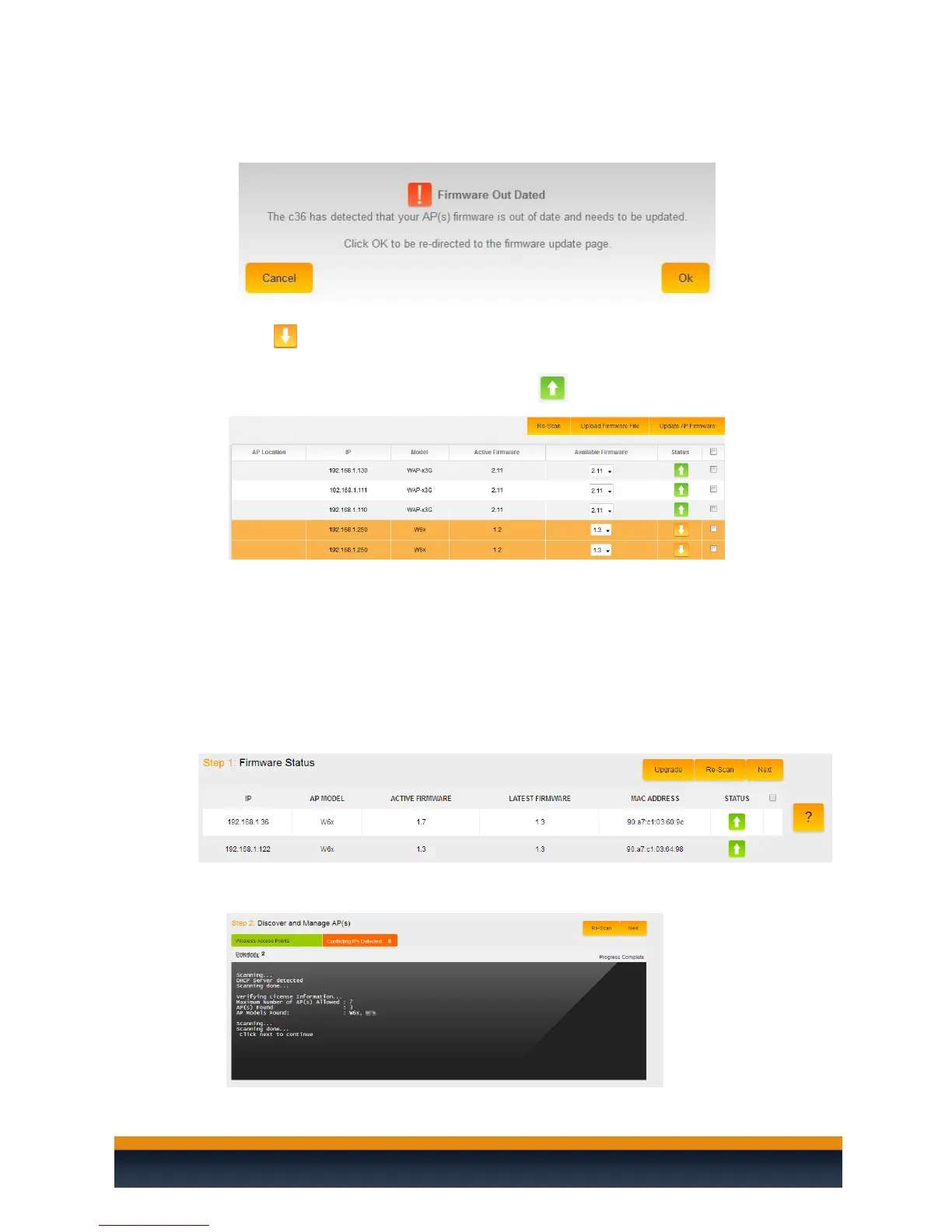
3. Before being able to manage or configure the AP(s), they must all be on the same firmware
version. If there is any inconsistency in the firmware version, the C36 will notify you.
4. Click “Ok” and you will be directed to the AP-Firmware update page.
5. The icon - indicates which APs have an older firmware as well as the firmware they
should be updated to. Select the highlighted APs and click on Update AP Firmware. Once the
process is complete, all your APs should display - .
6. Click “Next” to continue to step 2
STEP 2: DISCOVER AND MANAGE AP(S)
1. Once the firmware has been updated on all access points the C36 will continue on with the
wizard.
2. The C36 will scan your network and discover any compatible access points. Click on next to
continue.
3. The C36 will detect the DHCP server on the network which is usually a router. Click on next
to continue.


 To Next Page