Page | 19
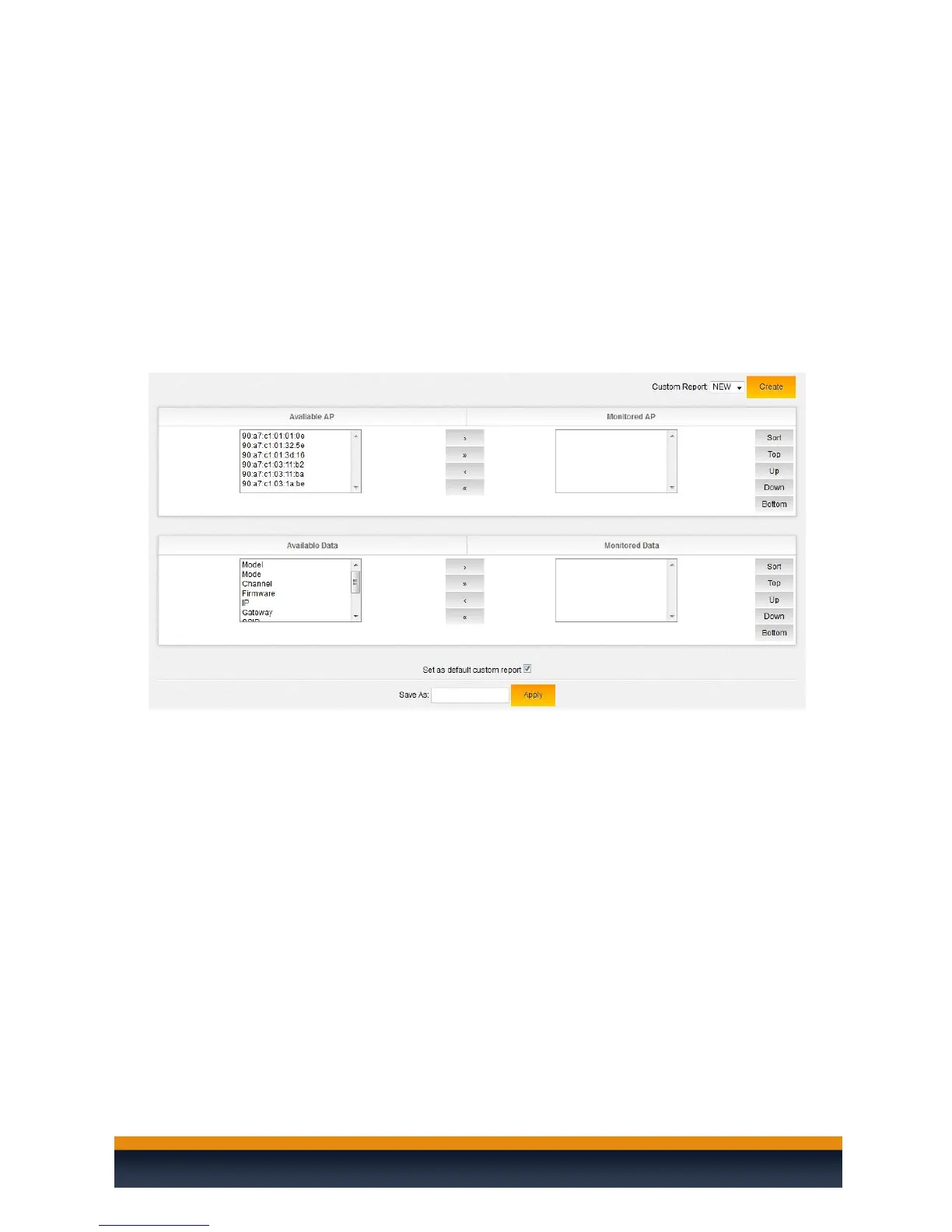
Custom: Allows you to create your own reports with the information in the
order you prefer to view it. To do so, click “Create”.
1. Select the APs you want to monitor from the “Available AP” section.
The order from top to bottom the AP(s) are displayed in the
“Monitored AP” section is the order they will display in the custom
report.
2. Select the data you want to view from the “Available Data” section.
The order from top to bottom the fields are listed, will display from
left to right in the custom report.
3. Name the report in the “Save As” field and click “Apply”.
4. The new custom report will now be available just to the right of
“Detailed”.
Edit/Delete a Custom Report: If you need to edit or delete a custom report,
under “Reports” select “Custom” and the custom report you need to edit/delete
from the drop down box and click “Edit”. After hitting “Edit” the custom report
setup screen with the custom information already in the “Monitored AP” and
“Monitored Data” fields. Here you can make any adjustments that are needed
to the custom report and select “Update” or if you want to completely remove
the report, click “Remove”.


 To Next Page