Jams
-83-
Recording paper jam
If the unit does not eject any recording
paper during fax reception or copying, the
recording paper has jammed. Remove the
jammed paper.
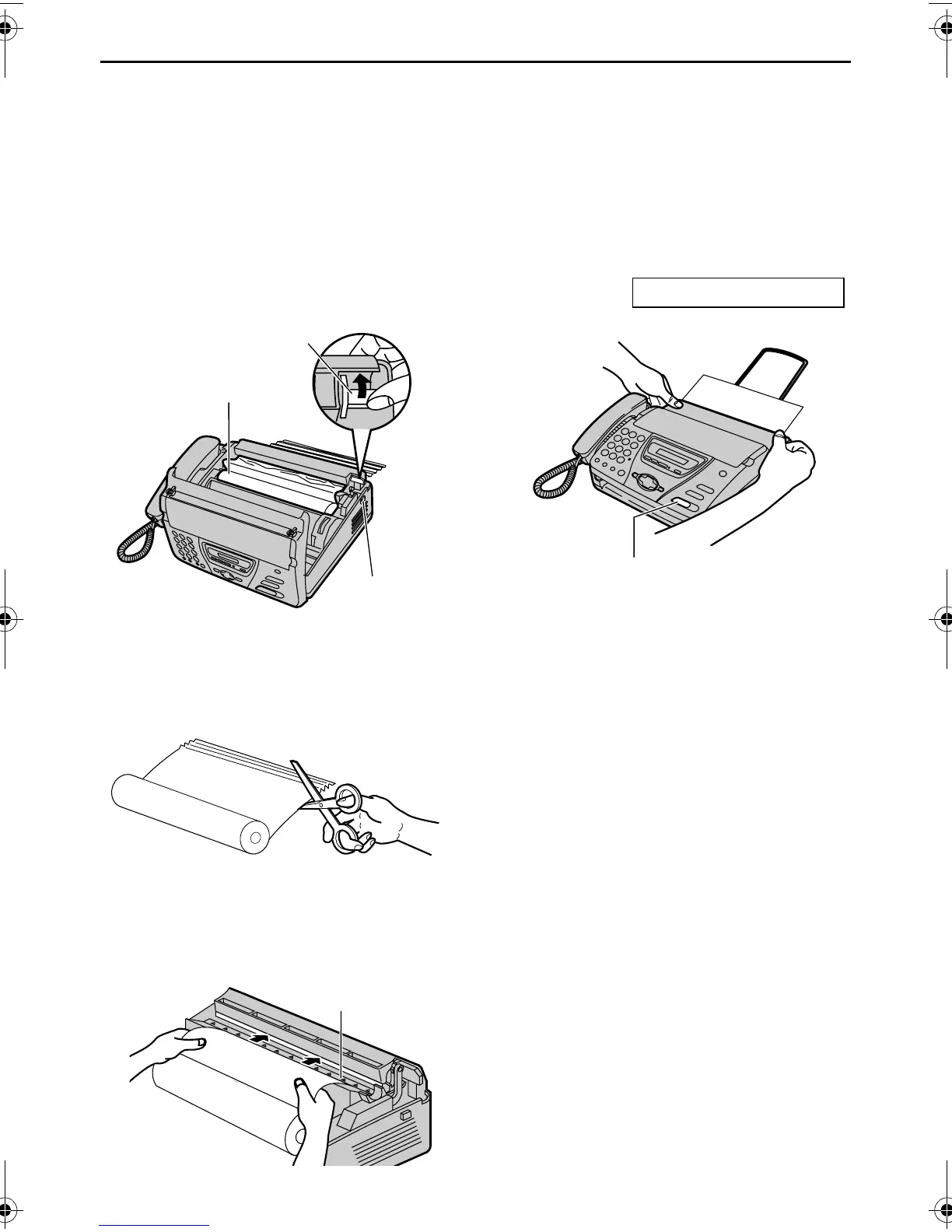
1 Open the cover by pressing the cover
open button. Lift the green lever to
release the paper cutter, and remove
the recording paper roll.
2 Cut off the wrinkled portion, and
replace the recording paper roll into the
unit in the proper direction.
3 Insert the leading edge of the paper
into the opening above the thermal
head, and pull the paper out of the unit.
L Make sure that there is no slack in
the paper roll.
L If the paper cannot be inserted, try
lifting the green lever again.
4 Close the cover securely by pushing
down on both sides.
PRESS START
5 Press {FAX/START}.
L The unit will eject the paper slightly
and cut it.
L If you do not press {FAX/START}
within 30 seconds, the unit will
automatically eject the paper slightly
and cut it.
L Every time you close the cover a
message will be printed. If the
recording paper is set to the wrong
side, a message will not be printed.
Install the paper correctly.
Cover open
button
Green lever
Recording
paper roll
Thermal head
{FAX/START}
FT74-78HK.book Page 83 Friday, June 28, 2002 9:45 AM



 To Next Page