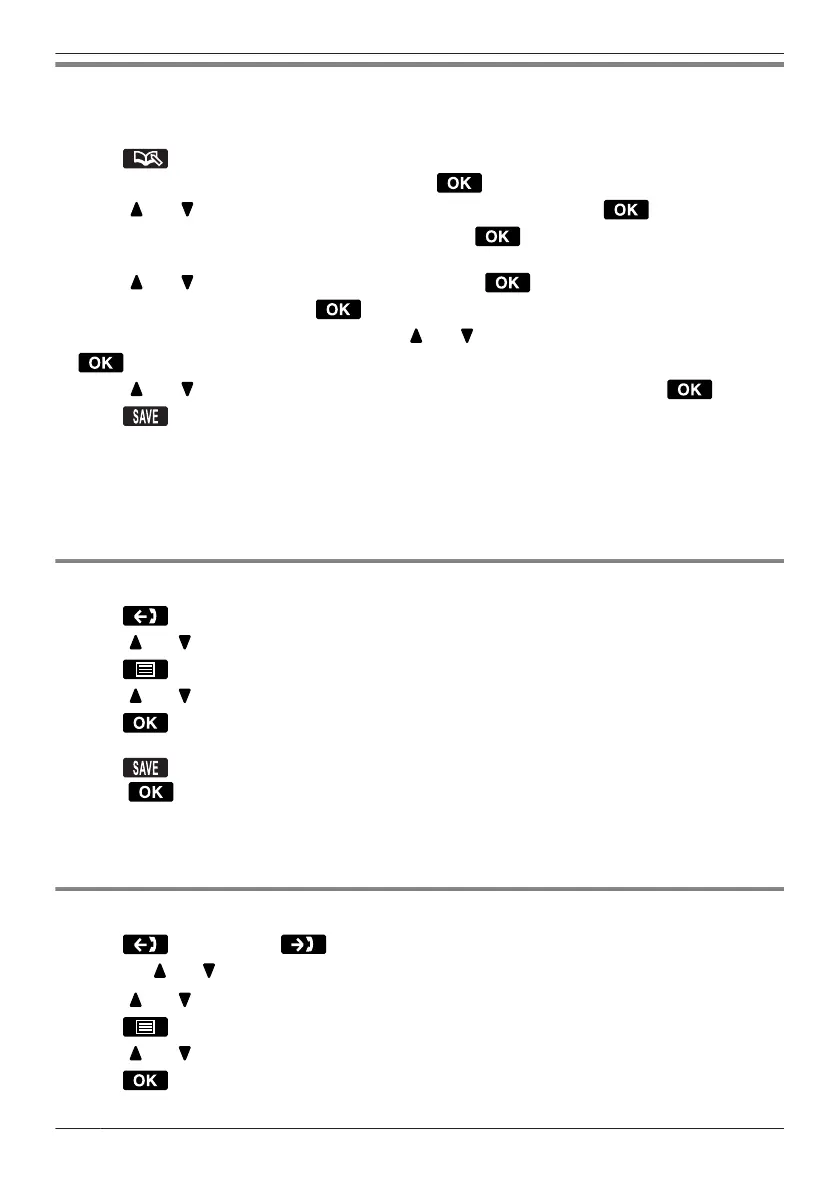
Storing an Item Using the Predialling
You can dial a number first and then add it as a phonebook entry.
1. In standby mode, dial a number.
2. Press
.
3. Enter a name (max. 24 characters), and then press .
4. Press [ ] or [ ] to select a phone number type (A to E), and then press .
5. Enter the phone number (max. 32 digits), and then press .
6. Repeat steps 4 and 5 to add additional phone number types.
7. Press [ ] or [ ] to select "Category Off", and then press .
8. Select a category, and then press .
9. To select a default number for the entry, press [ ] or [ ] to select "Default TEL No", and then press
.
10.Press [ ] or [ ] to select the number to use as the default number, and then press .
11.Press .
Note
R Steps 7 and 8 can be omitted if you do not want to assign a category.
R Steps 9 and 10 can be omitted if you do not want to assign a default number. (The first number
entered for an entry will automatically be assigned as the default number.)
R To enter characters, see Page 58.
Storing an Item Using the Outgoing Call Log
1. Press .
2. Press [ ] or [ ] to select the desired item.
3. Press .
4. Press [ ] or [ ] to select "Save Phonebook".
5. Press
.
6. Enter a name, phone number, and select the category number (1–9) or "Off".
*1
7. Press .
*1
Press
to confirm each entry. (name: max. 24 characters/phone number: max. 32 digits)
R When storing an outside phone number, the line access number will be stored automatically. The line
access number must be identical to the handset’s "Line Access CD" setting. See "Other Option" on
Page 70.
Storing an Item Using the Incoming Call Log
1. Press and then press .
Or, press [ ] or [ ].
2. Press [ ] or [ ] to select the desired item.
3. Press
.
4. Press [ ] or [ ] to select "Save Phonebook".
5. Press .
6. Enter a name, phone number, and select the category number (1–9) or "Off".
*1
48
Using the Handset Phonebook




 To Next Page