EasyManua.ls Logo

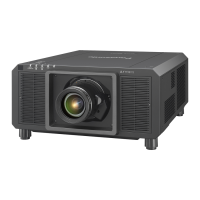
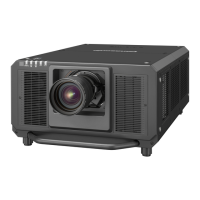
Panasonic PT-RQ35K - User Manual

Panasonic PT-RQ35K
331 pages
Print Icon
To Next Page IconTo Next Page
Loading...
Thank you for purchasing this Panasonic product.
The Operating Instructions correspond to the rmware’s main version 1.07 or higher and
network version 1.01 or higher.
This manual is common to all the models.
z
for USA, Canada, EU countries, Korea, Taiwan
PT-RQ35K
z
for India
PT-RQ35KD
z
for other countries or regions
PT-RQ35KE
Before operating this product, please read the instructions carefully and save this manual
for future use.
Before using this product, be sure to read “Read this rst!” (
x
pages 5 to 16).
DPQP1339ZB/X1
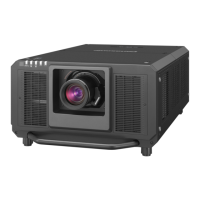
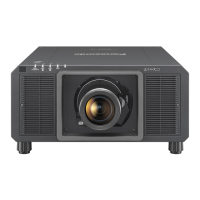
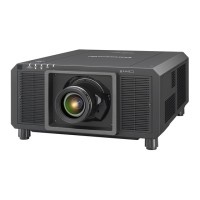
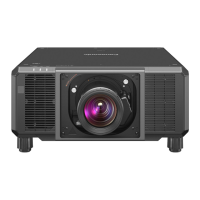
DLP™ Projector
Commercial Use
Operating Instructions
Functional Manual
ENGLISH
Model No.
PT-RQ35K
The projection lens is sold separately.
* Resolution is 3 840 x 2 400 dots
(QUAD PIXEL DRIVE: ON)

Table of Contents

Questions and Answers

  • C
    Charles MccoyAug 20, 2025
    How to fix a Panasonic PT-RQ35K Projector that won't turn on?
    • K
      Kenneth JohnsonAug 20, 2025
      If your Panasonic Projector isn't turning on, check the following: * Ensure the power plug is firmly inserted into the outlet. * Verify that the switch is not set to . * Confirm that the wall outlet is supplying electricity. * Check if the circuit breakers have tripped. * Examine whether the light source indicator or the temperature indicator is lighting up or blinking.
  • J
    Jeffrey HowardAug 22, 2025
    What to do if my Panasonic PT-RQ35K has no image?
    • M
      Michael JamesAug 22, 2025
      If no image is appearing on your Panasonic Projector, consider the following: * Ensure connections to external devices are correctly performed. * Verify that the image input is selected correctly. * Check if the [BRIGHTNESS] adjustment is set to a minimum; adjust accordingly. * Confirm the external device connected to the projector is working correctly. * Check if the shutter function is in use and disable it if needed. * Ensure the projection lens is attached correctly. * Verify that the lens cover has been removed from the lens.
  • B
    Briana GoodwinAug 25, 2025
    Why won't my Panasonic PT-RQ35K Projector show the computer image?
    • C
      Christopher AndradeAug 25, 2025
      If the image from a computer does not appear on your Panasonic Projector, consider the following: * Check if the cable is too long, as this can sometimes cause issues. * Ensure that the external video output on the laptop computer is set correctly.
  • S
    Sheila ClineAug 28, 2025
    Why does my Panasonic PT-RQ35K Projector image not display correctly?
    • C
      Christina HughesAug 28, 2025
      If the image on your Panasonic Projector is not displaying correctly, try the following: * Verify that the [SYSTEM SELECTOR] selection is set correctly. * Ensure there isn't a problem with the external device outputting images. * Confirm that a signal compatible with the projector is being input. * Check that the settings for [HDMI IN], [DIGITAL LINK IN], and [SLOT IN] are correctly configured.
  • D
    Dr. Jeremy MoonAug 30, 2025
    Why is the DIGITAL LINK image not displayed on my Panasonic PT-RQ35K?
    • L
      Linda HoweAug 30, 2025
      If the DIGITAL LINK input image is not displayed on your Panasonic Projector, try the following: * Ensure that the cable is compatible with the projector's condition. * Verify that the connections between the twisted-pair-cable transmitter and the projector or external device are correctly done. * Check whether [DIGITAL LINK MODE] is set to [AUTO], [DIGITAL LINK], or [LONG REACH], and ensure it is not set to [ETHERNET]. * Confirm that a signal compatible with a twisted-pair-cable transmitter is being input.
  • O
    Olivia HeathSep 1, 2025
    Why won't my Panasonic PT-RQ35K Projector display the DVI-D image?
    • E
      Ethan PatelSep 1, 2025
      If the image output from the DVI-D of your computer does not appear on the Panasonic Projector, consider these steps: * Verify that [DVI-D LINK] in [SLOT IN] is set correctly; if it's set to [AUTO], try changing it to something other than [AUTO]. * Check if the [EDID SELECT] setting in [SLOT IN] is set to [EDID3] or [EDID2:PC]. * Update the graphics accelerator driver of your computer to the latest version. * Try setting [EDID SELECT] in [SLOT IN] and then restarting the computer.
  • J
    Jacob JohnsonSep 2, 2025
    Why is there no image from the DisplayPort on my Panasonic PT-RQ35K Projector?
    • G
      Gail ElliottSep 3, 2025
      If the image output from the DisplayPort of the computer does not appear on your Panasonic Projector, consider the following: * If connecting to a computer with an early-type chipset or graphics card, it might not operate properly. * Update the graphics accelerator driver of the computer to the latest version. * Turn the power of the projector and the external device off and on. * Ensure the input signal is compatible with the projector.
  • S
    Stephanie MckaySep 4, 2025
    How to fix a fuzzy image on a Panasonic PT-RQ35K Projector?
    • M
      Miguel BaldwinSep 4, 2025
      If the image from your Panasonic Projector appears fuzzy, check these aspects: * Confirm that the lens focus is set correctly. * Ensure the projection distance is appropriate for the projector. * Inspect the lens for dirt and clean it if necessary. * Verify that the projector is installed perpendicular to the screen.
  • W
    William WallerSep 6, 2025
    Why is the color pale on my Panasonic PT-RQ35K?
    • C
      Cynthia LopezSep 6, 2025
      If the color on your Panasonic Projector appears pale or grayish, try these solutions: * Check if the [COLOR] and [TINT] settings are adjusted correctly. * Ensure the external device connected to the projector is adjusted correctly.
  • J
    Jerry JonesSep 8, 2025
    Why is my Panasonic Projector HDMI image disrupted?
    • D
      Dominic MooreSep 8, 2025
      If the image from your HDMI compatible device does not appear or is disrupted on your Panasonic Projector, try the following: * Ensure the HDMI cable is connected securely. * Turn the power of both the projector and the external device off and on. * Verify that the input signal is compatible with the projector.

Summary

Chapter 1 Preparation

Precautions for Use and Safety

Essential safety guidelines, handling, installation, and operational cautions for projector use.

Projector Components and Remote Control

Details the projector body, control panel, and remote control unit layout and functions.

Projector Connectivity Terminals

Describes various input/output terminals for connecting devices, interface boards, and control signals.

Remote Control Preparation and Usage

Covers battery insertion, usage with multiple projectors, and wired connection options.

Chapter 2 Getting Started

Projector Setup and Installation Modes

Explains usable outlets, installation modes (desk, ceiling, front, rear), and angle sensor usage.

Projected Image Size and Throw Distance

Provides information on projected image size, throw distance, and lens compatibility for installation.

Device Connection Procedures

Details how to connect external devices like AV equipment and computers via various terminals.

DIGITAL LINK Connection Example

Illustrates network connections using twisted-pair-cable transmitters for video, Ethernet, and serial control.

Chapter 3 Basic Operations

Powering Projector On and Off

Covers connecting the power cord, using the main power switch, and projector power indicators.

Projecting Images and Adjusting Settings

Describes starting projection, selecting input signals, and adjusting image parameters like focus and zoom.

Input Signal Selection Methods

Explains how to switch between different input sources using the remote control or control panel.

Lens Adjustment: Focus, Zoom, and Shift

Details procedures for adjusting focus, zoom, and lens shift using the control panel or remote control.

Chapter 4 Settings

Navigating Projector Menus

Explains how to access and navigate through the projector's on-screen menu system for settings.

Picture Settings Menu

Covers adjustments for picture mode, contrast, brightness, color, tint, and color temperature for optimal image.

Position and Geometry Settings

Allows adjustment of image position (shift), aspect ratio, zoom, geometry, and convergence.

Advanced Picture Settings Menu

Includes settings for digital cinema reality, gradation smoother, blanking, edge blending, and frame response.

Display Output Options Menu

Manages color matching, screen settings, auto signal setup, input settings, and display language.

Projector Setup and Configuration

Covers projector ID, projection method, lens settings, operation modes, brightness control, and network settings.

Test Pattern Menu for Calibration

Provides built-in test patterns to check projector condition and aid in adjustments like focus.

Signal List Management

Allows registering, renaming, and deleting input signals for custom configurations.

Security Settings Menu

Manages password settings for the projector and control devices, and enables/disables button operations.

Network Configuration Menu

Configures Ethernet type, DIGITAL LINK, wired/wireless LAN settings, and administrator accounts.

Chapter 5 Operations

Network Connection Setup

Details connecting via wired LAN, wireless LAN, and using the QR code for smartphone connection.

Web-Based Projector Control

Explains how to access and control the projector settings, status, and send email alerts via a web browser.

Projector Information Monitoring

Describes how to check projector status, input information, network status, and firmware versions via the information monitor.

Data Cloning for Settings Transfer

Covers copying projector settings via LAN or USB memory to multiple projectors.

Firmware Update Procedures

Explains how to update the projector firmware via LAN or USB memory.

Chapter 6 Maintenance

Indicator Status and Troubleshooting

Explains the meaning of indicator lights (red, blinking) for light source and temperature warnings and their solutions.

Projector Cleaning and Care

Provides instructions for cleaning the outer case and the projection lens surface.

Common Problems and Solutions

A guide to common issues like no power, no image, fuzzy image, or remote control problems with solutions.

Error and Warning Code Reference

Lists alphanumeric symbols for errors/warnings and their corresponding actions and details.

Chapter 7 Appendix

Technical Information and Protocols

Covers PJLink commands, Art-Net functions, control commands via LAN, and serial communication details.

Projector Technical Specifications

Details physical dimensions, display specs, light source, contrast, compatibility, and interface information.

Optional Interface Board Installation Guide

Provides instructions for installing and removing optional interface boards like HDMI, DVI-D, and SDI.

Panasonic PT-RQ35K Specifications

General IconGeneral
Contrast Ratio20, 000:1
Light SourceLaser
Projection System3-Chip DLP
Light Source Life20, 000 hours
Lens ShiftVertical: ±60%, Horizontal: ±30%
Input TerminalsHDMI, DVI-D
Output TerminalsHDMI
Control TerminalsRS-232C, LAN, USB
Operating Temperature0°C to 45°C (32°F to 113°F)
Operating Humidity20–80 % (no condensation)
Brightness30, 000 center lumens

Related product manuals