20
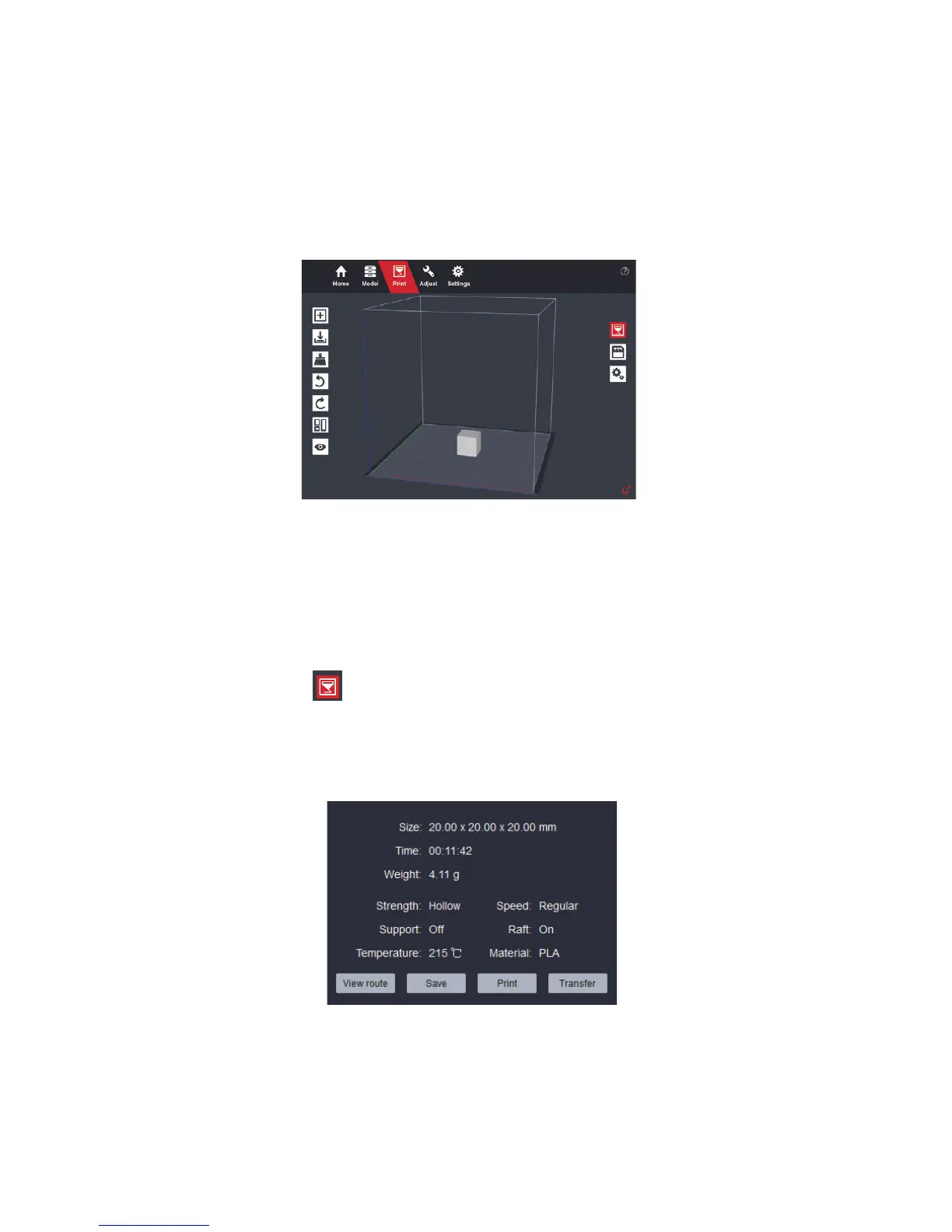
Once the 3D model is loaded, the model’s gure shows up on the “Print” page.
Tips: Here are some ways to acquire digital 3D model files:
1. Pick from model library in PanoBuilder or website www.3dpanospace.com;
2. Download from 3D model sharing websites, such as thingiverse.com;
3. Create 3D models on 3D modeling applications, such as 123D, SketchUp, Solidworks or 3DS Max;
4. Scan real objects and generate 3D models with a 3D scanner.
3.4 Print 3D Models
Click the “Print” button on the right hand side of the window. This prints all
3D models you put on the screen. PanoBuilder will start analysis automatically.
Once analysis is nished, a window with printing information pops up. There are
four operations: view route, save, print and transfer.


 To Next Page