26
Auto Placement:
Place all the models in the print volume automatically. This is
useful to separate overlapping models.
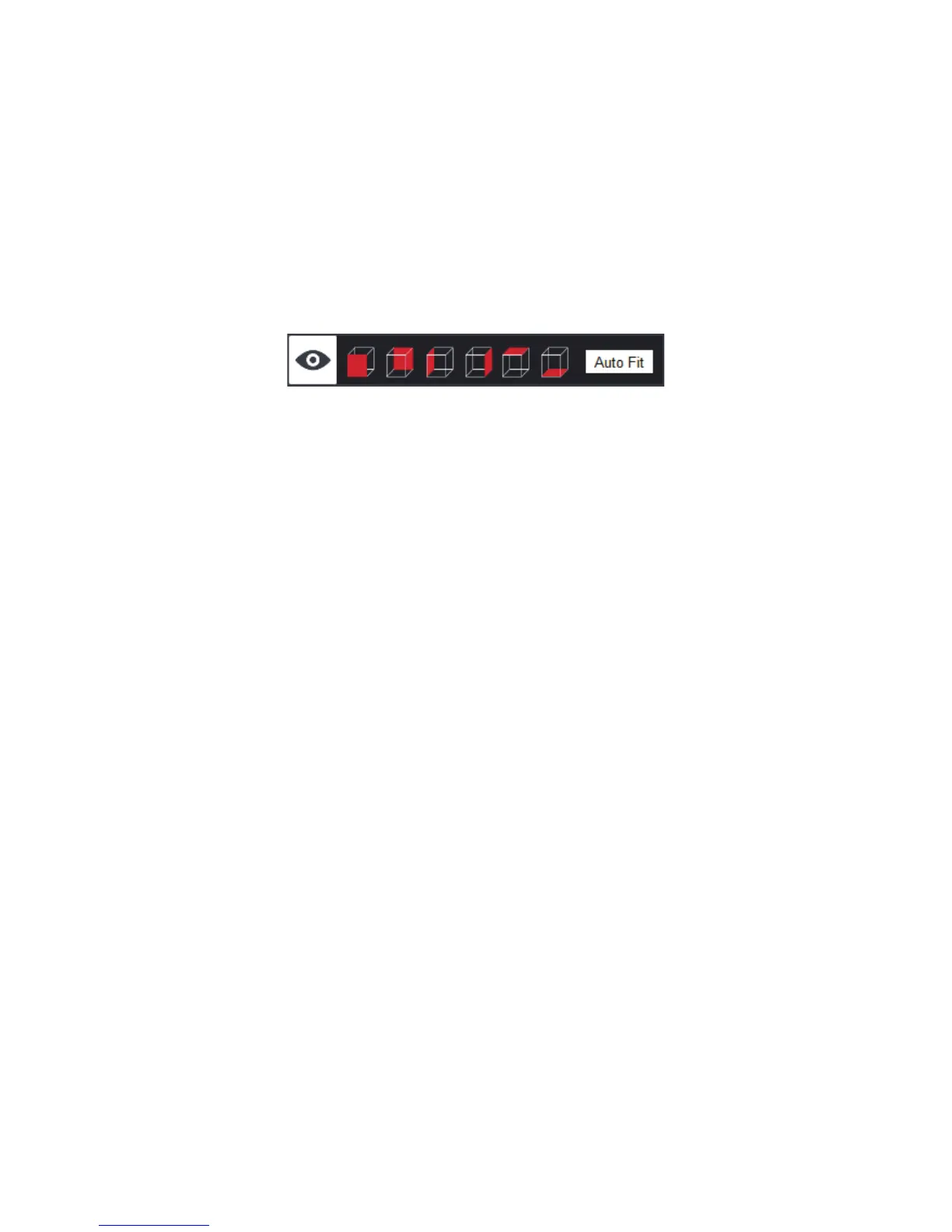
Change view:
Change views to look at models from different angles.
3.6 Load Filament
It is similar to the operations on the touch screen:
1. Insert the lament into the hole on top of the extruder.
2. Go to the “Adjust” page and click the “Load lament” button.
3. After the print head is at the right temperature, it extrudes the lament
automatically.
4. Click the “Finish” button after lament comes out from the print head.
3.7 Unload Filament
It is similar to the operations on the touch screen:
1. Go to the “Adjust” page and click the “Unload lament” button.
2. After the extruder reaches proper temperature, it retracts the lament
automatically.
3. Take out the lament roll and click the “Finish” button.
3.8 Adjust Level of Print Bed
Go to the “Adjust” page and click the “Adjust print bed leveling” button. It is


 To Next Page