•
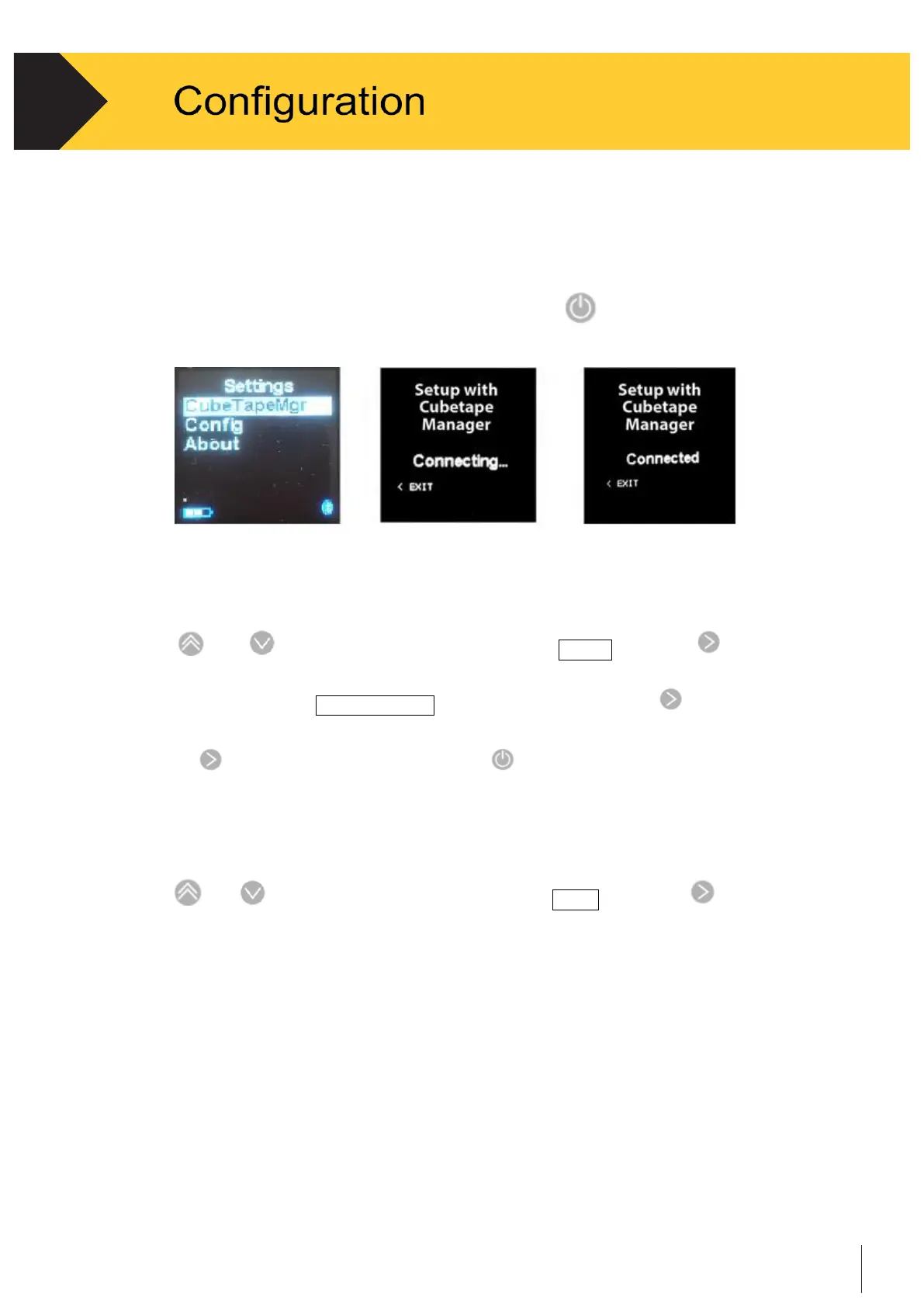
The display shows “Setup with CubetapePRO Manager.” See Figure 3-1.
•
Press the “Detect” button on the Cubetape Manager software to connect to the device.
When the device is detected by the software, the display shows “Connected”. See Figure 3-1.
•
See Section 3-3.in this chapter for more information on software configuration.
•
After “Write” the configuration to the device, press
to reboot the Cubetape
This enables new configurations using a PC.
Figure 3 – 1
3.2.1.2 Bluetooth Settings
•
Use
and
to scroll, when the cursor is on the Config tab, press
to select
and enter Bluetooth settings.
•
The display will show Comm Method tab in Config screen press to select.
•
Select desired Bluetooth connection profile according using Up and Down keys.
Press to accept a (new) setting. Press to go back.
3.2.1.2
About
•
Use
and
to scroll. When the cursor is on the About tab, press
to select.
The About setting displays the identification information of the device, including serial
number, firmware version, model ID, etc.
3.2.2 Scan Engine Configuration
The scan engine used by Cubetape is the Motorola SE965. The SE965 is very widely used in
both Motorola and third-party equipment, which is fully programmable, supports all of
the standard barcode symbology’s and has many other features and options.
Cubetape ships with factory defaults set for the SE965, but these can be changed to suit
local conditions. Ask your dealer for instructions.


 To Next Page