Enjoy Printing Images
32
2
Camera Features
After taking pictures and editing them, you can print them easily by using
DPOF (Digital Print Order Format) settings. You can even print them
directly from the camera without a PC when using a PictBridge-
compatible printer. You can then share prints with friends and family or
keep them in a photo album. Pictures can be output on a DPOF-
compatible printer or printed by a local photo processing lab using DPOF
settings that indicate the number of photos and date imprinting options for
your “print order”.
1
Make the DPOF Print Settings
2
Set the USB Connection Mode
Enjoy Printing Images
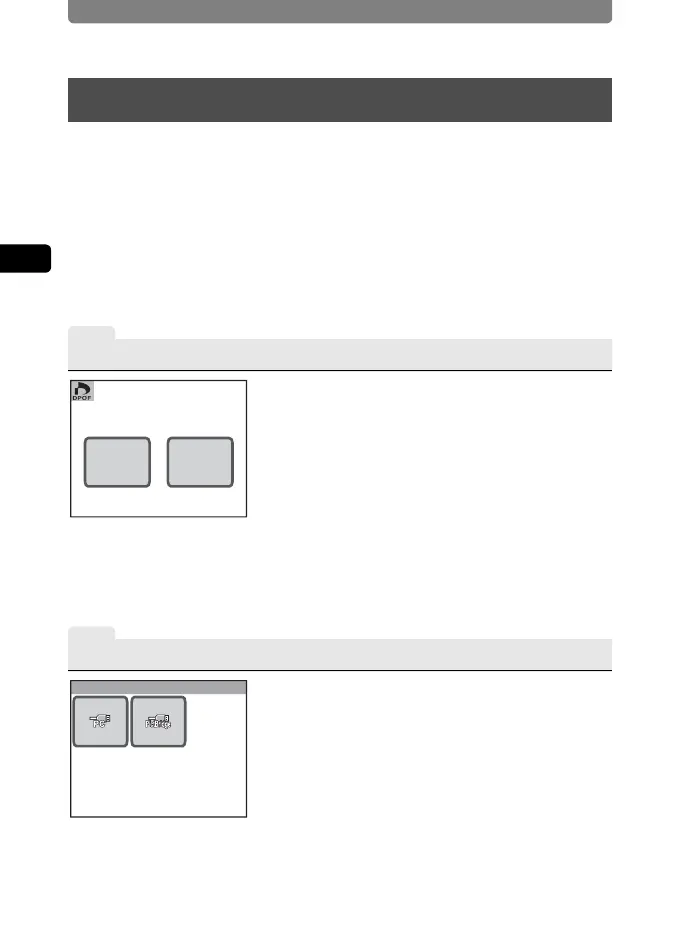
Choose the number of copies and if the date is
to be superimposed on the pictures you want to
print (DPOF settings) (p.110).
The pictures can then be printed using a DPOF-
compatible printer or photo processing lab.
• To use a photo processing lab, take the SD
Memory Card containing the pictures with the print
order data and ask to have them printed.
How to configure the DPOF settings
X In Playback mode, touch the LCD monitor J
[Playback Toolbar] J n J double-touch r.
By connecting the camera to a PictBridge-
compatible printer with the provided USB cable,
you can print images directly from the camera
without a PC.
To print pictures, you need to set the [USB
Connection] mode on the camera to
[PictBridge] in advance (p.130).
Setting the [USB Connection] mode
X 3 button J touch [Setting] J [USB
Connection].
Print One Print All
DPOF
USB Connection



 To Next Page