101Phase One Lab 101XF IQ4 Camera System Manual |
If you want to ensure that the highlights do not clip, it is recommended to
enter Live View and check the RAW Histogram or RAW Clipping Warnings
while justing the exposure.
You can also take a test capture and check whether any details are blown out
on the RAW file in the Viewer by enabling Show Clipping under Exposure
Masks.
Once you are ready, tap on the capture button or press the shutter button on
the camera to capture the Dual Exposure+ image.
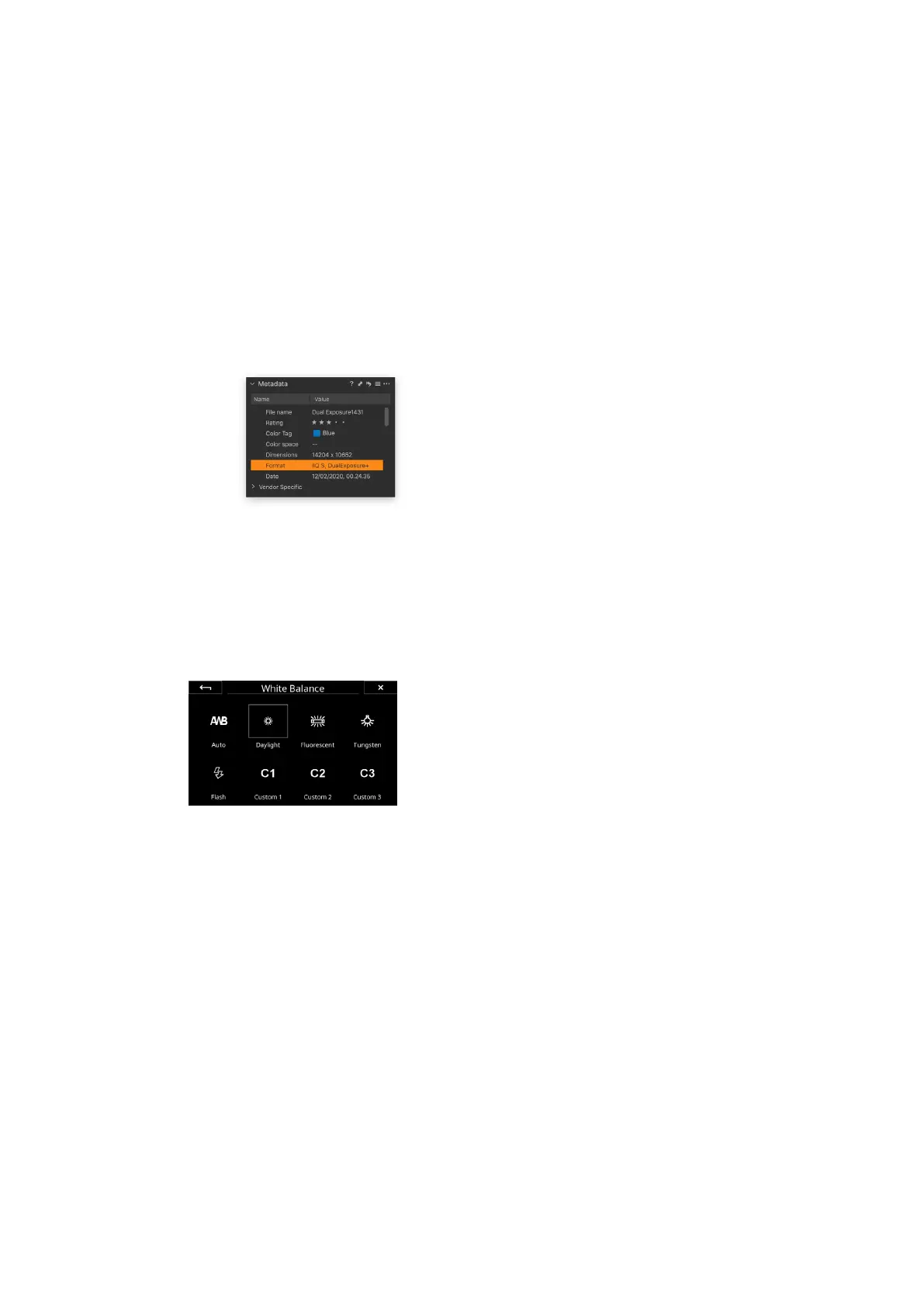
You can recognize a Dual Exposure+ file in Capture One by going to the
Metadata tool and looking under Format while the file will be tagged as
DualExposure+.
Please use Capture One version 20.0.3 or later in order to be able to view and
process the Dual Exposure+ RAW files with the intended image quality. Earlier
versions of 20 only provides preliminary support.
Workflow and Feature Notes
The Dual Exposure+ feature relies on using the Electronic Shutter (ES) and will
thus have the same advantages and limitations as using ES under normal
shooting. This means that you should use a tripod since it might take up to
one second before the whole image has been read out from the sensor. It is
also not recommended to shoot fast-moving subjects (like a car) as they
might appear distorted due to the rolling shutter eect.
The feature is only available on BSI sensors found on the IQ4 150MP and IQ4
150MP Achromatic, but not on the IQ4 100MP Trichromatic.
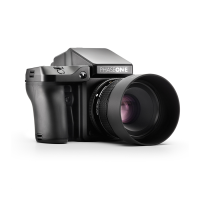
Automatic White Balance does currently not work on Dual Exposure+
captures, so consider setting the white balance manually to for example
Daylight. Otherwise the capture will show up with a heavy green tint.
The Shutter Speed can be set from 0,8 second to 1/4000th of a second. Note
how the secondary longer exposure will in eect be 6 seconds long when you
set the base exposure to 0,8 second.
The ISO value can currently be set to up to 400.


 To Next Page