IQ4 Navigation
Touch Screen Operation
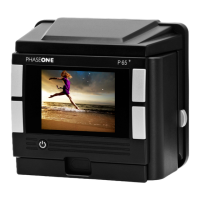
The 3.2-inch touch screen on the IQ4 let you use touch gestures like swipe to
browse through images quickly, pinch to zoom in to an image as well as
activating tools and adjusting settings.
The operation of IQ4 is divided into four major modes: Camera Controls,
Browser, Tools Viewer and Viewer. You cycle through them by pressing the
top-left button on the IQ4 and tapping the button until the desired mode is
chosen in the Mode Bar. If you tap just once on the top-left key, it goes back to
the last used mode. This way you can quickly switch between Camera
Controls and Tools Viewer, for instance, even though they are not next to each
other.
You can also select a mode from the Shortcuts Menu that is accessed by
swiping up from the bottom of the touch screen.
The IQ4 will start up in Camera Controls as default.
Accessing Tools, Settings and Status
While in any of these modes, you can always access the Shortcuts Menu and
the Status Menu. There is also a number of context sensitive Actions and Tools
that you can control while in the Camera Controls, Browser, Viewer, Tools
Viewer or Live View mode.
See next page for a visual guide to the swipe feature.
Changing mode on the touch screen
Swipe up for Shortcuts Menu
Swipe in for Actions (left) and Tools (right)
33IQ4 Navigation 33XF IQ4 Camera System Manual |


 To Next Page