Power Management Options
Power Share With Camera
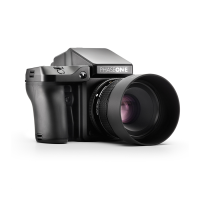
The Power Share feature will allow the XF Camera Body and IQ4 to share
power between the two. This means that you can charge both batteries with a
single power source connected to either the IQ4 or the XF Camera Body. The
Power Share With Camera feature is On by default.
Power O with Camera
This option will power the IQ4 o when you turn the XF Camera Body o. It is
set to On by default. You can set it to O if you want the IQ4 to stay on
regardless of the XF Camera state.
Auto Power Down
This option will ensure that the IQ4 powers down after a period without use to
preserve battery power. It can be set from 5 minutes and up to 2 hours, and
the feature can also be turned o. It is set to 15 minutes by default.
LiveView Auto Power Down
You can set the IQ4 to disengage from Live View after a period without use to
preserve battery power. The period is set to 5 minutes by default. It can be set
from 20 seconds to O.
Display O Time
This option will ensure that the screen on the IQ4 will turn o after a period
without use to preserve battery power. It is set to 1 minute by default. It can be
set from 5 seconds and up to Always on.
Hot swapping batteries on the XF IQ4
The Power Share feature in the XF IQ4 Camera System enables the XF Camera
and IQ4 to share power from each other’s batteries. This will allow you to hot
swap one of the batteries without the camera system shutting down, but
please follow this procedure when doing so:
1. Ensure that Power Management > Power Share With Camera is set to On.
2. Open the battery door on either the IQ4 or the XF Camera Body. Do NOT
remove the battery just yet.
3. The XF IQ4 Camera System will now show a dialog informing you that
either the IQ4 or the XF is preparing the battery change.
4. Wait until either the IQ4 or the XF is telling you it is ready for the battery
change. Then remove the battery and insert another.
5. Close the Battery door. The dialog box will now close, and the camera
system is ready to use again.
72Power ConnectionsXF IQ4 Camera System Manual |


 To Next Page