30
Connect a USB storage device and
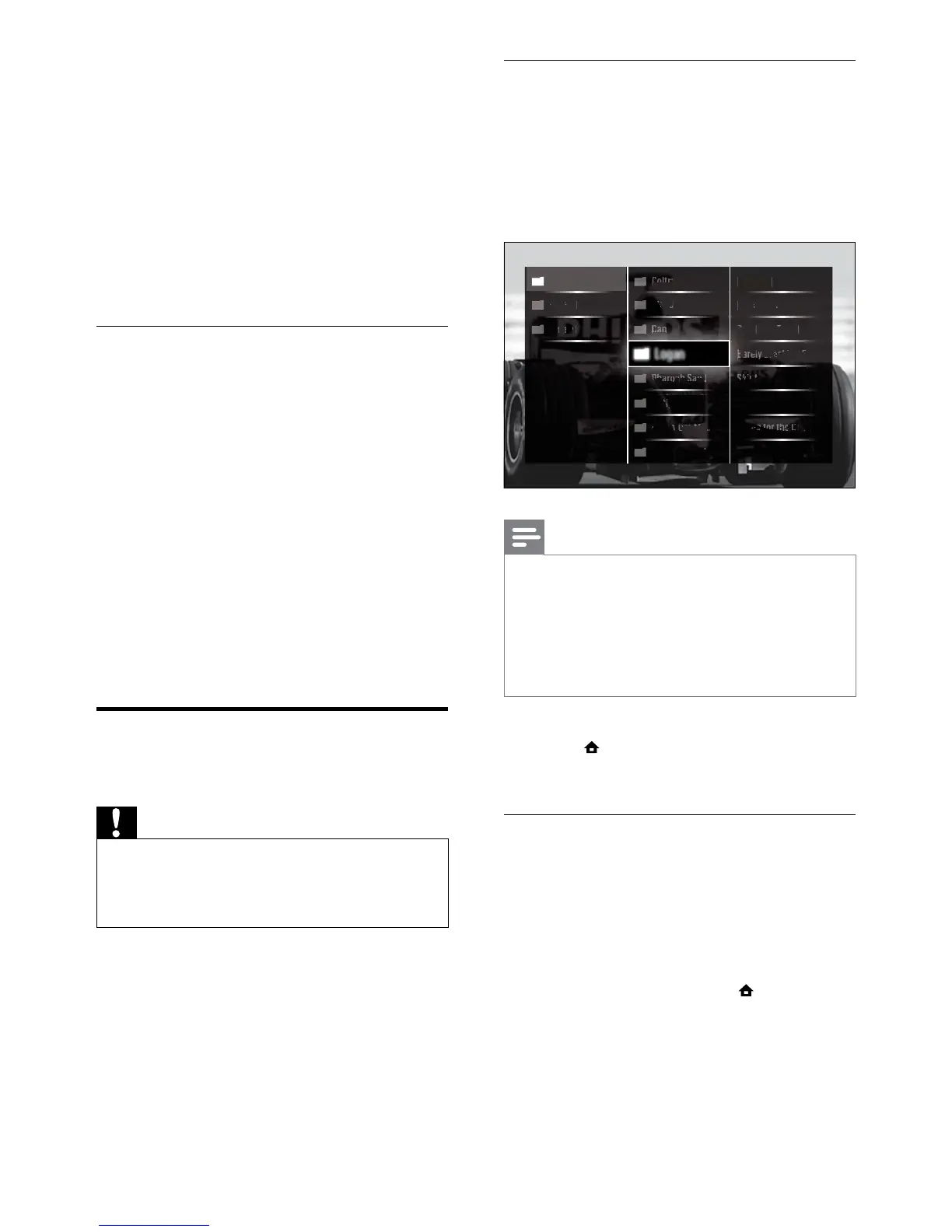
enter the content browser
1 While the TV is on, connect the USB
device to the USB port on the side of
your TV.
The USB content browser appears. »
Note
The USB content browser is also accessible by •
selecting [Browse USB] in the home menu.
If you connect multiple USB storage devices
•
via a USB hub, a message appears prompting
you to select a device. Press the Navigation
buttons to select the device, then press OK
to conrm.
2 To exit from the USB content browser,
press
(HOME).
The home menu appears. »
Connect to a network and enter the
content browser
Before accessing the content browser, be
sure that the TV is connected to a computer
network (see ‘Connect to a network and
enter the content browser’ on page 30).
1 When watching TV, press (Home).
The home menu appears. »
2 Press the Navigation buttons to select
[Browse PC network].
The content browser appears. »
4 Press the Navigation buttons to select
[Installation] > [Clock] > [Auto clock
mode].
The » [Auto clock mode] menu
appears.
5 Press the Navigation buttons to select
[Automatic] or [Manual].
6 Press OK to conrm your choice.
The clock mode is set. »
Enable or disable daylight saving
If clock mode is set to [Manual], enable or
disable daylight saving if required for your time
zone.
1 In the [Clock] menu, press the
Navigation buttons to select [Daylight
saving].
The » [Daylight saving] menu appears.
2 Press the Navigation buttons to select
[Daylight saving time] or [Standard time].
3 Press OK to conrm your choice.
Daylight saving is enabled or disabled »
for your time zone.
View photos, play music and
watch video
Caution
Philips is not responsible if your USB storage •
device is not supported nor is it responsible
for damage or loss of data from use of this
feature.
Your TV is tted with a USB connector that
enables you to view to view photos, listen
to music or watch movies stored on a USB
storage device.
Your TV also has a network connector, enabling
you to access and play media les directly from
your computer.
EN



 To Next Page