37
Step 1 Select your system
Note
Skip this step if your system settings are •
correct.
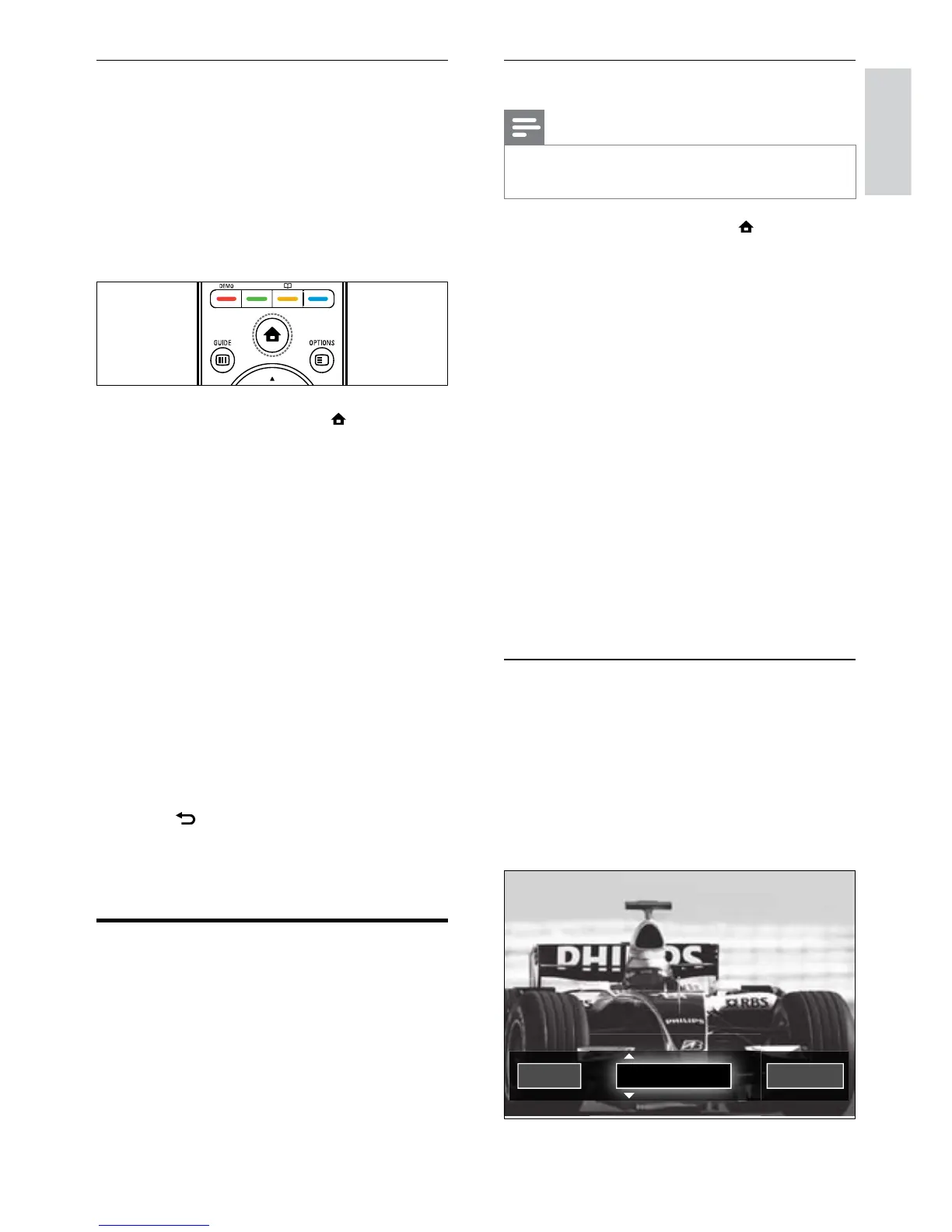
1 When watching TV, press (Home).
The home menu appears. »
2 Press the Navigation buttons to select
[Setup].
The » [Setup] menu appears.
3 Press the Navigation buttons to select
[Installation] > [Channel installation]
> [Analogue: Manual installation] >
[System].
4 Press OK.
A list of regional systems appears. »
5 Press the Navigation buttons to select
your country or region.
6 Press OK to conrm your choice.
The selected country or region is »
applied.
Step 2 Search and store new TV
channels
1 In the [Analogue: Manual installation]
menu, press the Navigation buttons to
select [Find channel].
2 Press OK.
The » [Find channel] menu appears.
Access DVB-C and DVB-T channel
networks
This option appears only if your country
supports DVB-C (Digital Video Broadcasting-
Cable). If you have installed both DVB-C and
DVB-T channels, you have to switch to the
respective network to watch channels on that
network.
1 When watching TV, press (Home).
The home menu appears. »
2 Press the Navigation buttons to select
[Setup].
The » [Setup] menu appears.
3 Press the Navigation buttons to select
[Installation] > [Channel installation] >
[Antenna or Cable DVB] > [Antenna] or
[Cable].
Select • [Antenna] to access DVB-
T (Digital Video Broadcasting-
Terrestrial) channels.
Select • [Cable] to access DVB-C
(Digital Video Broadcasting-Cable)
channels.
4 Press OK to conrm your choice.
5 Press BACK to exit.
The TV switches to the selected »
network.
Manually install channels
This section describes how to search and store
analogue TV channels manually.
English
EN



 To Next Page