36
Caution
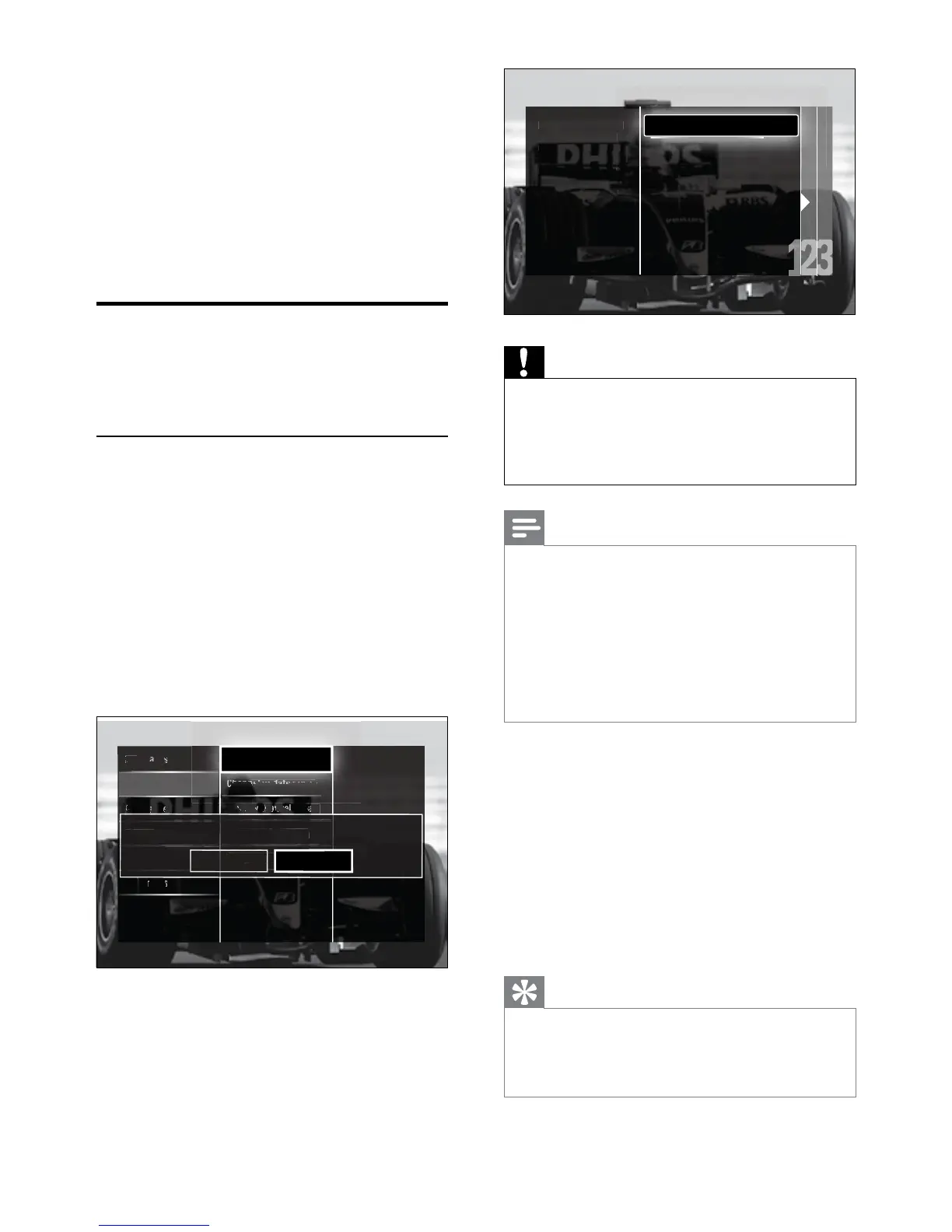
Leave • [Settings] unchanged unless your
DVB-C provider supplies values for [Network
frequency], [Network ID] or [Symbol rate].
Setting
• [Frequency scan] to [Full scan] can
extend installation time signicantly.
Note
If you have access to DVB-T and DVB-C, and •
want to view channels from both networks,
you must perform channel installation twice
— once for DVB-T and once for DVB-C.
Select [Antenna] to install DVB-T channels and
select [Cable] to install DVB-C channels.
To switch between DVB-T and DVB-C
•
channels (see ‘Access DVB-C and DVB-T
channel networks’ on page 37).
5 Press OK.
Follow the onscreen instructions to »
complete channel installation. When
channel installation is complete,
[Done] is selected and a list of installed
channels appears.
6 Press OK to conrm your choice.
The TV exits to the » [Channel
installation] menu.
Tip
When digital TV channels are found, the list of •
installed channels may display empty channel
numbers. You can rename, reorder or uninstall
stored channels as described below.
6 Install channels
The rst time you set up your TV, you are
prompted to select a menu language and to
install TV and digital radio channels (if available).
This chapter provides instructions on how to
re-install and ne tune channels.
Automatically install channels
This section describes how to search and store
channels automatically.
Install channels
Your TV searches and stores all available
digital and analogue TV channels as well as all
available digital radio channels.
1 In the [Channel installation] menu,
press the Navigation buttons to select
[Automatic installation].
2 Press OK.
A message appears prompting you to »
start channel installation.
3 Press the Navigation buttons to select
[Start].
4 Press OK.
The channel update screen appears, »
with [Re-install channels] selected.



 To Next Page