49
Use a Conditional Access
Module
A Conditional Access Module (CAM) is
provided by digital TV service operators to
decode digital TV channels.
Note
If required, refer to documentation from your •
operator on how to insert a smart card into
the Conditional Access Module.
Insert and activate a CAM
Caution
Be sure to follow the instructions described •
below. Wrong insertion of a CAM may
damage both the CAM and your TV.
1 Switch off the TV.
2 Following the directions printed on the
CAM, gently insert the CAM into the
COMMON INTERFACE at the side of
the TV.
3 Push the CAM in as far as it will go.
4 Turn on the TV and wait for the CAM
to be activated. This may take several
minutes. Do not remove the CAM from
the slot when in use — removing the
CAM will deactivate digital services.
Access CAM services
1 After inserting and activating the CAM,
press
OPTIONS.
The options menu appears. »
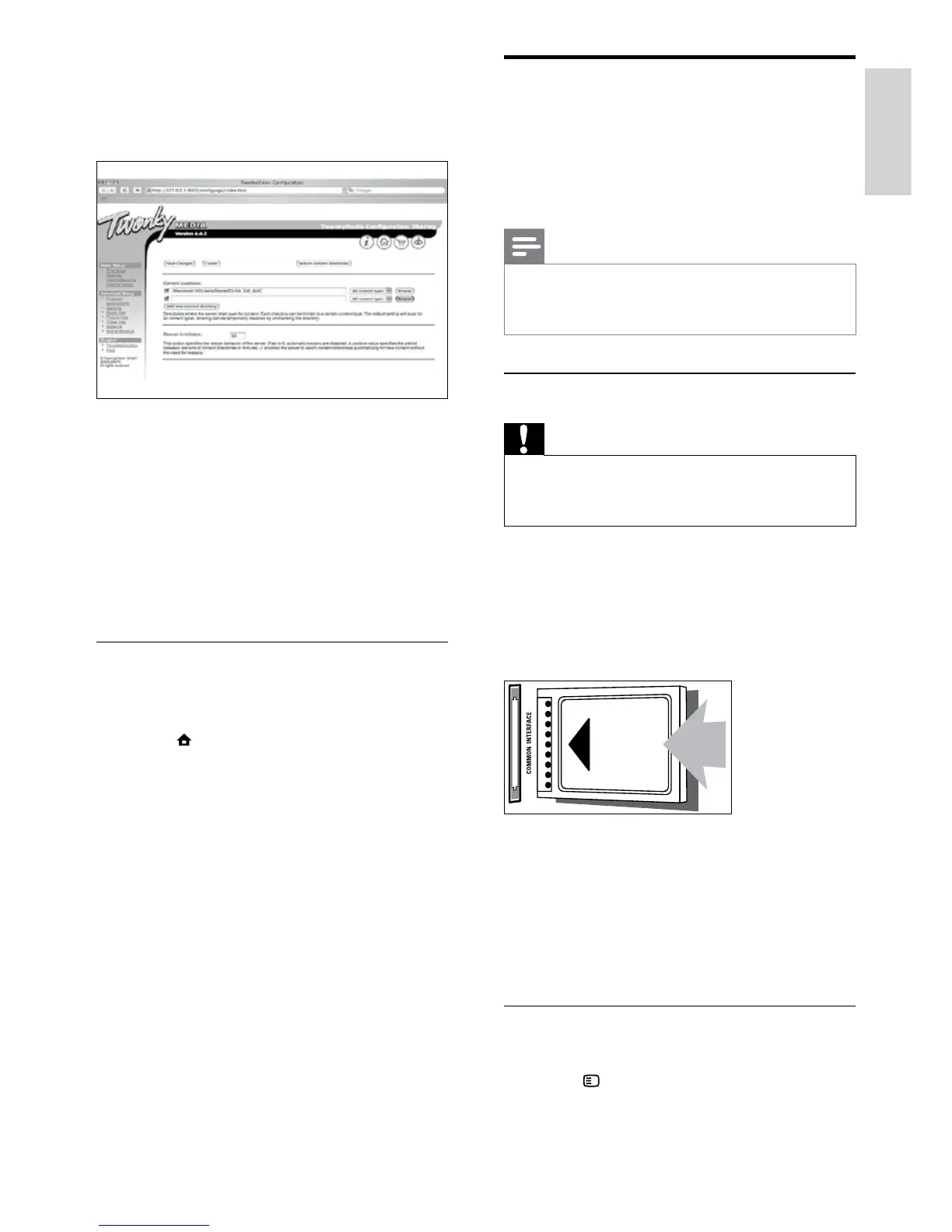
Add folders for media sharing
1 In the Basic Setup box, click Sharing.
Sharing settings appear. »
2 Click Browse to add a folder location.
Click Add new content directory to add
more folders.
3 When all folders are added, click Save
changes then click Rescan content
directories.
Media les are ready to be accessed »
from the TV.
Setup media server software
1 When the TV is connected to a
computer network with Internet access,
press
(Home).
The home menu appears. »
2 Press the Navigation buttons to select
[Setup].
The » [Setup] menu appears.
3 Press the Navigation buttons to select
[Network] > [Network].
Follow the on-screen instructions that »
appear to congure the TV for access
to Net .
English
EN



 To Next Page