17
English
Setting item
escription
SRS
TruSurround H
ff
ets SRS TruSurround HD to off
elects available modes for surround sound
AVL (Auto
Volume Leveling)
ff
ets AVL to off
Reduces sudden changes in volume, for example
ur
ng commerc
a
s or w
en sw
tc
ng c
anne
s
spea
er
ff
he sound will not be output from the unit's
spea
ers
he sound will be output from the unit's
spea
ers
Speakers
asy
in
You can control audio out
ut from
ou
connected Eas
Link Com
liant Devices with
VOL + / − b
usin
this unit
s remote control
e
ta vo
ume
If a channel
or
nput
ev
ce
s
oo
ou
av
ate to t
at c
anne
or
n
ut
ev
ce an
set a ne
at
ve
e
ta
vo
ume
eve
as
er
ou
personal preferences
Too Sof
av
gate to t
at c
anne
or
nput
ev
ce an
set a pos
t
ve
e
ta
vo
ume
eve
as per you
personal preferences
ress
to ex
t
Note
must
e act
vate
n t
e
reference
menu to ma
e t
e
TV Speaker
menu ava
a
e w
en you se
ect
n
o
Using auto mode
ress
UTO MOD
to set your TV to a predefi ned picture and
soun
sett
ng
se
o
to select one of the followin
settin
s
ersona
: The customized settin
s
ou defi ned b
usin
e
icture
menu
Sport
: Vivid
icture settin
s and clear sound for hi
h action
Standar
:
or norma
v
ew
n
ovie
: Brilliant picture settings for a cinematic experience
ame
: Optimized for PCs, games consoles and playstations
ower Saver
: Eco TV settings for lower power consumption
Create and use lists of favorite channels
You can create lists of
our
referred TV channels and radio stations so
hat
ou can fi nd those channels easil
Select a list of favorite channels
ress
Your lists of favorite channels are displayed
se
o
o
t a
st, an
t
en
ress
to se
ect t
e
st
Using your TV as a PC monitor
se a VGA connector to connect a PC to your TV. For sound, add an
au
o ca
e w
t
a stereo m
n
ac
Caution
Before you connect your PC, set the PC monitor refresh rate to 60Hz
Supported screen resolutions
he followin
screen resolutions are su
orted in PC mode
eso
ut
on Refresh rate
640×480 60Hz
800×600 60Hz
024×768 60Hz
280×768 60Hz
360×768 60Hz
440×900 60Hz
280×102
60Hz
400×1050 60Hz
680×1050 60Hz
920×1080 60Hz
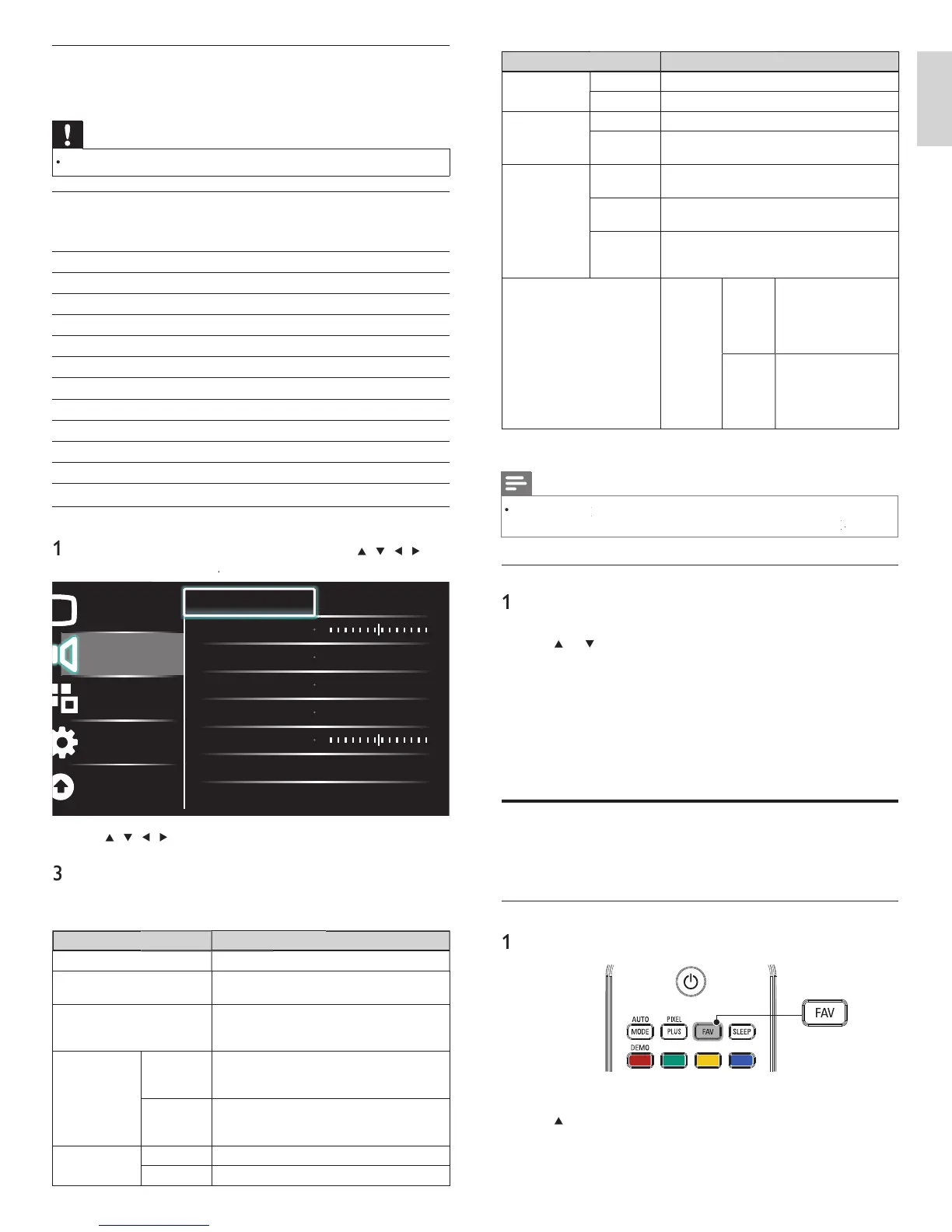
Changing sound settings
ress
on t
e remote contro
an
t
en use
/
/
/
o
se
ect
Setu
>
Soun
Picture
Sound
Features
Installation
Software update
Equalizer Start now
Balance
SRS TruSurround HD Off
AVL Off
TV speakers On
Delta volume
se
/
/
/
o
t a soun
sett
n
an
t
en
ress
o
se
ect t
e sett
n
Adjust the following items
he following sound settings can be confi gured. Depending on the
soun
source, some soun
sett
ngs are not ava
a
e
Setting item
escription
qua
izer
djust tone quality for each frequency
a
ance
d
usts the balance of the ri
ht and left
ea
ers to
est su
t
our
sten
n
os
t
on
igita
au
io
anguage
vailable for di
ital channels onl
, when
mu
t
e
an
ua
es are
roa
cast.
sts ava
a
e
au
o
an
ua
es
lternate audi
in
vailable for analog channels only when a main
and second audio program (SAP) is broadcast
elect the main audio program
SAP
vailable for analog channels only when a main
and second audio program (SAP) is broadcast
elect the second audio program
Mono / Stere
on
ut
uts mono-audio
Stere
ut
uts stereo-audio
EN






 To Next Page