27
English
Updating software
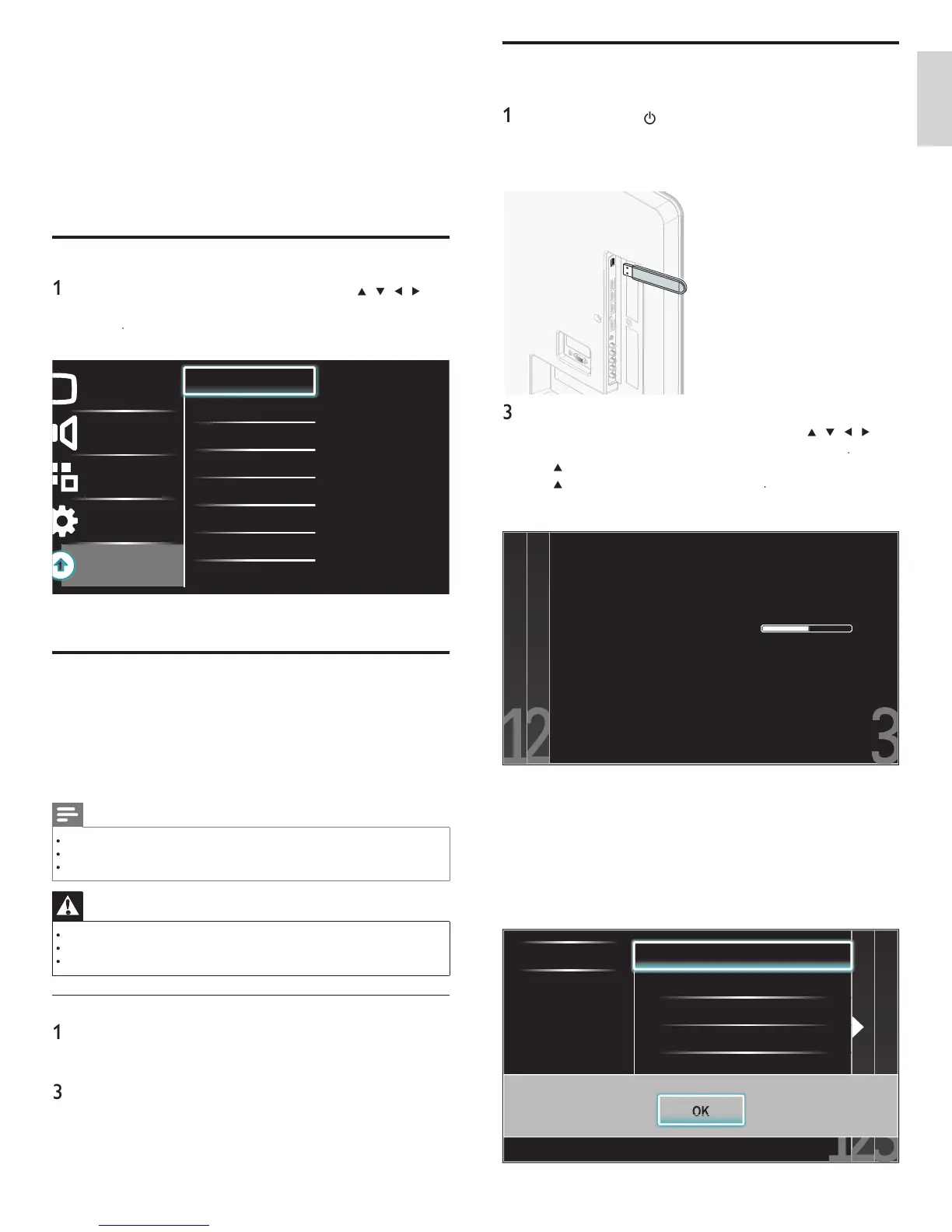
You can update the software by using USB storage device
If the TV is on, press
OWE
at the side of the TV to switch of
e
Connect
our USB stora
e device with the u
date fi le to the USB
ort on the side of
our TV
Switch on the TV
ress
on t
e remote contro
an
t
en use
/
/
/
o
se
ect
Setu
>
Software update
>
p
ate
>
US
se
o
o se
ect the desired U
date fi le
se
o
o se
ect
e
, t
en
ress
Read the on-screen instructions and confi rm that
ou want to
cont
nue w
t
t
e
nsta
at
on
Software update is in progress. Please wait.
Do not remove the USB storage device or
turn the TV off while upgrade is in progress.
Update your TV with new software:
8 When the software update is complete, remove the USB storage
ev
ce
9 Unplug the AC power cord for a few seconds from AC outlet and
p
ug
t aga
n
Switch on the TV
he TV starts u
with the new software
he following messages are displayed without starting software
update when it doesn’t fulfi ll the update conditions
Select a fi le No valid software fi le on the USB. Chec
Error
8 Update your TV software
ps cont
nuous
y tr
es to
mprove
ts pro
ucts an
we strong
y
recommend that you update the TV software when updates are available
ew software can be downloaded from our website at
www.p
i
ips.com using the type number of your TV
(e.g. 55PF
505D) to fi nd information
Checking your current software version
ress
on t
e remote contro
an
t
en use
/
/
/
o
se
ect
Setu
>
oftware update
>
urrent software inf
>
Selec
he version and a description of the current software is displayed
Picture
Sound
Features
Installation
Software update
Current software info XXXXX
Updates
2
ress
to ex
t
Preparing for the software update
ou require the following equipment
PC with web browsin
ca
abilit
n archive utilit
that su
orts the ZIP-format
e.
. WinZi
for Windows or StuffIt for Mac OS
USB stora
e device
Note
Onl
FAT / DOS-formatted
ortable memor
is su
orted
New software can be downloaded from www.
i
i
s.com
Use only software updates that can be found on the Philips web site
Warning
When the software update is running, don’t press any buttons
Do not remove the USB storage device during the software update
If an error occurs during the update, retry the procedure or contact your deale
.
Downloading the software
On
our PC, o
en a web browser and
o to www.
i
i
s.com
2 Find information and software related to your TV and download
he latest software update fi le to your PC
Decom
ress the ZIP-fi le
Copy the update fi le to the root directory of the USB storage device
EN




 To Next Page