24
View your picture on a USB storage device
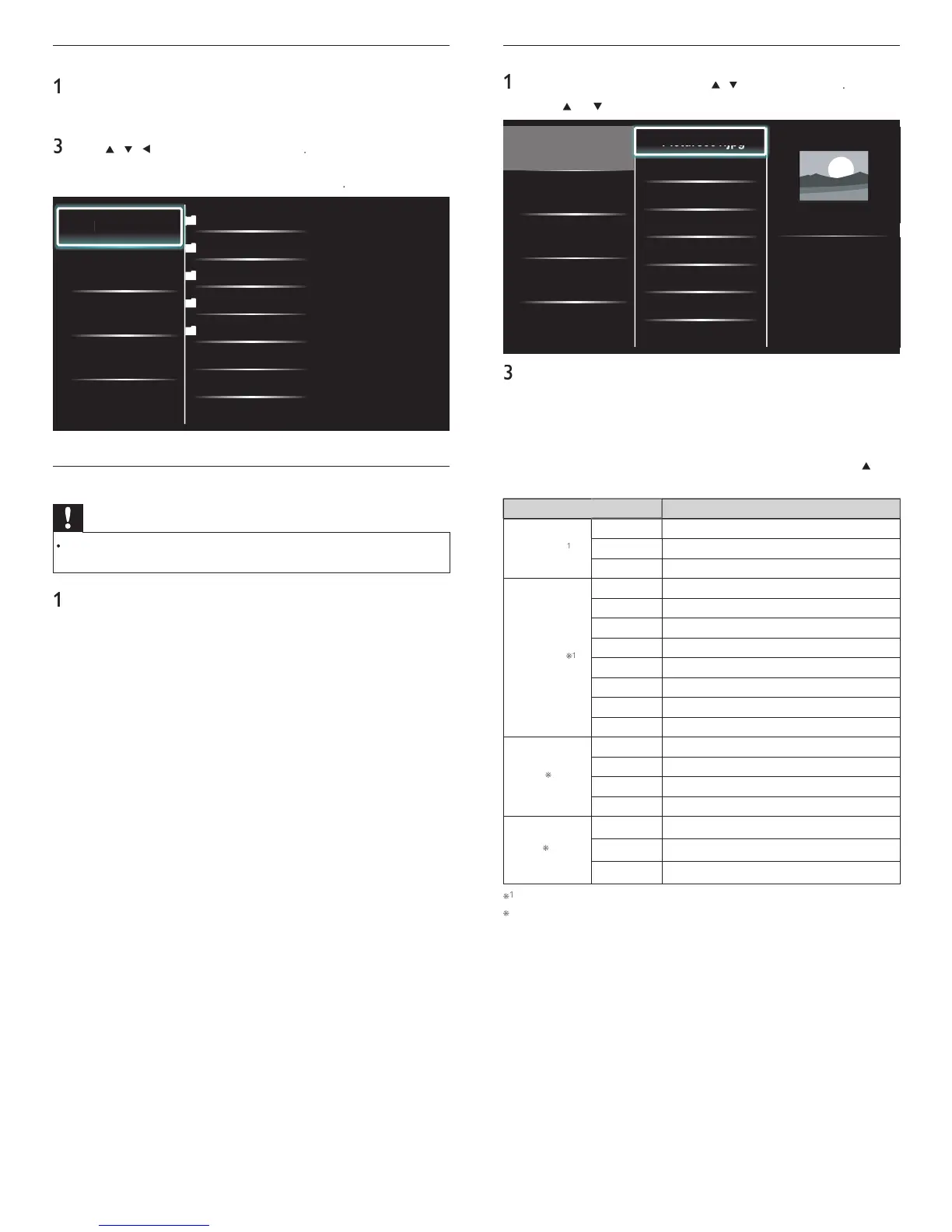
In the USB content browser
use
/
to se
ect
icture
2
ress
o
to select a fi le or a folder on the USB storage device
Picture
Music
Video
Picture001.jpg
Picture002.jpg
Picture003.jpg
Picture001.jpg
02/02/2009 11:29 AM
2031 x 1434 pixels
ress
o
o start a slideshow of the fi les
ress
o
o pause t
e s
e s
ow
e
con appears
ress
o
to move
etween
ma
es
ress BAC
o
to sto
t
e s
e s
ow
ress
PTIONS to
s
a
t
e o
t
ona
menu, t
en use
o
o se
ect t
e
es
re
tem
Setting item
escription
Slide time
*
Shor
witches to the next ima
e in 5 seconds
e
ium
witches to the next ima
e in 10 seconds
ong
witches to the next image in 15 seconds
ransitions
one
o effect when switching images
isso
ve
verlaps a next image on a current image
ipe rig
ushes a current image out from left
Wipe lef
ushes a current image out from right
ipe u
ushes a current image out from bottom
ipe
own
ushes a current image out from top
ox i
next ima
e comes into the center from out
ox ou
next ima
e
oes to the out from cente
.
otate
s
a
s an
ma
e at
ts or
na
rect
on
9
Rotates an ima
e clockwise b
90 de
rees
18
Rotates an image clockwise 180 degrees
27
Rotates an image clockwise 270 degrees
oom
1
s
a
s an
ma
e at
ts or
na
s
ze
2
Magnifies a current image as twice
4
Magnifies a current image as fourfold
ou can set
Slide time
an
ransition
when images are in Slide show
ou can set
otate
an
oom
when Slide show is in pause mode
Connect a USB storage device
urn on t
e
Connect the USB stora
e device to the USB
ort on the side o
our
se
/
/
/
o se
ect
Browse USB
ress
PTIONS to
sp
ay t
e opt
ona
menu, t
en press
o sw
tc
etween
ist
an
um
nai
Picture
Music
Video
2009/09/08
2009/09/09
2009/09/10
2009/09/11
Picture
Picture001.jpg
Picture002.jpg
Disconnect a USB storage device
Caution
To avoid damaging the USB storage device always exit the on-screen menu and wait 5
seconds before you remove the USB storage device
ress
to ex
t t
e on-screen menu
Wait 5 seconds then remove the USB stora
e device
EN




 To Next Page