22
EasyLink
his function allows you to operate the linked functions between ou
rand devices with a EasyLink feature and this unit connecting through
an
ca
e
ress
on t
e remote contro
an
t
en use
/
/
/
o
se
ect
Setu
>
nsta
ation
>
reference
>
Location
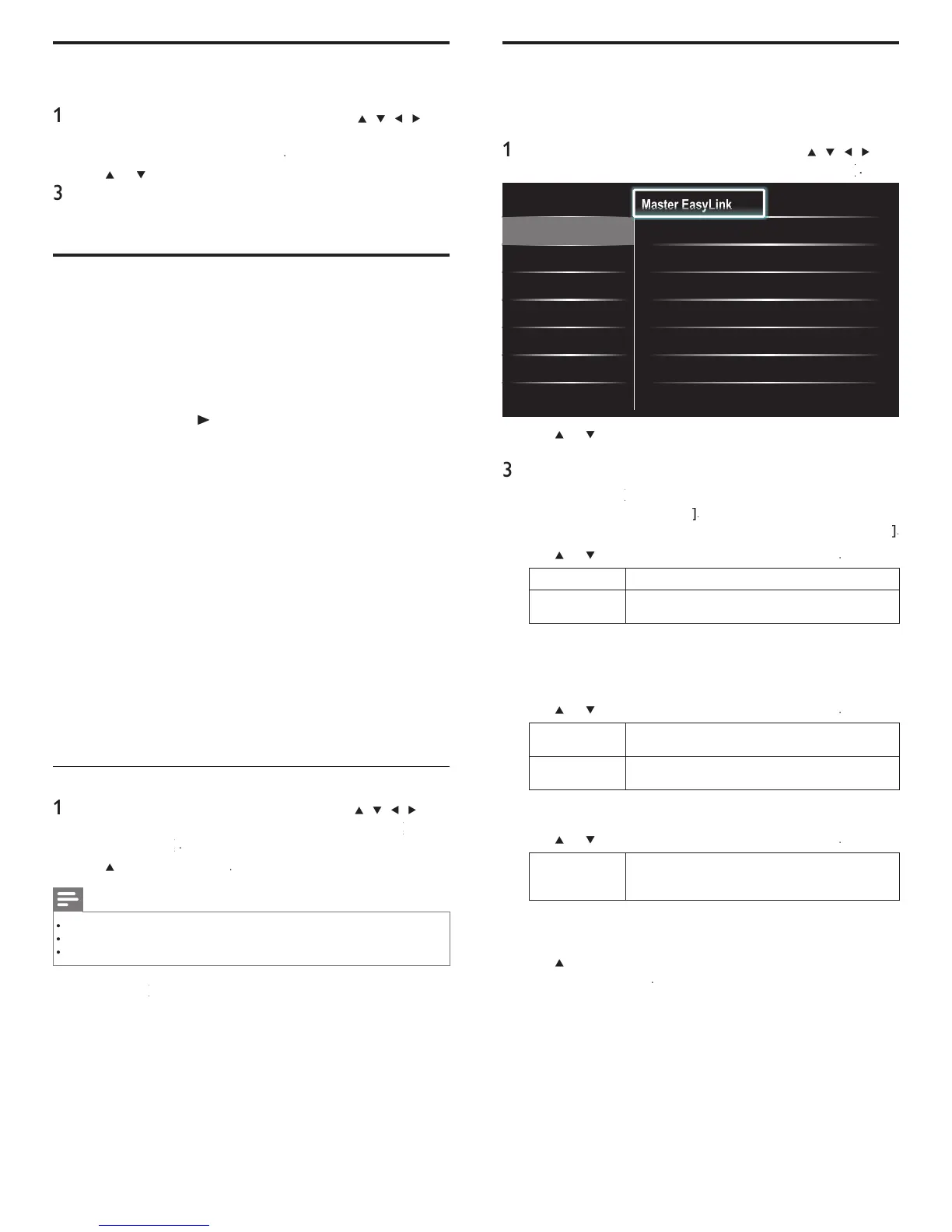
EasyLink
Master EasyLink On
Auto TV On
•
On
RC Key forwarding
•
Select
Device List
•
Select
•
•
•
•
2
se
o
to
g
g
t t
e
es
re
sett
ng an
t
en press
o
se
ect t
e sett
ng
Ad
ust the followin
items
et the Eas
Link
n
o
f
he followin
additional settin
s will disa
ear when
ou set to
f
se
o
to se
ect t
e
es
re
opt
on, t
en press
ff
sa
e a
as
n
elect if you have connected an external device that
s compatible with the EasyLink function
Auto TV On
he unit will turn on detected by the power on signal sending from
our
ev
ce
se
o
to se
ect t
e
es
re
opt
on, t
en press
ff
he unit stays off even if you turn on your connected
asy
n
ev
ce
e un
t turns on automat
ca
y w
en you turn on
our connecte
asy
n
ev
ce
RC Key forwarding
se
o
to se
ect t
e
es
re
o
t
on, t
en
ress
D
o
D
elect enable or disable RC key forwarding if this
unit connected through HDMI1 to HDMI4 to you
asy
n
ev
ces
evice
is
his function lets you see the product name of connected devices
se
o
o se
ect t
e
es
re
ev
ce
ste
on t
e
screen, t
en press
ress
to ex
t
Use the demo mode
ou can use demonstrations to better understand the features of your TV
ress
on t
e remote contro
an
t
en use
/
/
/
o
se
ect
Setu
>
eature
>
em
.
lso, you can enter the
emo mo
e w
en you press DEMO
se
o
to
t a
emo, an
ress
to start t
e
emo
o
ow t
e on-screen
nstruct
ons to en
oy t
e
emo
ress
o ex
t
Use Philips EasyLink
our
supports
ps
asy
n
, w
c
ena
es one-touc
p
ay an
ne-touch standb
between Eas
Link-com
liant devices. Com
liant
ev
ces must
e connecte
v
a an
connecto
.
ne-touch play
en
ou connect
our
to
ev
ces t
at su
ort one-touc
a
ou can contro
your
an
t
e
ev
ces w
t
one remote contro
.
o
examp
e, w
en you press
play) on your
remote contro
, you
automat
ca
y sw
tc
es to t
e correct c
anne
to s
ow t
e
on
en
ne-touch standby
en you connect your
to
ev
ces t
at support stan
y, you can
use your
remote contro
to put your
an
a
connecte
evices in standby mode. You can perform one-touch standby using the
remote control from any of the connected HDMI devices
System audio control
When
ou connect
our TV to HDMI CEC com
liant devices,
ou
V can switch automaticall
to
la
audio from the connected device
o use one-touch audio,
ou must ma
the audio in
ut from the
onnecte
ev
ce to
our
ou can use the remote control from the connected device to ad
ust
e vo
ume
Remote control (RC) key forwarding
RC ke
forwardin
allows
ou to control Eas
Link-com
liant device
us
ng your
remote contro
Activate Master EasyLink
ress
on t
e remote contro
an
t
en use
/
/
/
o
se
ect
Setu
>
nsta
atio
>
Preference
>
>
se
o
o se
ect
On
Note
elect
ff
to disable this function
hili
s does not
uarantee 100% intero
erabilit
with all HDMI CEC devices
e
as
n
-com
ant
ev
ce must
e sw
tc
e
on an
se
ecte
as t
e source
must
e act
vate
n t
e
reference
menu
o
ma
e t
e
TV Speaker
menu ava
a
e
n t
e
oun
menu
EN





 To Next Page