27
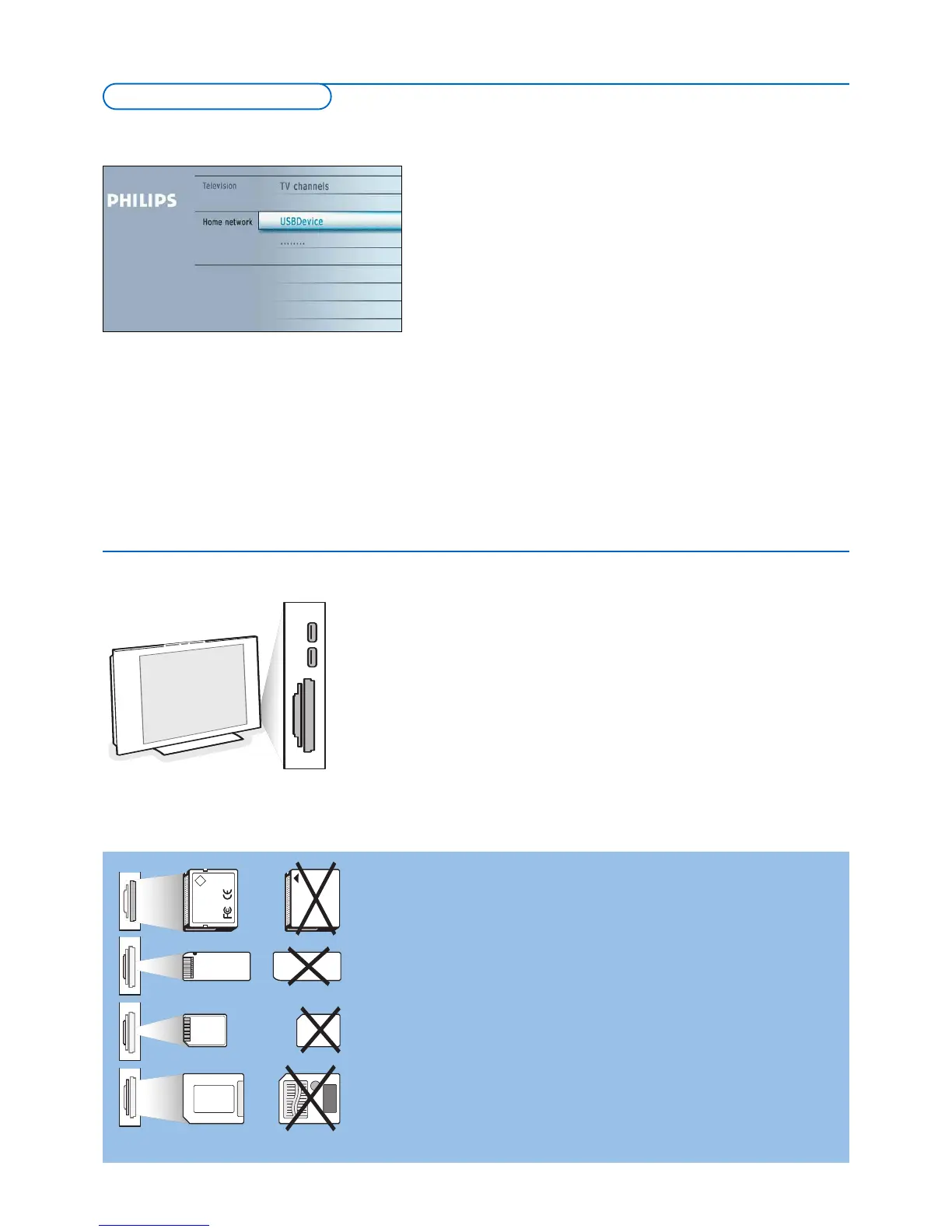
Home network browser lets you display pictures or play audio files stored on a
U
SB device or a memory card.
T
he Home network browser application is invoked from the My Content menu
(press the
= button) by selecting a device and pressing the cursor right.
Notes:
- Following types of memory cards can be read:
Compact Flash I & II, Memory Stick, Memory Stick PRO, SD Card, Smart Media,
Micro Drive, MultiMedia Card.
- Following file formats can be reproduced:
•
For pictures: JPEG
•
For audio: MP3, MP3 Pro
- Only FAT/DOS-formatted memory devices are supported.
- If your digital camera is not supported, try one of the following solutions:
• Make sure your camera is switched on and verify if its configuration settings are
correct (see the manual of your camera).
• Remove the memory card from your camera and insert it in the memory card
slot. Refer to www.philips.com/support for more information.
-
Philips cannot be responsible if your USB device or memory card is not supported.
Compact Flash I & II /
Micro Drive
Memory Stick
Smart Media
Card
MultiMedia Card /
SD Card
CF
Card data protection
•
Do not remove the card/USB device when the content is being read or
when browsing. Such action may damage the memory card/USB device.
• Do not touch the terminals on the back of the card.
• Always insert a card in the correct direction. Failure to do so may result in
damage to the card and the unit.
• Do not subject the card to excessive pressure or strong impacts.
• Malfunctions of the unit or card may result in data loss or damage to the
car
d.
•
Philips shall not accept any liability for damage or loss of stored data.
Warning:
Memory cards can be swallowed by young children. Do not allow
childr
en to handle memory cards. Please, remove the memory card
immediately after use.
Compact Flash I & II /
Micro Drive
Memory Stick
Smart Media
Card
MultiMedia Card /
SD Card
CF
Viewing content from a Memory card / USB device
Inserting a memory card / USB device
Note: Memory cards or USB devices are not supplied with this TV.
Insert a memory card in one of the cardslots at the right side of the TV.
Insert it to be clicked in.
In case of a memory stick or a digital camera, connect it to one of the USB2.0
connectors.
When a memory card or a USB device is inserted, the Home network menu is
displayed automatically, see further.
Removing the memory card / USB device
& First switch off the My Content menu.To do so, navigate to the Home
netw
ork br
o
wser men
u and press the
= button teo exit the men
u.
é Remove the memory card/USB device.
Home network browser




 To Next Page