43
I
ntroduction
Philips offers software upgrade capability for your TV using portable
memory.
After you have completed a software upgrade, your TV will typically
perform better.
W
hat improvements are made depends on the upgrade software you are
u
sing as well as the software your TV contained before the upgrade.
Y
ou can execute the software upgrade procedure yourself.
Be aware that the content of this document is addressing technical or
software skilled users.
Preparing a portable memory for software upgrade
F
or the procedure you will require:
•
A personal computer with web browsing capability.
• An archive utility that supports the ZIP-format (e.g.WinZip for Windows
or StuffIt f
or Mac OS.
• A preferably empty USB memory stick or memory card (if available).
Supported memory cards (if available): CompactFlash Card Type I & II, IBM
Microdrive, Memory Stick, SecureDigital Card / Mini SD Card, SmartMedia
Car
d, MultiMedia Card.
Note: Only FAT/DOS-formatted portable memory is supported.
New software can be obtained from your dealer or can be downloaded
from the www.philips.com/support website:
& Go to www.philips.com/support using the web browser on your PC.
é Follow the procedure to find the information and the software related to
your TV.
“ Select the latest software upgrade file and download it to your PC.
‘ Decompress the ZIP-file and copy the file “autorun.upg” to the root
directory of the USB portable memory.
Note: Only use software upgrades that can be found on the
www.philips.com/support web site.
Verifying the v
ersion of the TV software
Before starting the software upgrade procedure, it is advised to check what
the current TV software is.
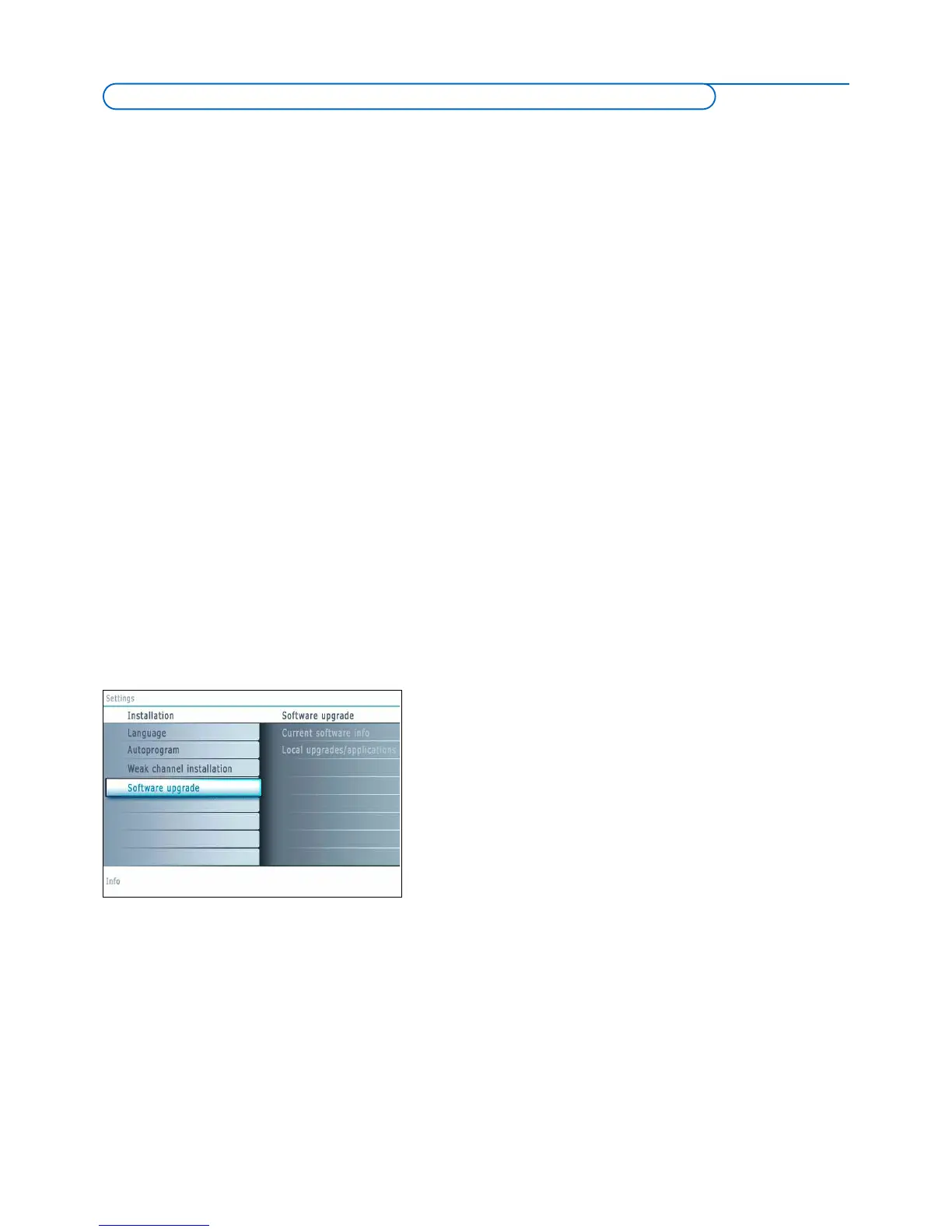
& Select Software Upgrade in the Installation menu.
é Press the cursor right.
The Software Upgrade menu moves to the left panel.
“ Select Current Software Info to observe the version and the description
of the current software.
Annex 1 -
Philips TV software upgrade with portable memory




 To Next Page