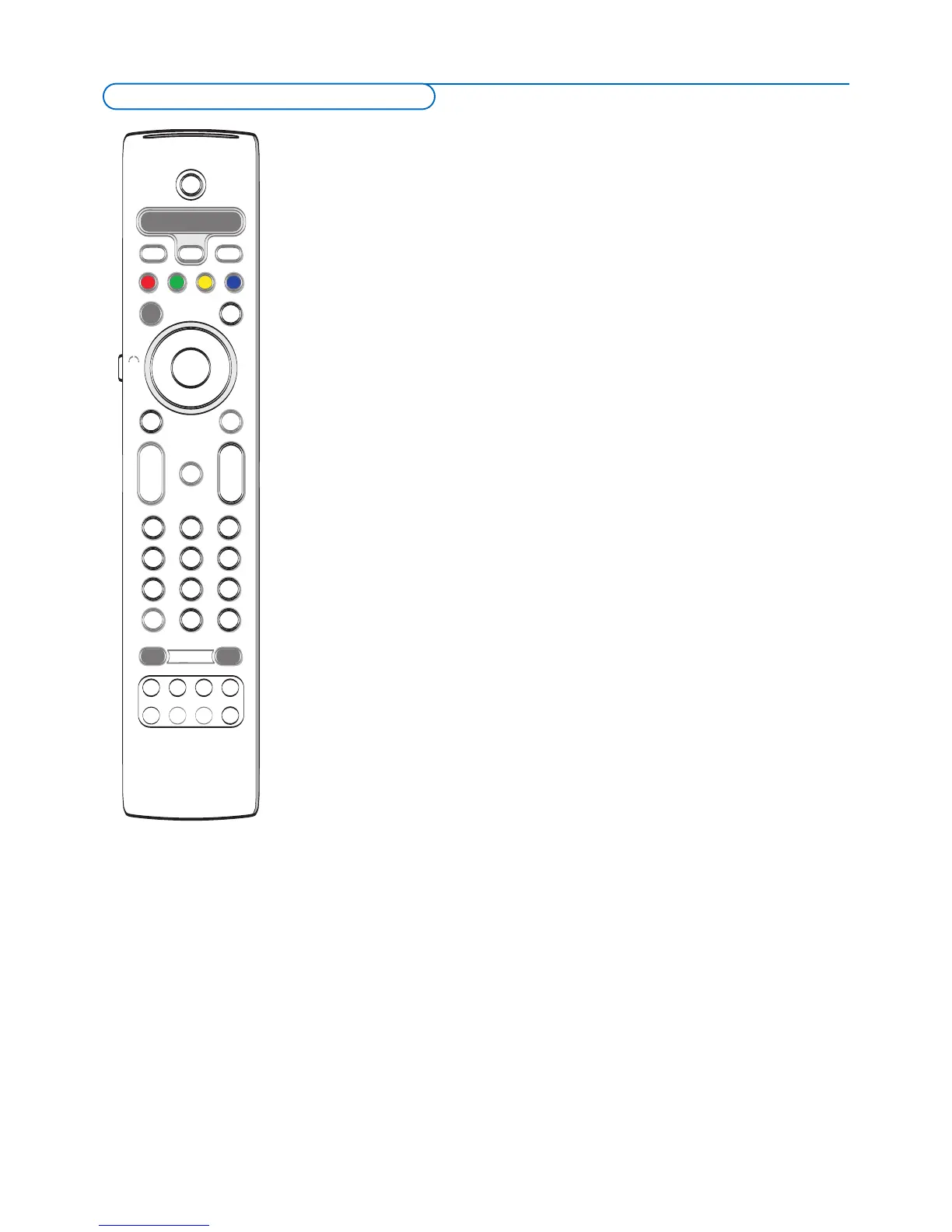
POWER to switch to standby
º for pause,
® for record,
Ò for rewind (VCR, CD);
search down (
DVD, AMP)
‡ for stop,
π for play,
† for fast forward (VCR, CD);
search up (
D
VD/AMP
)
INFO display information
MENU to switch the menu on or off
- CH + for chapter, channel, track
selection
0 to 9 digit entry,
- tape index (VCR),
select a DVD chapter,
select a frequency (
AMP)
cursor up/down
to select the next or the
previous disc (
CD)
cursor left/right
to select the previous or
following track (
CD)
Expert mode
When you do not want the remote to go back to TV mode, and to stay in the
mode selected, proceed as follows:
Select TV mode with the
SELECT button.Wait until no LED is lit. Press the
SELECT button again simultaneously with the OK button for at least 2
seconds.The remote will not go back to TV mode from now on and will remain
in the mode selected.
To go back to the default setting of the remote (TV mode) repeat what is
explained above, selecting the TV mode.
Note: LED behavior
- If the LED blinks once after pressing the SELECT button simultaneously with the OK
button for at least 2 seconds, the remote control is in Expert mode and the remote
control remains in the mode selected.
- If the LED blinks
4 times after pressing the SELECT button with the OK button for
at least 2 seconds, the remote control is in
Normal mode and the remote control
returns to TV mode after 60 seconds.
Direct selection of a connected device
When the r
emote is in
TV Exper
t mode
y
ou ma
y dir
ectly select a connected
device in the following way:
Press:
- The
AV+ button followed by digit ‘1’ to select the device connected to AV1.
- The
AV+ button followed by digit ‘2’ to select the device connected to AV2.
-
The
A
V+
button f
ollo
w
ed by digit ‘
3’ to select the de
vice connected to
A
V3
.
- The
AV+ button followed by digit ‘4’ to select the device connected to
HDMI1.
-
The
A
V
+ button f
ollo
w
ed by digit ‘
5’ to select the de
vice connected to
HDMI2.
- The
AV+ button followed by digit ‘0’ to select the device connected to the
side.
Note: Make sure your device is turned on.
Notes:
- If no action is being undertaken within 60 seconds, the remote control returns to TV
mode.
- After an action in the selected system mode, the remote control will remain in this
mode for 60 seconds and will then return to TV mode or press the
SELECT button to
return to TV mode immediately.
M
ost of the audio and video equipment from our range of products can be
o
perated with the remote control of your TV.
Normal mode
P
ress one of the buttons after you pressed the
SELECT b
utton repeatedly
a
ccording to the equipment you want to operate with this remote control. See
Use of the remote control, p. 6.
Audio- and video equipment buttons




 To Next Page