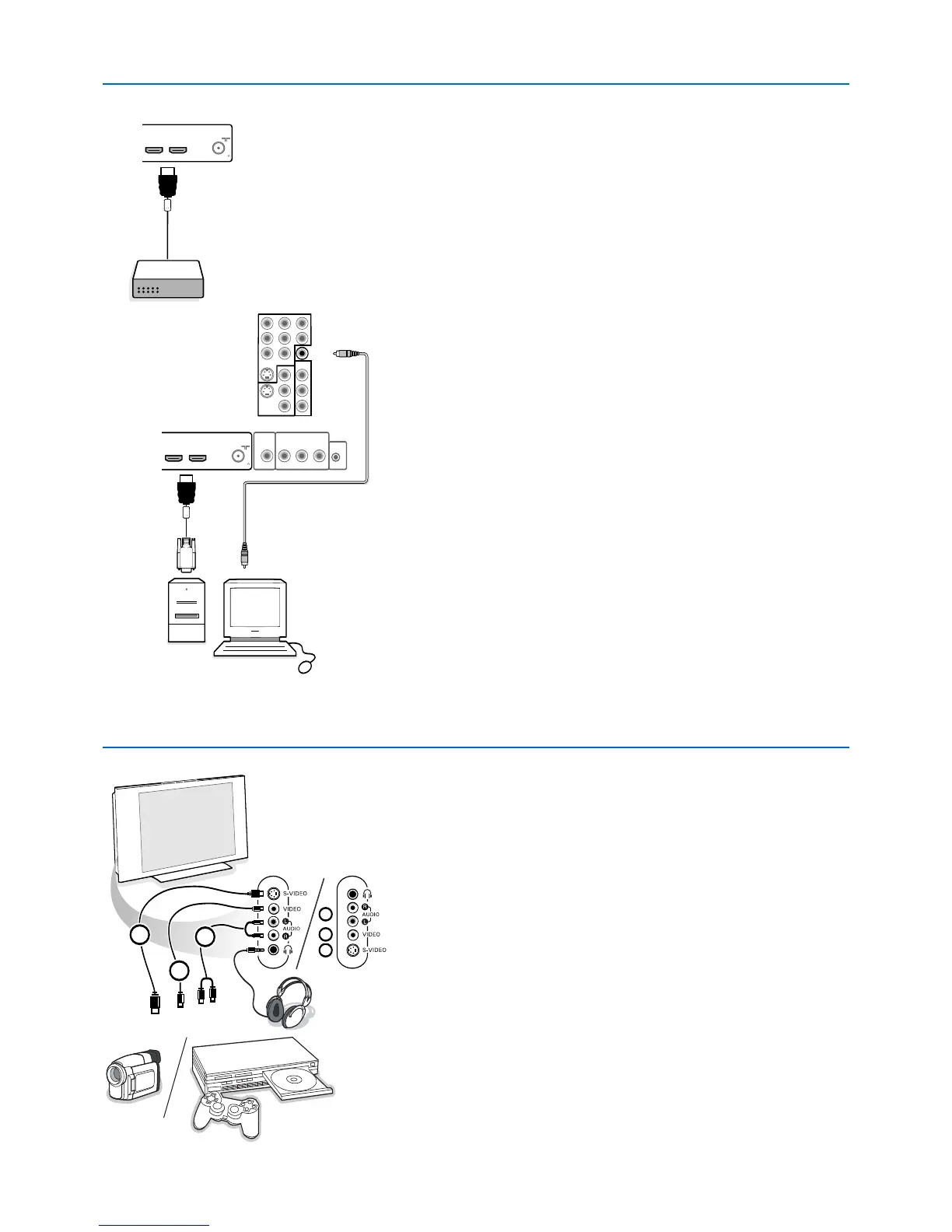
Side connections
Camera, Camcorder, Game
& Connect your camera, camcorder or game as shown.
é Connect to VIDEO 2 and AUDIO L 3 for mono equipment. For stereo
equipment also connect
AUDIO R 3.
S-VHS quality with an S-VHS camcorder is obtained by connecting the S-
VHS cables with the
S-VIDEO input 1 and AUDIO inputs 3.
Do not connect cable 1 and 3 at the same time.This may cause picture
distortion !
Headphone
& Insert the plug into the headphone socket L as shown.
é Press ¬ on the remote control to switch off the internal loudspeakers of
the TV.
The headphone impedance must be between 8 and 4000 Ohm.The headphone
socket has a 3.5 mm jack.
In the Sound menu select Headphone volume to adjust the headphone
volume.
HDMI (High Definition Multimedia Interface) connectors
HDMI is the leading new standard for Digital video and audio interconnection.
To the
HDMI connector you can connect HDMI devices such as a Set Top Box
or compatible DVD-R or DVD player with HDMI, or DVI-equipped devices like
a computer.
So you can display high-definition pictures on this TV in the digital form.
Note: If the accessory device has DVI output only, use a DVI to HDMI adapter cable to
connect to the
HDMI connector. (Then also connect the audio cable to DIGITAL
AUDIO IN
.)
& Connect your HDMI device with one of the HDMI connectors.
é Select the connected digital device in the Setup, Source menu, p. 16.
The
HDMI IN connectors allow
- the following TV and monitor display modes:
SDTV 640/720 x 480i
EDTV 640/720 x 480p
HDTV 1920 x1080i
1280 x 720p
VGA 640 x 480 60 Hz
SVGA 800 x 600 60 Hz
XGA 1024 x 768 60 Hz
Notes:
- If necessary, you can adjust the picture position to the center of the screen with the
cursor keys.
- Due to legal requirements, it is possible that with certain copy protected PCM audio
qualities from a device connected to the
HDMI input, the DIGITAL AUDIO
OUTPUT
signal is muted.
- Your TV supports HDCP (High-bandwidth Digital Content Protection).This is a system
for protecting DVD content outputted via DVI from being copied. It provides a secure
digital link between a video source (DVD, PC, etc.) and your TV. Content is encrypted
at the source device to prevent unauthorized copies from being made.
- Proper working is only guaranteed with HDMI compliant consumer products.
- Digital devices from different manufacturers have the possibility of differing output
standards which may cause difficulties for the television to properly display.
- In case no signal is detected from your HDMI device, turn off the HDMI device and
then on again.
To get an optimal viewing, it is advised to turn your DVD player to one of the
following TV display standards: 1920x1080i, 1280x720p, 720x480i or 720x480p.




 To Next Page