12 EN
Application updates available in the
HiMarket
Application downloaded successfully
Tap the icon to start installation.
Application downloaded and installed
Select setup options
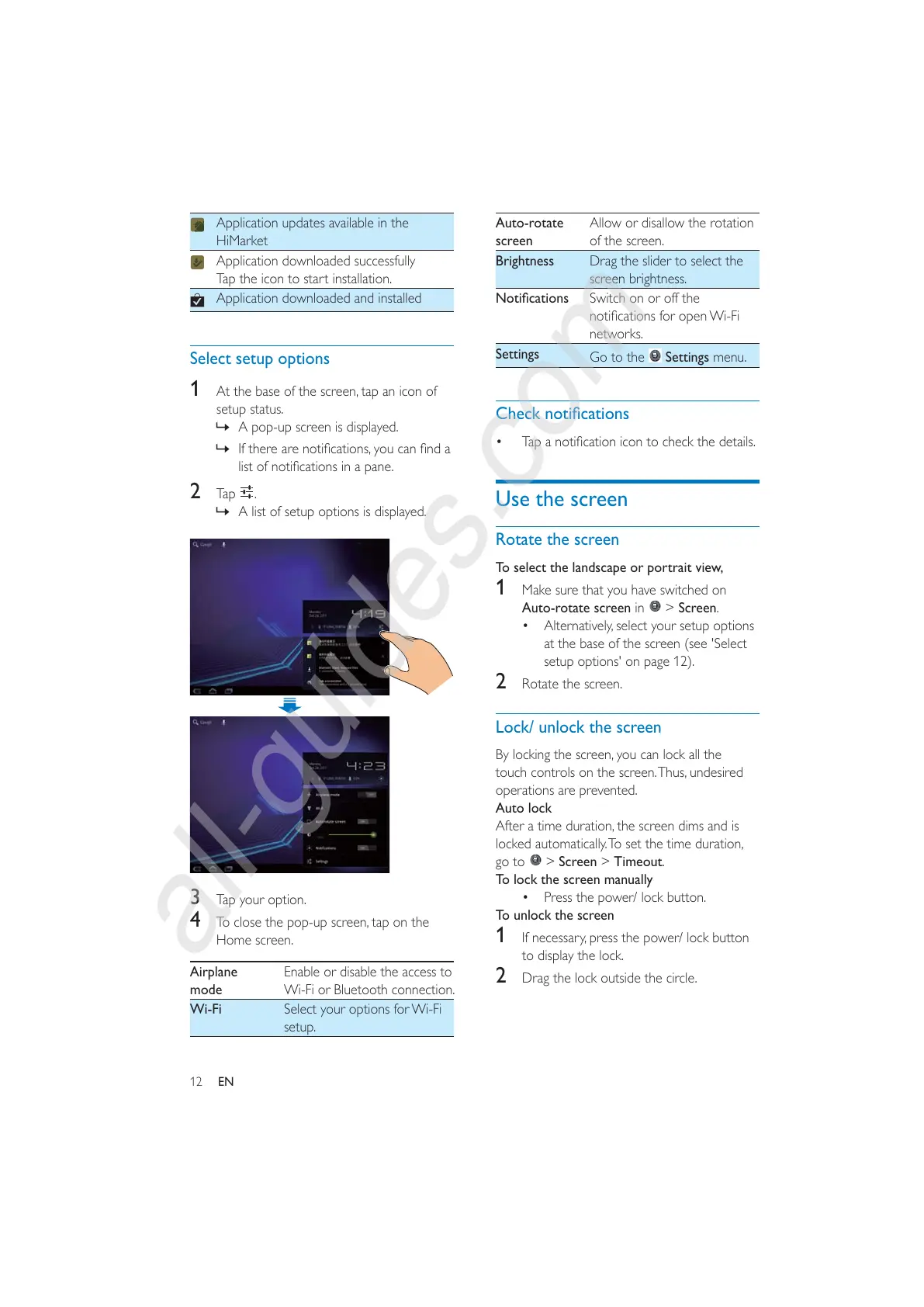
1 At the base of the screen, tap an icon of
setup status.
» A pop-up screen is displayed.
»
2 Tap .
» A list of setup options is displayed.
3 Tap your option.
4 To close the pop-up screen, tap on the
Home screen.
Airplane
mode
Enable or disable the access to
Wi-Fi or Bluetooth connection.
Wi-Fi Select your options for Wi-Fi
setup.
Auto-rotate
screen
Allow or disallow the rotation
of the screen.
Brightness Drag the slider to select the
screen brightness.
Switch on or off the
networks.
Settings
Go to the
Settings menu.
Use the screen
Rotate the screen
To select the landscape or portrait view,
1 Make sure that you have switched on
Auto-rotate screen in
> Screen.
Alternatively, select your setup options
at the base of the screen (see 'Select
setup options' on page 12).
2 Rotate the screen.
Lock/ unlock the screen
By locking the screen, you can lock all the
touch controls on the screen. Thus, undesired
operations are prevented.
Auto lock
After a time duration, the screen dims and is
locked automatically. To set the time duration,
go to
> Screen > Timeout.
To lock the screen manually
Press the power/ lock button.
To unlock the screen
1 If necessary, press the power/ lock button
to display the lock.
2 Drag the lock outside the circle.



 To Next Page