30 EN
9 Email
On Pi7000, you can receive and send email as
you do on a computer. Do the following:
Set up your email accounts on the
device.
Set up your email account
On Pi7000, set up your email accounts in the
following ways:
Set up your POP3 or IMAP mail
accounts, or
Set up your Microsoft Exchange
account to access your Exchange
mailbox at work.
Set up your POP3/ IMAP account
1 From the Home screen, go to .
2 Set up your email account:
Enter the information about your
account;
Select pop3 or IMAP account.
3 Follow the onscreen instructions to
complete the setup.
Consult your email service provider
for the setup information, such as the
outgoing server, incoming server.
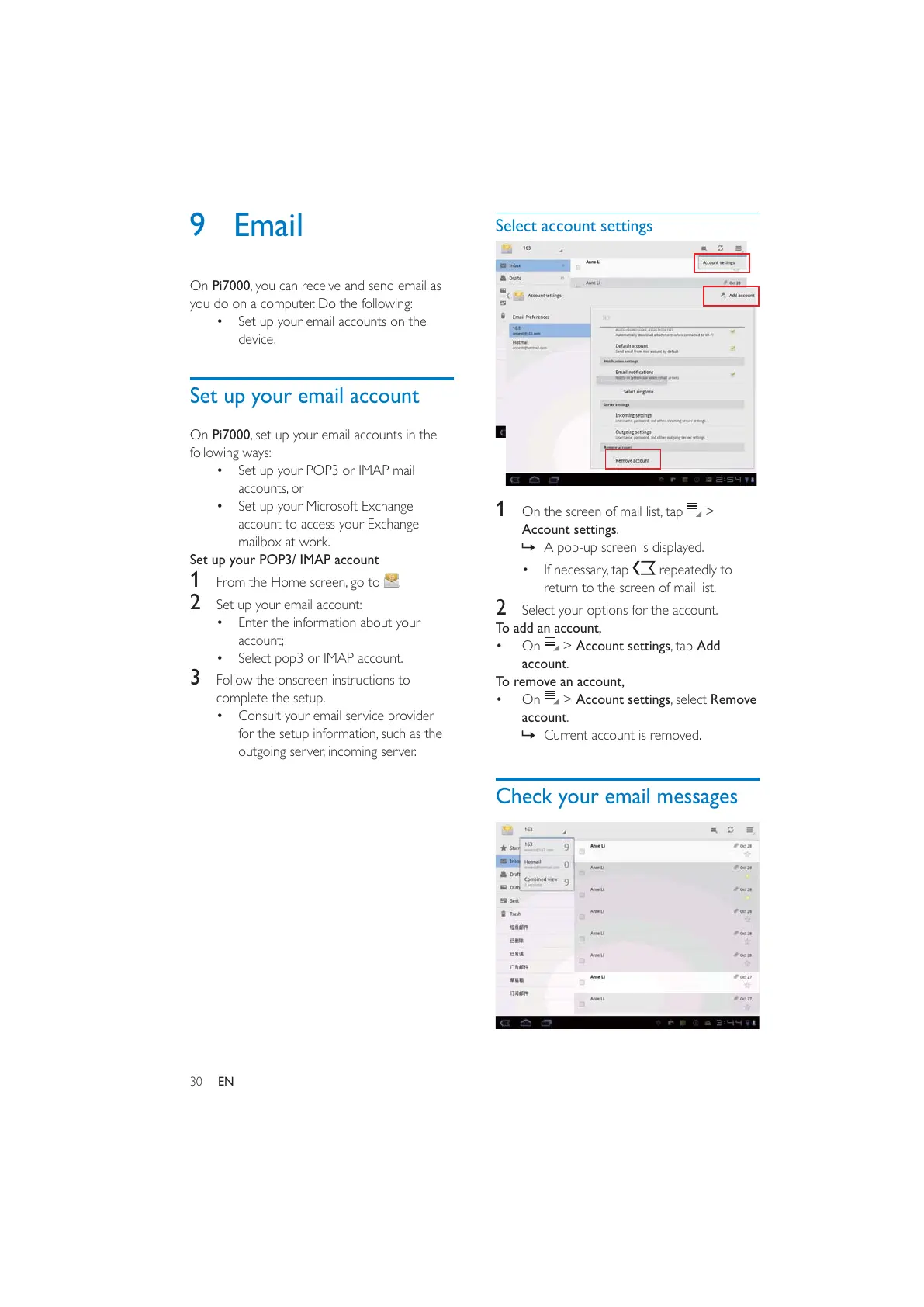
Select account settings
1 On the screen of mail list, tap >
Account settings.
» A pop-up screen is displayed.
If necessary, tap
repeatedly to
return to the screen of mail list.
2 Select your options for the account.
To add an account,
On
> Account settings, tap Add
account.
To remove an account,
On
> Account settings, select Remove
account.
» Current account is removed.
Check your email messages



 To Next Page