44 EN
14 Check for
firmware update
Connect Pi7000 to Wi-Fi. You can receive
Pi7000
on the device, or
through Philips Device Manager.
device
On Pi7000
through Philips online services over the Internet
(see 'System updates' on page 42).
Philips Device Manager
You can use the by-packed Philips Device
Manager
Install Philips Device Manager
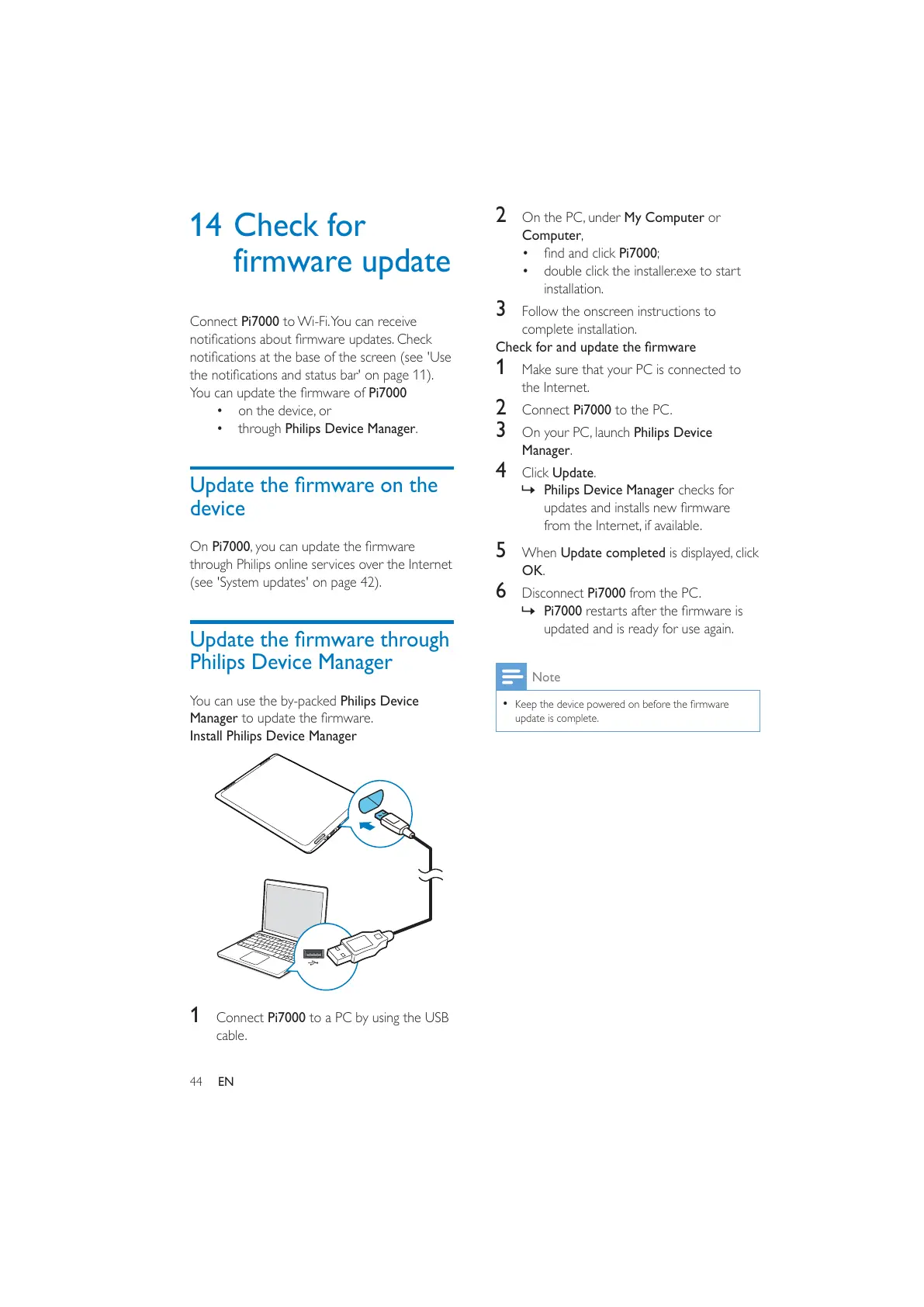
1 Connect Pi7000 to a PC by using the USB
cable.
2 On the PC, under My Computer or
Computer,
Pi7000;
double click the installer.exe to start
installation.
3 Follow the onscreen instructions to
complete installation.
1 Make sure that your PC is connected to
the Internet.
2 Connect Pi7000 to the PC.
3 On your PC, launch Philips Device
Manager.
4 Click Update.
» Philips Device Manager checks for
from the Internet, if available.
5 When Update completed is displayed, click
OK.
6 Disconnect Pi7000 from the PC.
» Pi7000
updated and is ready for use again.
Note
update is complete.



 To Next Page