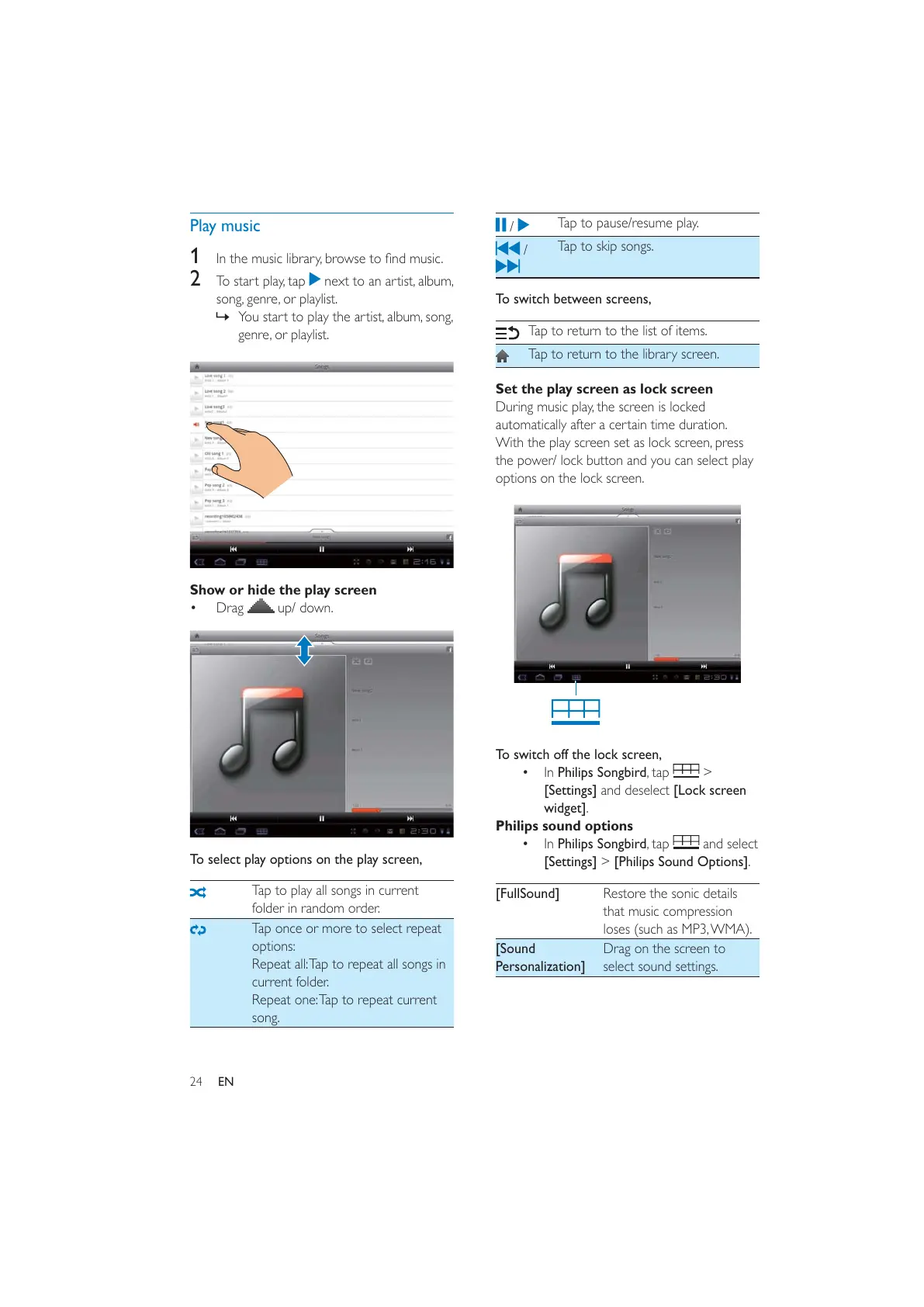
24 EN
Play music
1
2 To start play, tap next to an artist, album,
song, genre, or playlist.
» You start to play the artist, album, song,
genre, or playlist.
Show or hide the play screen
Drag
up/ down.
To select play options on the play screen,
Tap to play all songs in current
folder in random order.
Tap once or more to select repeat
options:
Repeat all: Tap to repeat all songs in
current folder.
Repeat one: Tap to repeat current
song.
/
Tap to pause/resume play.
/
Tap to skip songs.
To switch between screens,
Tap to return to the list of items.
Tap to return to the library screen.
Set the play screen as lock screen
During music play, the screen is locked
automatically after a certain time duration.
With the play screen set as lock screen, press
the power/ lock button and you can select play
options on the lock screen.
To switch off the lock screen,
In Philips Songbird, tap
>
[Settings] and deselect [Lock screen
widget].
Philips sound options
In Philips Songbird, tap
and select
[Settings] > [Philips Sound Options].
[FullSound] Restore the sonic details
that music compression
loses (such as MP3, WMA).
[Sound
Personalization]
Drag on the screen to
select sound settings.



 To Next Page