38 EN
13 Settings
To select your settings,
1 At the base of the screen, tap an icon of
status bar' on page 11). Tap
.
Alternatively, go to
from the Home
screen.
2 Swipe up or down to scroll through lists of
options.
3 Tap an option to select it.
Wireless & networks
Airplane mode
In Wireless & networks > Airplane mode,
disable or enable the access to Wi-Fi or
Bluetooth.
Switch on the airplane mode when:
you need to disable the access to Wi-Fi
or Bluetooth for safety purposes, such
as on an airplane.
Wi-Fi settings
In Wireless & networks > Wi-Fi settings, select
your Wi- Fi settings on the device.
One-touch Wi-Fi Protected Setup
(WPS)
Pi7000 supports Wi-Fi Protected Setup(WPS).
You can quickly and securely connect Pi7000 to
a wireless router that also supports the WPS.
1 In Wi-Fi settings, tap a network that
supports the WPS.
» A pop-up screen is displayed.
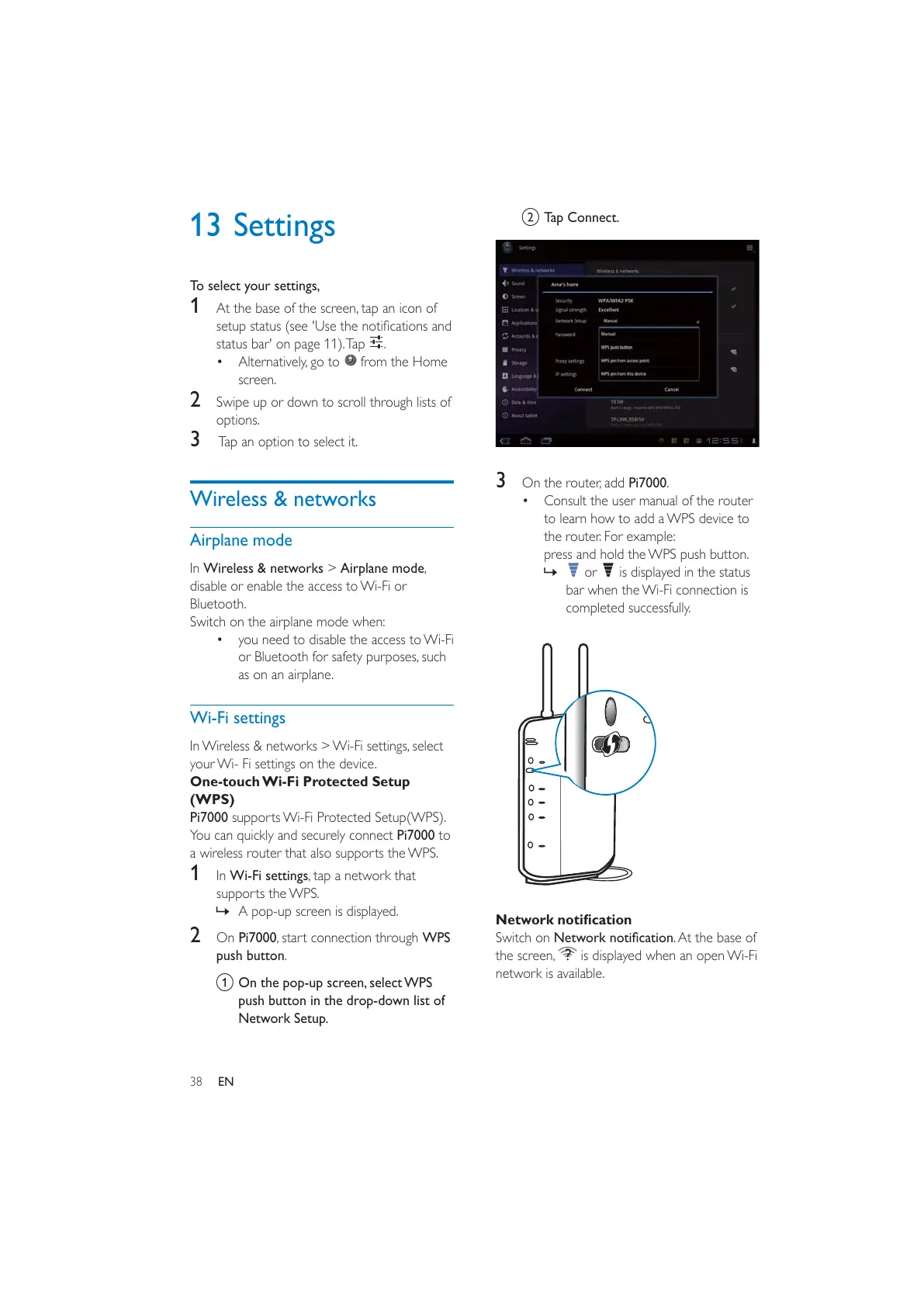
2 On Pi7000, start connection through WPS
push button.
a On the pop-up screen, select WPS
push button in the drop-down list of
Network Setup.
b Tap Connect.
3 On the router, add Pi7000.
Consult the user manual of the router
to learn how to add a WPS device to
the router. For example:
press and hold the WPS push button.
»
or is displayed in the status
bar when the Wi-Fi connection is
completed successfully.
Switch on . At the base of
the screen,
is displayed when an open Wi-Fi
network is available.



 To Next Page