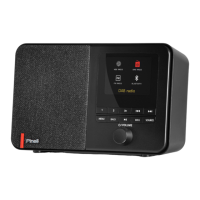
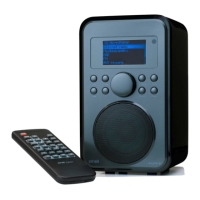
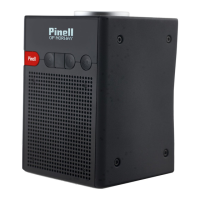
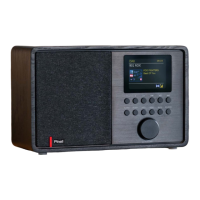
FM Radio Mode
FM radio mode receives analogue radio from the FM band and
displays RDS (Radio Data System) information about the station
and show (where broadcast).
To enter FM Radio mode, press MODE to cycle through the
listening modes until FM Radio is displayed.
The FM radio mode menu offers the following options:
•
Scan settings
•
Audio settings
•
Main menu
Selecting stations
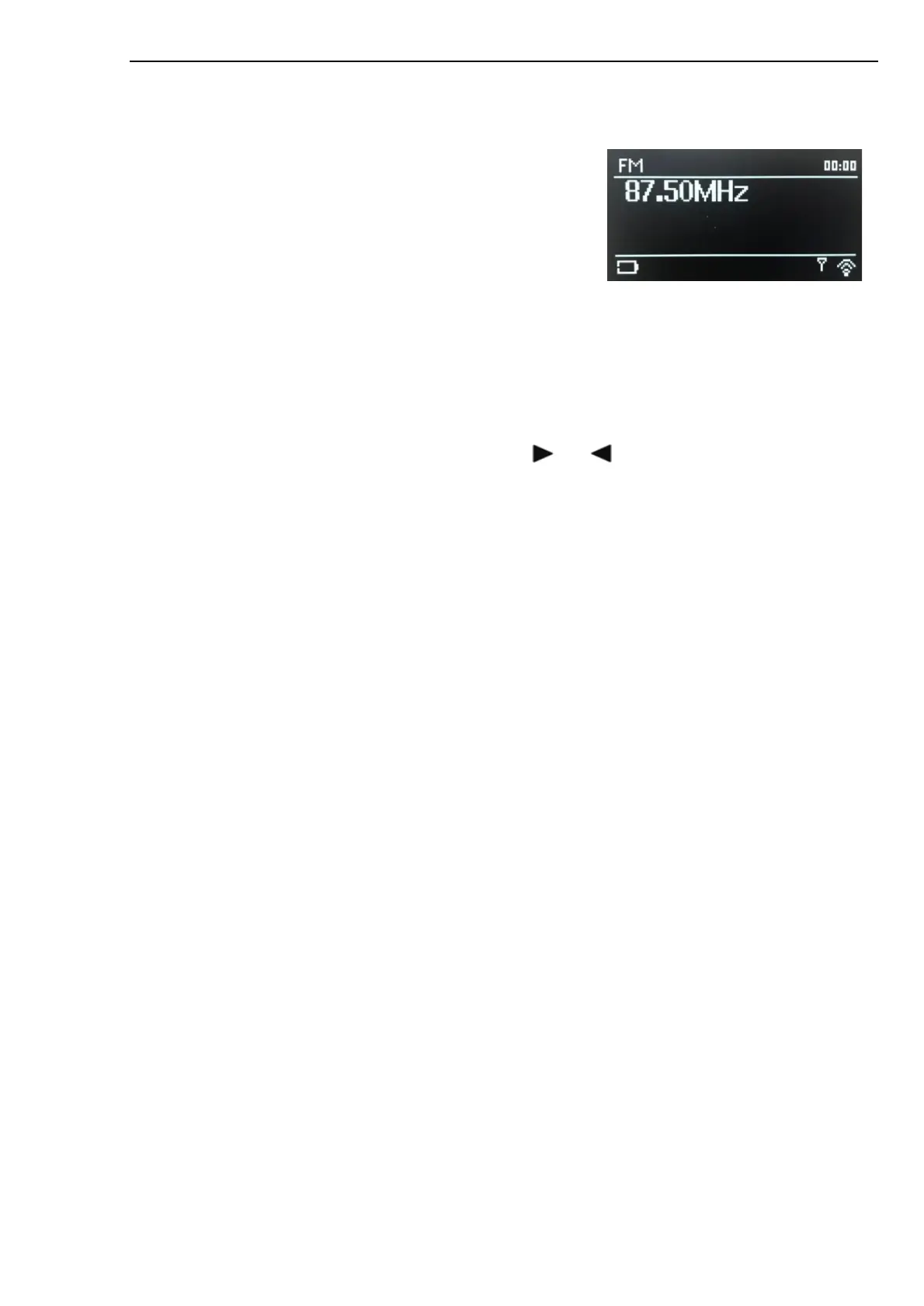
To find a station, press SELECT. The frequency display starts to run up as Pinell north scans the FM band.
Alternatively, you can scan up or down by long press the or buttons or tune manually with short
press.
Note: Scanning can be set to search for strong signals only (see Settings below).
Now playing information
While an FM station is playing, the screen shows one of the two following sets of data:
• If RDS information is available, by default the service name (i.e. station name) is displayed.
• If no RDS information is available, the currently tuned frequency is shown.
Settings
Scan settings
By default, FM scans stop at any available station. This may result in a poor signal-to-noise ratio (hiss) from
weak stations. To change the scan settings to stop only at stations with good signal strength, press
MENU > Scan setting > Strong stations only? > Yes.
Audio settings
By default, all stereo stations are reproduced in stereo. For weak stations, this may result in a poor signal-
to-noise ratio (hiss). To play weak stations in mono, press MENU > Audio setting > FM weak reception:
Listen in mono only > Yes.



 To Next Page