Operation
After the initial setup, Pinell north is ready for operating in most Modes.
Mode selection
To select a Mode press MODE repeatedly until the required Mode splash screen is displayed. After a brief
moment Pinell north switches to that mode. If possible, the last station or track, previously used in that
mode, is selected. If this is not possible, Pinell north scans for relevant stations, networks, or prompts the
user for appropriate input.
The Common local controls for sound volume and Play/Pause are available in all listening modes.
Audio playback
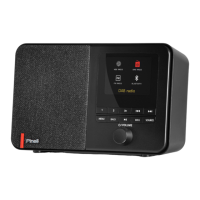
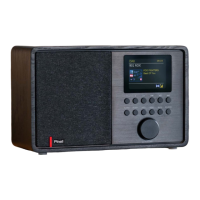
The Volume rotary control (SELECT) is turned to increase or decrease the sound volume.
Press SELECT to start and stop tracks.
Use the ‘Next’ and ‘Previous’ button and :
•
To scroll forwards or backwards through a track (long press)
•
To skip to the next or previous track in the current playlist (short press).
Menu navigation
The primary control for moving through menus and options is the SELECT control. Rotate to move up or
down a menu. Press SELECT once the required option or value is highlighted. All menus and lists act as
loops such that turning the control to go beyond the first or last entry in a menu or list takes you to the
opposite end of the menu or list. So going up from the first entry in a menu will take you to the last option in
the menu, etc.
A scroll bar appears on the right of the screen if there are more options above or below those visible.
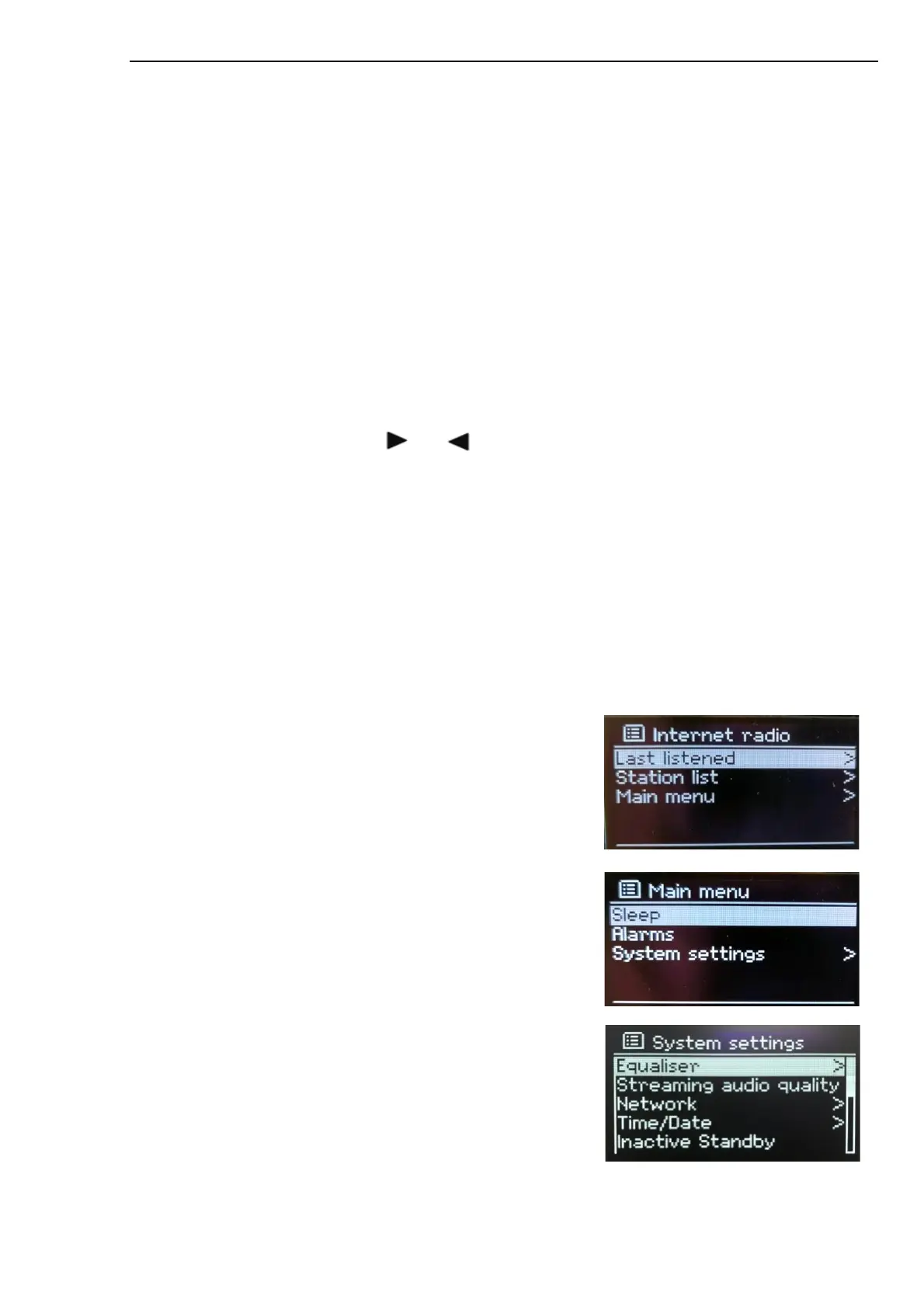
To enter the menu tree in a particular mode press MENU.
To move back a menu level press MENU.
To exit the menu system, press MENU again.
Each mode has a Mode menu, with options specific to that mode.
For example, the FM mode menu has two mode specific options:
Scan setting and Audio setting.
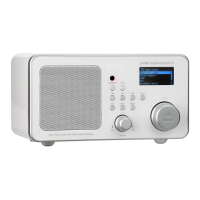
In addition, each mode menu has one final option:
System settings >. The ‘>’ indicates options leading to further
menus.
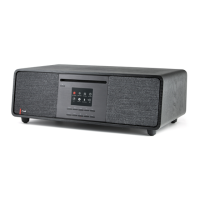
The System settings menu presents system setting functions to
allow the user to setup how the unit behaves. This includes
network, time, language and software parameters.



 To Next Page