SV61311 Rev. E
3-5
Basic Operation • 3
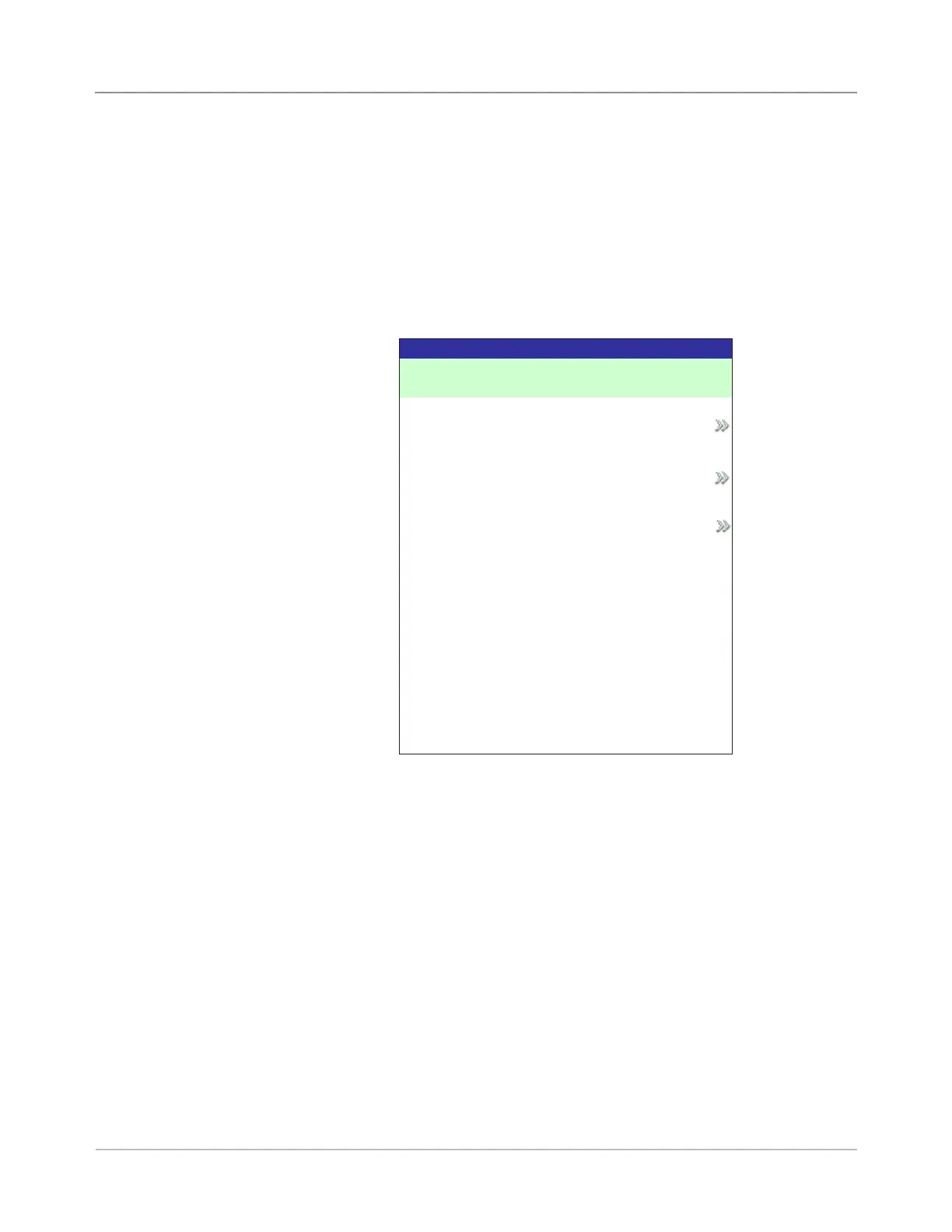
2. The Job Type screen provides access to all the jobs that are in your sys-
tem. This screen displays three categories to search for the job that you
want to run:
• "Saved Jobs" displays the list of jobs that you created and saved.
• "Recently Run Jobs" displays a list of the last 8 jobs that your system
ran. This list shows each job's name and the date/time that the job
ran.
• "Library Jobs" displays the names of the pre-defined jobs that came
loaded on your system.
Select the desired category to display the list of jobs that are available in
that category.
3 Select the desired job from the list.
• If the job does not appear on the first page, use the UP/DOWN arrow
keys to scroll through the list.
• As any job is highlighted in the list, the Mail Piece Icon Tree for the
job appears on the display so that it can be identified
Selecting the
Job
If the job that you want to run is the one that currently displays in the Home
screen, proceed to the Running a Trial Piece section of this chapter. Other-
wise, follow the steps below to select the job:
1. From the Home screen:
• Select "Select Another Job" to view a list of saved jobs. Skip to step
3, below.
OR
• Select "Menu", then "Jobs", and finally "Select Job". The Select Job
Type screen displays.
Select Job Type Screen
Select Job Type
Saved Jobs
Recently Run Jobs
Library Jobs


 To Next Page