Installing the ink cartridge
1.
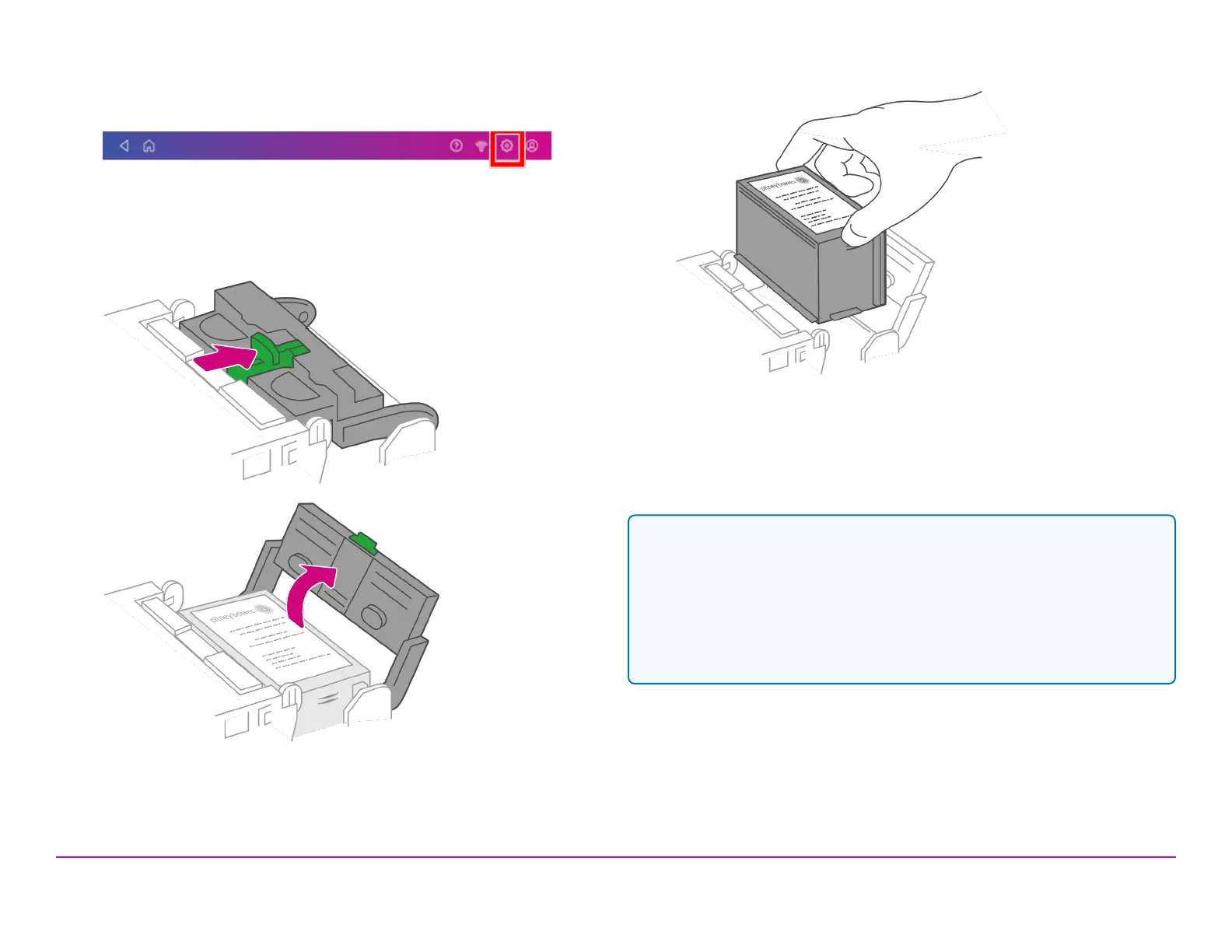
Tap Settings on the toolbar.
2. Scroll down and tap Mail Printer Maintenance.
3. Tap Install Ink.
4. Lift the cover. The ink cartridge moves to the front position.
5. Remove the ink cartridge, as shown below.
6. Insert the new ink cartridge and close the cover. The cartridge
repositions itself and the Mail Printer Maintenance screen re-
displays.
7. Perform a print test to ensure you get a good test print pattern.
Important: Only use genuine Pitney Bowes ink cartridges. Non-Pitney
Bowes cartridges can damage your device. If you need ink, order a
genuine Pitney Bowes replacement ink cartridge. When your
deviceshows the low ink warning an ink cartridge will be ordered for you
automatically, if you are enrolled in the AutoInk program. You can enable
AutoInk through My Account on the Pitney Bowes website.
Pitney Bowes Quick ReferenceGuide December 08,2020 Page 13 of 18












 To Next Page