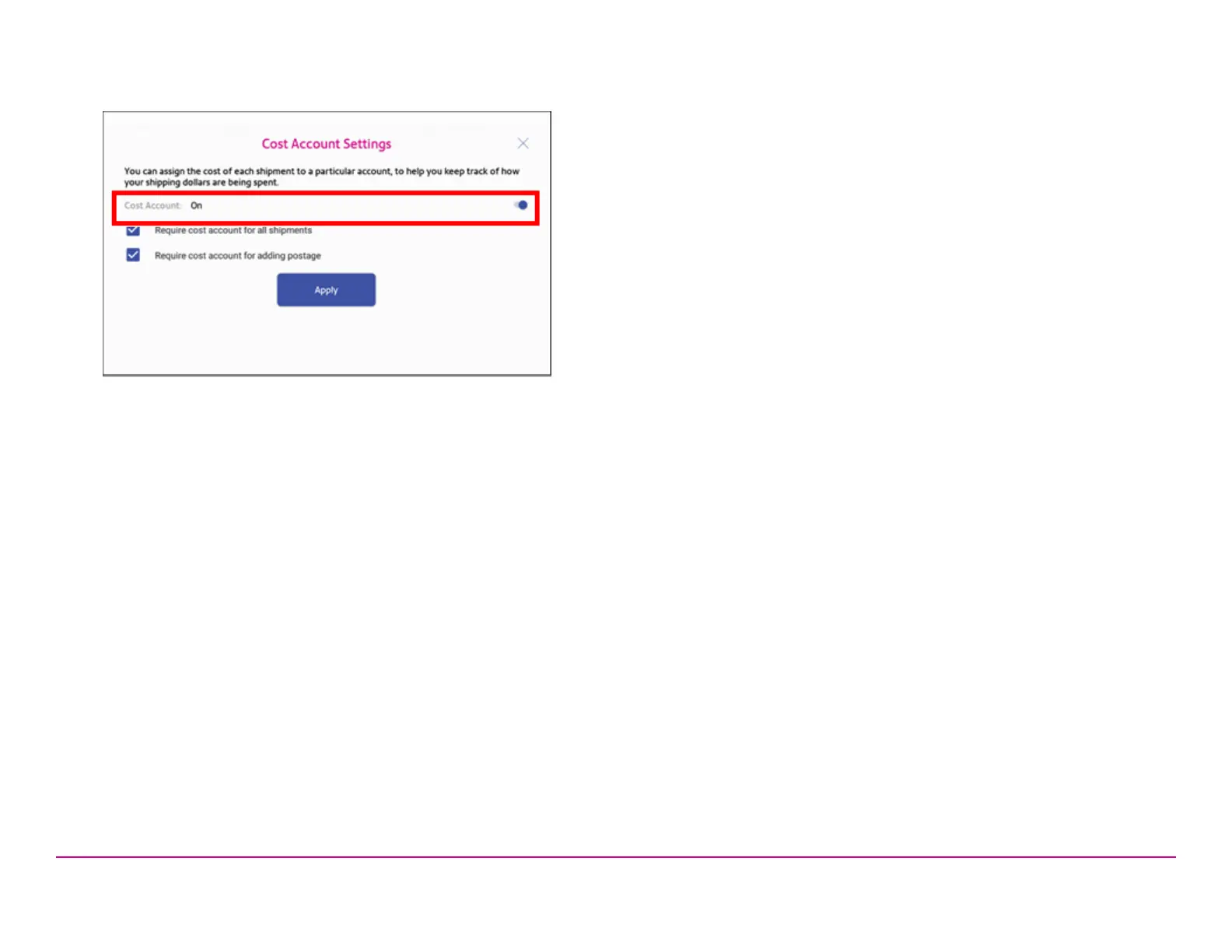
3. To enable, tap the slider next to Cost Account and slide it to the
right so that it turns blue.
l If you wish to make sure every label is assigned an account, tap
in the check box for Require cost account for all shipments.
4. Tap Apply.
Once you turn cost accounts on, you will need to have at least 1 cost
account to print a shipping label
Adding a Trackable Labels or Shipping Labels cost
account
Create cost accounts to record Trackable Labels or Shipping Labels
usage by department.
1.
Open the Cost Accounts screen:
l Tap Cost Accounts in the application drawer at the bottom of
the Home screen, or,
l Tap SendPro Apps on the Home screen, then tap Cost
Accounts.
2. Tap the plus sign +in the upper left corner of the Cost Accounts
screen.
3. Enter the account name, up to 20 characters. Tap the green check
mark when done. You can use lower case letters, upper case letters,
numerals and special characters for the account name. Allowed
special characters include:
l - hyphen
l _ dash
l ' single quote
l @ at sign
l . Full stop
l and optional description.
4. (Optional) Enter a description of the account, up to 200 characters.
5. Tap Enter (green check mark) when done. You can use the same
types of characters as for the account name.
6. Tap Active or Inactive, whichever is appropriate for this account.
7. Tap the checkbox for Make this my default Cost Account to make
this cost account automatically used for all Trackable Labels or
Shipping Labels.
8. Tap Apply.
Pitney Bowes Quick ReferenceGuide December 08,2020 Page 9 of 18












 To Next Page