17. Tap Print again and the label prints.
l If prompted, enter the Sender and Recipient's phone number
(required for some services).
18. The carrier screen reappears.
Using cost accounts to charge back shipping label
postage costs
You can assign the costs for a shipping label to an account when you
create the label. In order to use cost accounts for label postage costs
you need to turn on the cost accounts feature.
1.
Open the Cost Accounts screen:
l Tap Cost Accounts in the application drawer at the bottom of
the Home screen, or,
l Tap SendPro Apps on the Home screen, then tap Cost
Accounts.
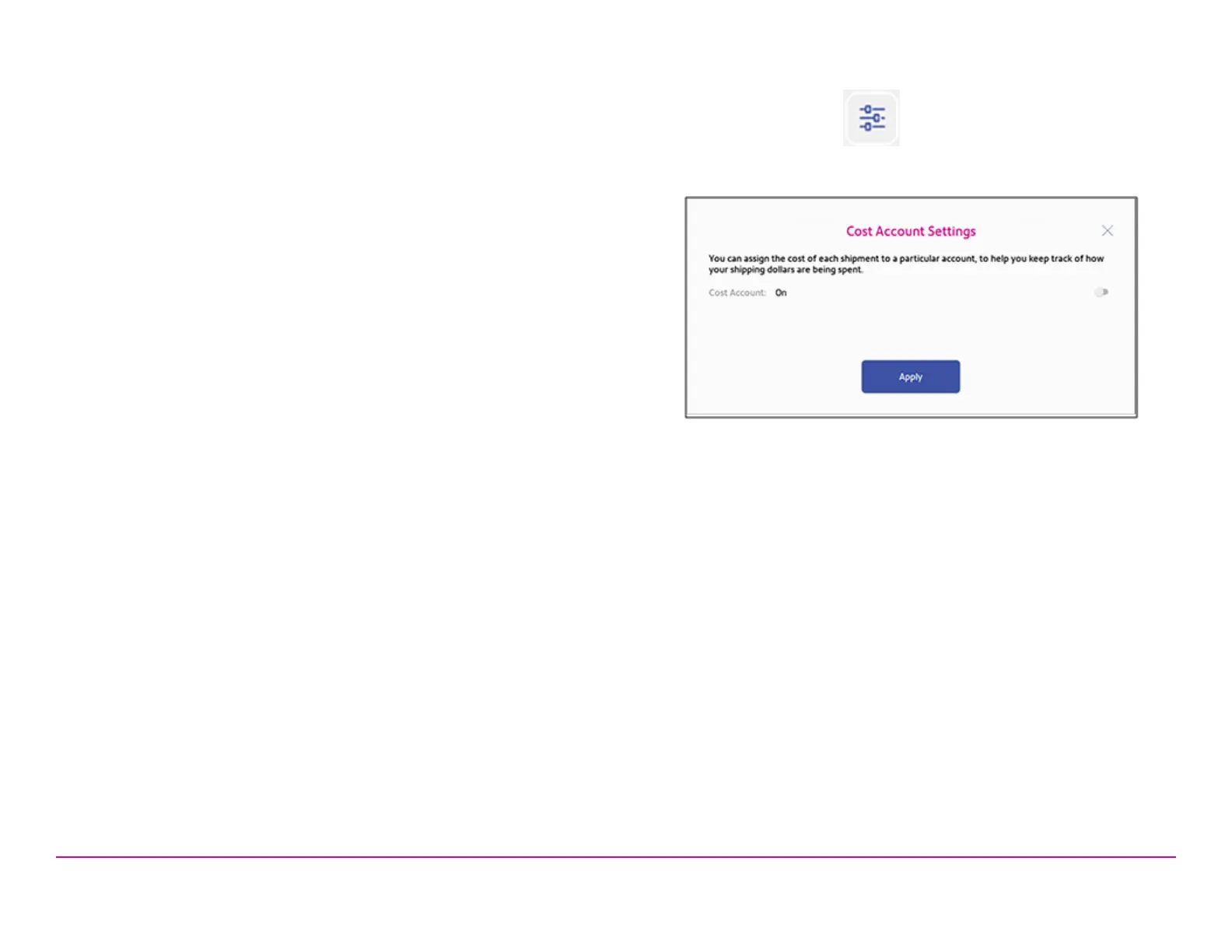
2. Tap the Cost Account settings icon in the upper right corner of the
Cost Accounts screen.
If cost accounts are not enabled, you will see this screen.
Pitney Bowes Quick ReferenceGuide December 08,2020 Page 8 of 18












 To Next Page