Sending Serial Commands via USB
Planar RPS and Video Controller RS232 User Guide Page | 43
020-1332-00I
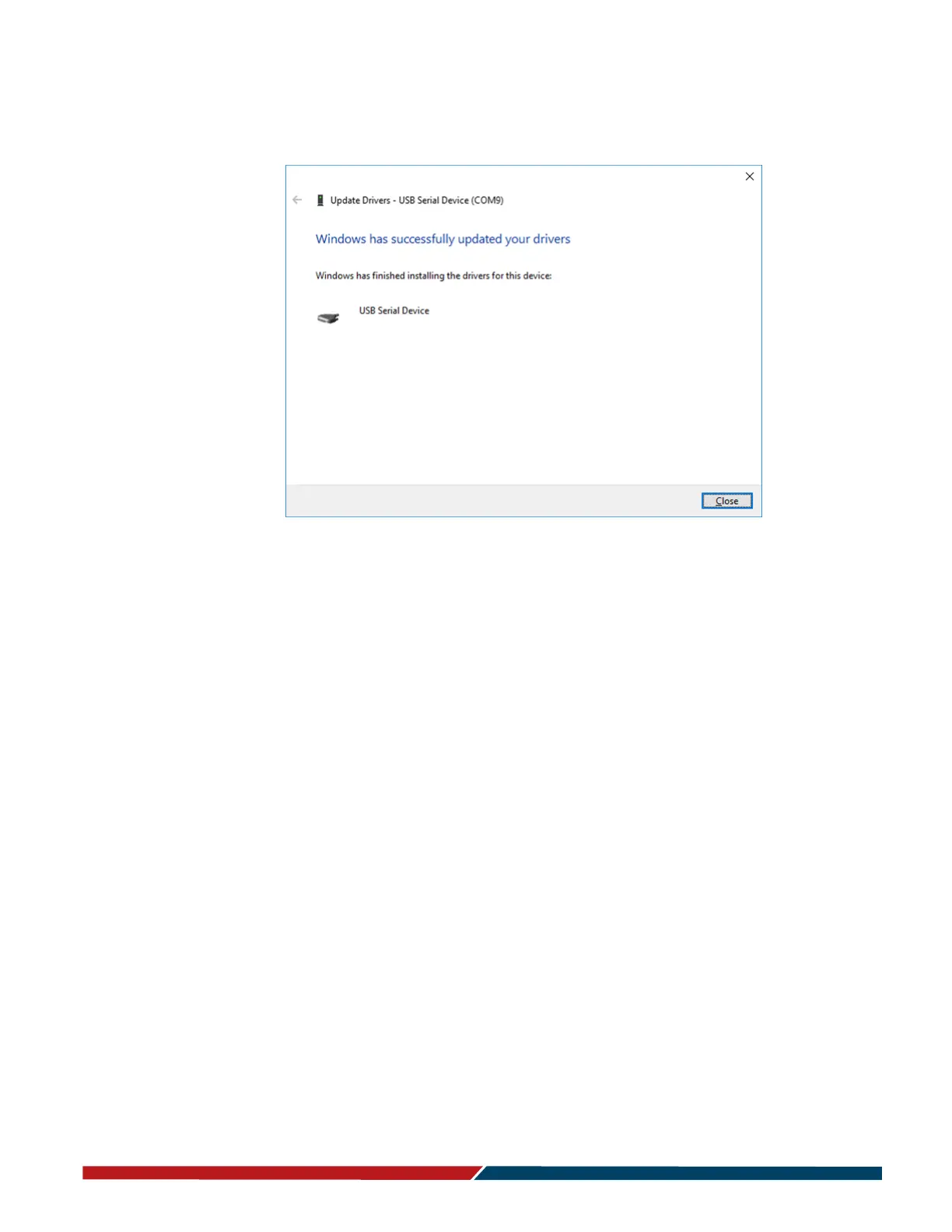
c When the installation completes, click “Close”. The USB driver installation
process is now complete.
Note: Beginning with the release of Windows 10 v.1607, all drivers must be digitally signed
by the Windows Hardware Developer Center Dashboard (WHDCD) portal. Planar is currently
in process of having this driver signed by the WHDCD. If there are issues stating that no
compatible driver is found when trying to recognize the device, a manual installation will be
required. Follow these steps to enable the installation of the driver:
1 Click the Start Menu and select Settings.
2 Click Update and Security.
3 Click Recovery.
4 Click Restart Now under Advanced Setup.
5 Click Troubleshoot.
6 Click Advanced Options.
7 Click Startup Settings.
8 Click Restart.
9 When the Startup Settings screen appears, press either 7 or F7 to disable driver
signature enforcement.
Once the computer reboots, it will be able to load unsigned drivers through the
WHDCD until the next reboot of the PC.


 To Next Page