11.3.2 Option „BT on“ active, „BT only“ active
Step Action
1 Display after switching on, if "BT on" and "BT only" are active
The electrofusion control unit shows the following display. Now you can use the app to pair the
electrofusion control unit with your mobile device.
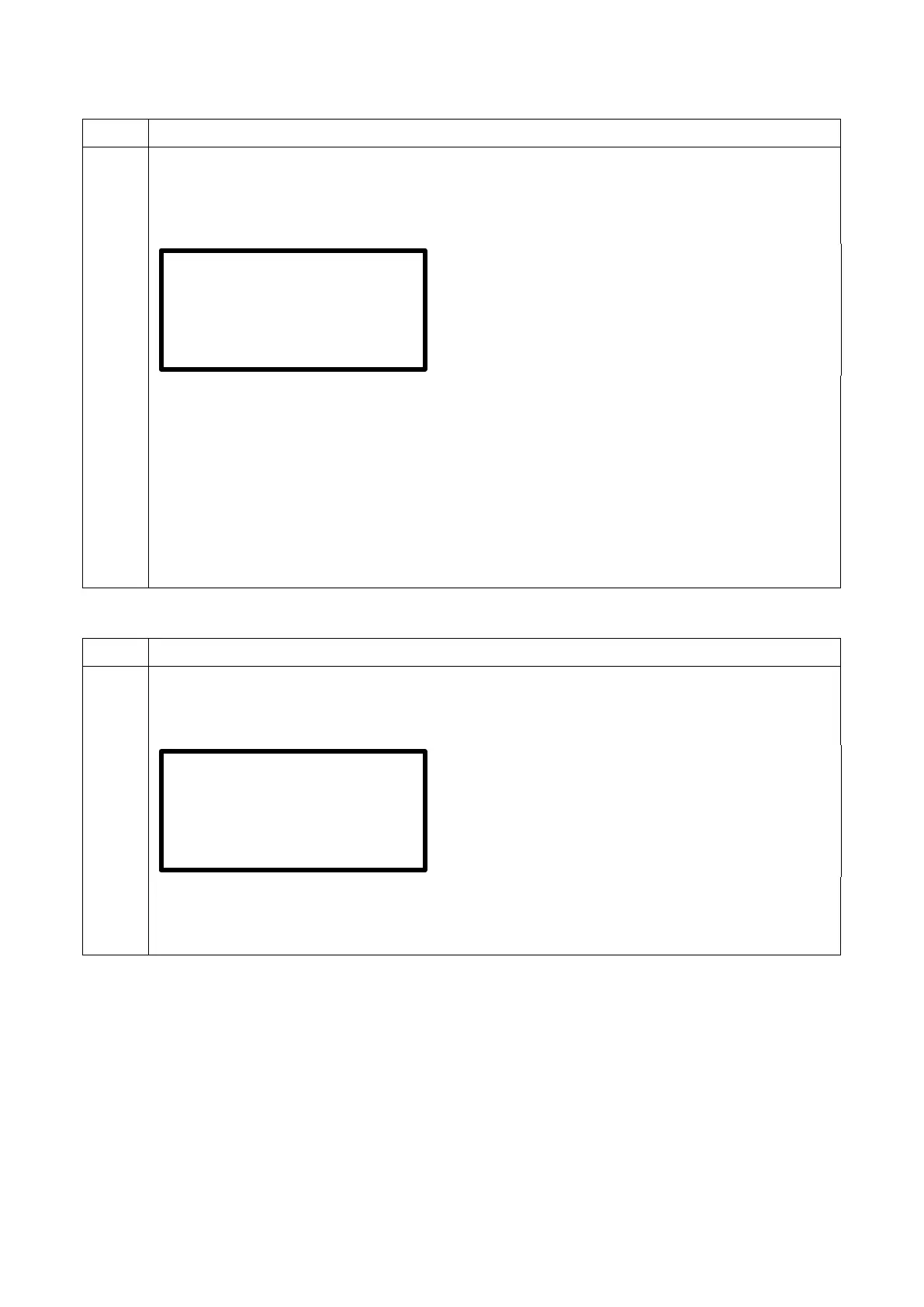
Display after switching on
Row 1 shows the ID that can be used to detect the device, using Bluetooth. By pressing the enter
button you can access the system configuration.
Row 2 shows the Text "Waiting for App". The electrofusion control unit signalizes its readiness for
pairing via the app.
Row 3 shows the text "BT only". The electrofusion control unit signalises that with the current
setting it can only be controlled by the app via Bluetooth connection.
By pressing the enter button you can access the system
configuration. You will need an admin code to get access.
Now continue the pairing procedure in the "ElectroFusion Studio" app on your mobile device. As
soon as the electrofusion control unit is successfully detected and paired by the app, it can be
11.3.3 Pairing via Bluetooth is finished
Step Action
1 Display after pairing
The electrofusion control unit shows the following display.
Display after pairing
Row 4 shows the text "CONNECT". The electrofusion control unit signalizes that the pairing was
successful.
Now continue to operate the controller using the "ElectroFusion Studio" app on your mobile
device.
Waiting for App
BT only
Waiting for App


 To Next Page