E – 28
Setting in Accordance With
Image Contents (continued)
Initial Settings
Setting Keystone
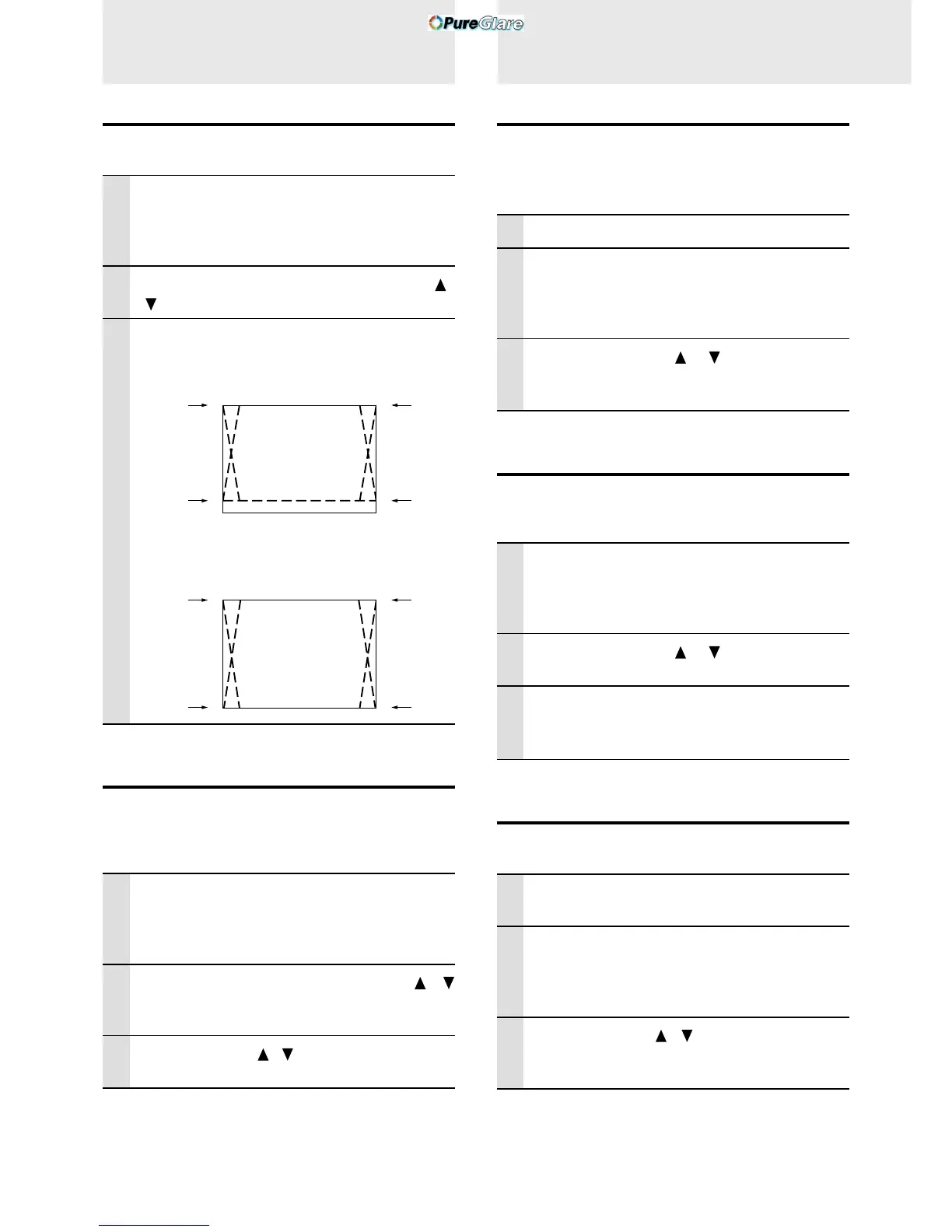
This is used to set the height for keystone adjustment.
1 With the FLIP COVER of the remote con-
trol open, press the MENU button to dis-
play the Advanced menu, then use the
cursor 씱 / 씰 keys to select “VIEW”.
2 Display the frame, then use the cursor /
keys to select “KEYSTONE”.
3 Use the cursor 씱 / 씰 keys to select “NOR-
MAL” or “FULL”.
●Normal: normal keystone correction
●Full: In this mode, the image is enlarged to fill
the screen vertically and then Keystone correc-
tion is performed.
Setting the partial display position
Input a signal that is rated SXGA (XGA for the U3-880) to
RGB/YCbCr connector and then set the partial display
position with ASPECT (described later) set to Real.
1 With the FLIP COVER of the remote con-
trol open, press the MENU button to dis-
play the Advanced menu, then use the
cursor 씱 / 씰 keys to select “VIEW”.
2 Display the frame, use the cursor /
keys to select “PAN” and then press the
ENTER button.
3 Use the cursor / , 씱 / 씰 keys to set the
display position.
Audio Muting
Audio only can be muted for each input.
This function is convenient when multiple video units are
connected to this projector.
1 Select the input to be muted (page 16).
2 With the FLIP COVER of the remote con-
trol open, press the MENU button to dis-
play the Advanced menu, then use the
cursor 씱 / 씰 keys to select “SETUP”.
3 Use the cursor / keys to select
“SOUND MUTE”, then use the cursor 씱 /
씰 keys to set muting to ON or OFF.
Selecting the Background
Two different backgrounds can be selected for projection
when there is no signal input.
1 With the FLIP COVER of the remote con-
trol open, press the MENU button to dis-
play the Advanced menu, then use the
cursor 씱 / 씰 keys to select “SETUP”.
2 Use the cursor / keys to select
“BACKGROUND”.
3 Use the cursor 씱 / 씰 keys to select one of
the following backgrounds.
● Blue ● Black
Auto Gain
Brightness and contrast are adjusted automatically.
1 Select the input to be set for auto gain
(page 16).
2 With the FLIP COVER of the remote con-
trol open, press the MENU button to dis-
play the Advanced menu, then use the
cursor 씱 / 씰 keys to select “SETUP”.
3 Use the cursor / key to select “AUTO
GAIN”, then use the cursor 씱 / 씰 keys to
set ON or OFF.
To close the menu
Press the CANCEL button.



 To Next Page