
 Need help?
Do you have a question about the Polycom IP 550 and is the answer not in the manual?
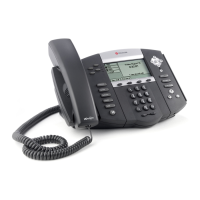
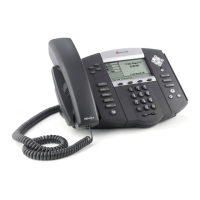
Overview of the physical Polycom IP550 phone and its components.
Description of the Zayo Managed Services Web Portal for call feature configuration.
Details on the Telephony Toolbar software for enhanced call management.
Explanation of how features are presented and structured within the document.
Process for users to enter verified account codes for outbound call assignment.
Process for users to enter unverified account codes for outbound call assignment.
Instructions for initiating three-way conference calls using the phone.
How to redirect all incoming calls to another phone number using soft keys or feature codes.
How to redirect calls when the user's line is busy to another destination.
How to redirect calls that are not answered within a specified number of rings.
Method to place a call on hold for pickup at another phone.
How to pick up a call that was placed on hold using the Call Park feature.
How to answer a call ringing on another user's line within the same pickup group.
How to answer a call on another user's line without being in a common pickup group.
How to call back the last number that called the user's line.
How to transfer incoming calls to another line without consulting the receiving party.
How to transfer incoming calls to another line after consulting the receiving party.
How to transfer incoming calls directly to a user's voicemail box.
How to answer a second incoming call while already on an active call.
How to disable call waiting on a per-call basis.
How to block caller ID on a call-by-call basis.
How to deliver caller ID on a call-by-call basis when blocking is active.
Basic instructions for making a call using the phone.
How to set the station as unavailable, redirecting incoming calls.
How to place an active call on hold and retrieve it using soft keys or the HOLD button.
How to redial the last dialed number using a feature code or button.
Functionality providing intercom-like service for direct station-to-station communication.
How to configure and use two-digit codes for quick dialing of frequently used numbers.
How to configure and use single-button dialing for frequently used numbers.
Instructions for accessing and managing voicemail messages from the desk phone or remotely.
The Polycom IP 550 is an IP phone designed for use with Zayo Managed Services' Hosted PBX Service, offering a comprehensive suite of telephony features for professional environments. This device facilitates advanced call management and communication, integrating with various software applications for enhanced user experience.
The Polycom IP 550 serves as a primary communication tool, enabling users to make and receive calls, manage multiple lines, and utilize a wide array of call features. Its core function is to provide reliable voice communication over an IP network, supported by a graphical display and intuitive controls. The phone is designed to work in conjunction with the Zayo Managed Services Web Portal and Telephony Toolbar, which extend its functionality beyond the physical device itself.
The Polycom IP 550 offers extensive usage features, categorized by call management, forwarding, and other communication tools:
MORE soft key, then CONF to place the current caller on hold. The user then dials the number of the third party. Once the third party answers, pressing MORE and CONF again adds them to the existing call. For extended functionality, a conference call can be split using the SPLIT soft key, placing both calls on separate lines. Users can then disconnect one call using its LINE button and ENDCALL soft key, and resume the other call with its LINE button. The CONFRNC soft key can also be used to initiate conferences, with the SEND soft key used after dialing the new party.HOLD soft key, then NEWCALL, and dials *68, following IVR instructions.*88, following IVR instructions.*98.*97 followed by the extension to pick up.*69.TRNSFER soft key, then BLIND, enters the transfer number, presses SEND, and hangs up. The TRANSFER feature key can also be used.TRNSFER soft key, enters the transfer number, presses SEND. When the second party answers, the user can consult with them before pressing TRNSFER again to complete the transfer. To return to the first caller without transferring, the user presses CANCEL. The TRANSFER feature key can also be used.HOLD soft key, then NEW CALL to get a dial tone, and dials *55. Following IVR instructions, the user can press # to send the caller to their own voicemail box, or enter another extension followed by # to send it to a different voicemail.DISPLAY CONTROL keys to select the second LINE and presses ANSWER. To return to the first call, the user selects the LINE on hold with DISPLAY CONTROL keys and presses RESUME. The second call can also be sent to voicemail by selecting its LINE and pressing REJECT.*70, and then dialing the desired number.*67, and then dialing the desired number.*65, and then dialing the desired number.HANDSET, presses NEWCALL or the SPEAKERPHONE KEY, enters the number, and presses SEND or waits to connect. Alternatively, the user can dial the number using the KEYPAD and press the DIAL soft key.HOLD soft key places the call on hold. To retrieve it, the user presses the RESUME soft key. The HOLD button on the phone can also toggle a call on and off hold. If the phone number is shared, a call on hold can be picked up from another phone sharing the number.REDIAL feature key, or by going off-hook and dialing *66.HANDSET, presses NEWCALL or the SPEAKERPHONE KEY, dials *50, and then dials the extension of the phone to intercom. This can also be programmed to a Speed Dial 8 number.*75, enters the 2-digit Speed Dial 100 Code, followed by the number to associate with it, and then #. The IVR confirms programming. To use, the user goes off-hook, presses #, and then the 2-digit Speed Dial 100 Code.*74, enters a Speed Dial 8 Code (2-9) using the KEYPAD, followed by the number to associate with it, and then #. The IVR confirms programming. To use, the user goes off-hook and presses the Speed Dial 8 Code (2-9) on the KEYPAD.FORWARD soft key, uses DISPLAY CONTROL keys to select the desired LINE, presses SELECT, enters the forwarding NUMBER, and presses ENABLE. This soft key is not available if the number is shared. To deactivate, the user follows the same steps but presses DISABLE. To activate using a feature code, the user goes off-hook, dials *72, and follows IVR instructions. To deactivate, the user goes off-hook and dials *73. It's crucial to use the same method for activation and deactivation.*90, and follows IVR instructions. To deactivate, the user goes off-hook and dials *91.*92, and follows IVR instructions. To deactivate, the user goes off-hook and dials *93.*47, and enters the Account Code. For sustained deactivation, the user goes off-hook and dials *37.*02, and an IVR prompts for the Account Code, followed by a stutter dial tone and then a normal dial tone. The user then dials the desired number.DO NOT DISTURB button, uses DISPLAY CONTROL keys to select the LINE (or presses SET ALL for all lines), and presses ENABLE. If the number is shared, DND only turns on silent ring. To deactivate, the user presses DO NOT DISTURB, uses DISPLAY CONTROL keys to select the LINE (or presses CLEAR ALL for all lines), and presses DISABLE. To activate using a feature code, the user goes off-hook and dials *78. To deactivate, the user goes off-hook and dials *79. As with call forwarding, the same method must be used for activation and deactivation.MESSAGES feature key, enters their PASSWORD at the voice prompt, and follows IVR choices. The messages button may directly connect to the portal or display a summary. From outside the office, the user dials their phone NUMBER, presses * when the voicemail system answers, enters their phone's EXTENSION, then PASSWORD, and follows IVR choices. Voicemail navigation options include: Save (#), Delete (7), Replay Message / Skip Envelope (2), Fast Forward (3), Rewind (4), Play Message Envelope (5), Call Back Sender (8), and Go to Menu 2 (9).The manual does not explicitly detail maintenance features for the Polycom IP 550. However, the integration with "Zayo Managed Services" implies that system updates, configurations, and troubleshooting are likely handled by the service provider or a company administrator through the Web Portal or Telephony Toolbar. Users are directed to their company's Administrator for access to these tools and for more information on the Telephony Toolbar. This suggests that end-user maintenance is minimal, focusing primarily on feature activation and deactivation through the phone's interface or associated web applications.
 General
| Lines | 4 |
|---|---|
| Power over Ethernet | Yes, IEEE 802.3af |
| Protocols | SIP, H.323 |
| Ethernet Ports | 2 x 10/100 Mbps |
| Audio Features | HD Voice |
| Codecs | G.711, G.722, iLBC |
| Power Options | PoE, AC adapter |
| Display | 320 x 160 pixel grayscale LCD |
| Weight | 2.2 lbs |


 To Next Page

