Proprietary and Confidential
Quick Link: Table of Contents
Eective July 10, 2019.
15
Polycom VVX 600 Series
Basic Phone Functions continued
USB Call Recording
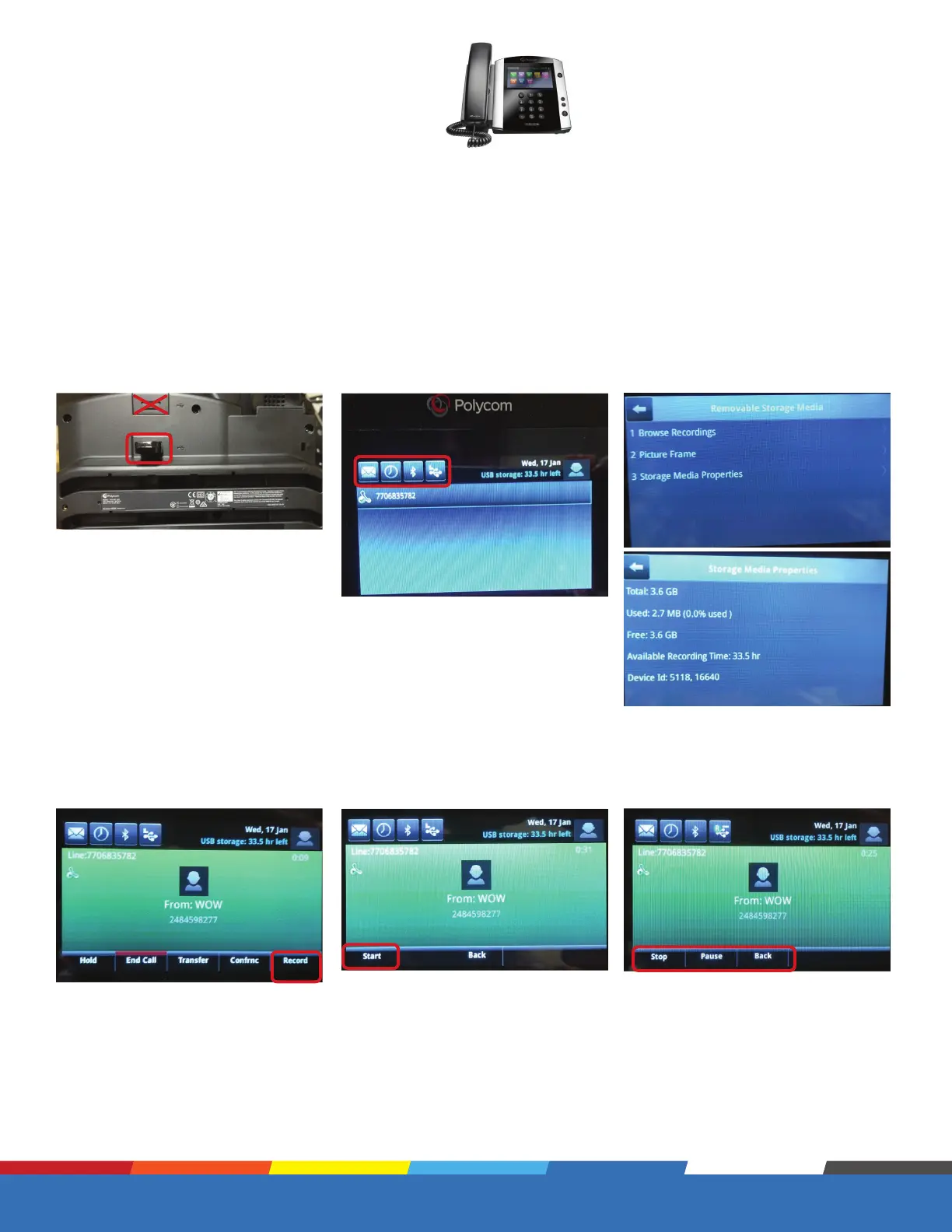
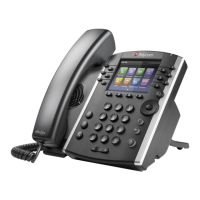
The VVX 600 series phones has 2
USB ports, the USB flash drive can
only be placed in the “rear back”
of the phone, as seen in the image
below.
Once in a active call you will now see
a “Record” softkey.
When you are recording you have 3
options “Stop” recording “Pause” and
resume the recording or “Back” to
the previous menu.
Once the USB stick has been
detected you will see a USB ICON
on your phone, which if selected will
identify the storage size as seen in
the screenshots to the right.
You can also view the storage by
navigating to HOME-SETTINGS-
FEATURES-STORAGE MEDIA
PROPERTIES (as seen below).
In the “Record” menu you then have
a option to start the recording or go
back to the normal active call menu.
Use of Call Recording is subject to your compliance with applicable law and the WOW! Business Customer Agreement General Terms and
Conditions located at wowforbusiness.com.
To activate call recording login to your Business Comm Portal, click on Settings, select “Device Settings,” change
“Local USB Call Recording” from “No” to “Yes.”








 To Next Page