33
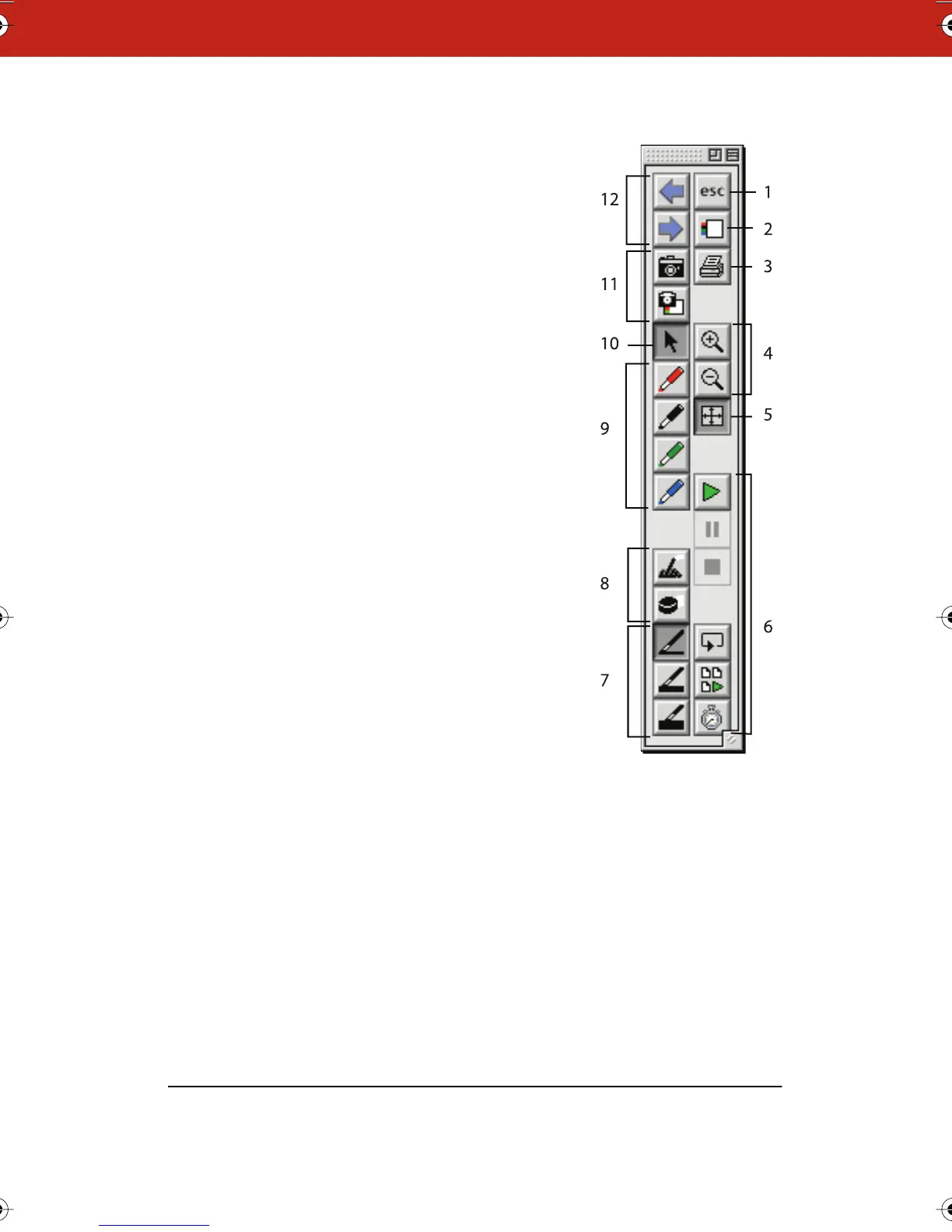
The Annotation Toolbar in Full Screen View
In Full Screen view, the annotation toolbar
includes these functions:
1 Esc: Escape or exit Full Screen view.
2 Current board: Show the current
board.
3 Print: Print the image of the board
using the printer connected to the
computer without creating a
snapshot.
4 Zoom: Enlarge or shrink the image.
5 Fit to Window: Make the image fill the
screen.
6 Playback: Play, Pause, Stop, Loop,
Play All Snapshots, Playback
preferences.
7 Pen size: Large, medium, or small pen
width.
8 Erasers: Wide or narrow eraser.
9 Pen color: Pen color recorded in the
software.
10 Selection cursor: (Macintosh only)
With multiple monitors connected,
use this cursor to drag images between monitors.
11 Snapshot, Snapshot/Erase All: Capture an image of the board in
the software and continue, or capture the image and erase the
current board.
12 Forward/Back: Scroll through snapshots in the open Webster
file.
Webster_draft2.book.mif Page 33 Friday, October 11, 2002 10:07 AM



 To Next Page