76
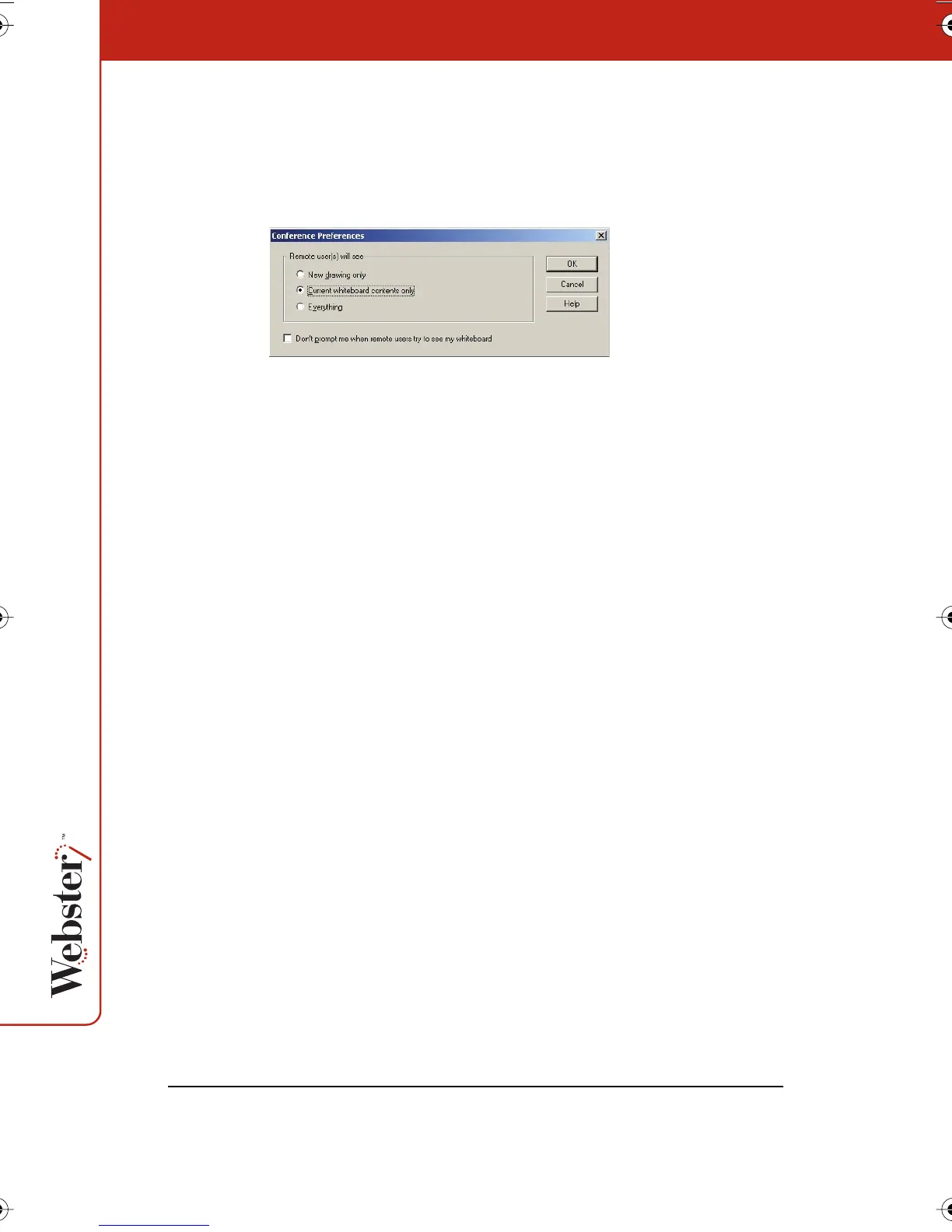
To control remote viewer access:
1 Choose “Preferences” from the Conference menu. You see the
following dialog.
2 Click beside your view preference:
• “New drawing only”: Remote users can see only new writing
you add to the board.
• “Current whiteboard contents only”: Remote users see the
current whiteboard contents but not new writing.
• “Everything”: Remote users see the current board and every-
thing you write.
• “Don’t prompt me when remote users try to see my white-
board”: Check to receive no message when a remote user
requests to look at your board.
Using Webster Projection Mode with NetMeeting
If you are in projection mode and connected to a NetMeeting
conference, note the following:
• The Show Webster button toggles between the NetMeeting
whiteboard (not Webster) and the current screen.
• To check how the software is recording data, maximize the Web-
ster window, then tap Show Webster to return to the NetMeeting
whiteboard (Webster minimizes itself).
• It is better to use the stylus, not the markers, to annotate the
whiteboard.
Webster_draft2.book.mif Page 76 Friday, October 11, 2002 10:07 AM



 To Next Page