86
to open the “Select Projection Monitor” dialog which lists all the
connected monitors. Click to select the monitor that should be used
for projection mode.
“Projection toolbar position”: Choose the corner of the screen for the
projection toolbar to appear when Webster first enters projection
mode. You can drag the toolbar to any position on the screen.
To restore factory default options:
• Click “Restore Defaults.”
Customizing Playback Options
You can specify preferences for the timing used during playback of
snapshots. Refer to “Playing Back Snapshots” on page 53.
To change playback speed and delays:
1 Choose “Options” (Windows) or “Preferences” (Macintosh) from
the Edit menu.
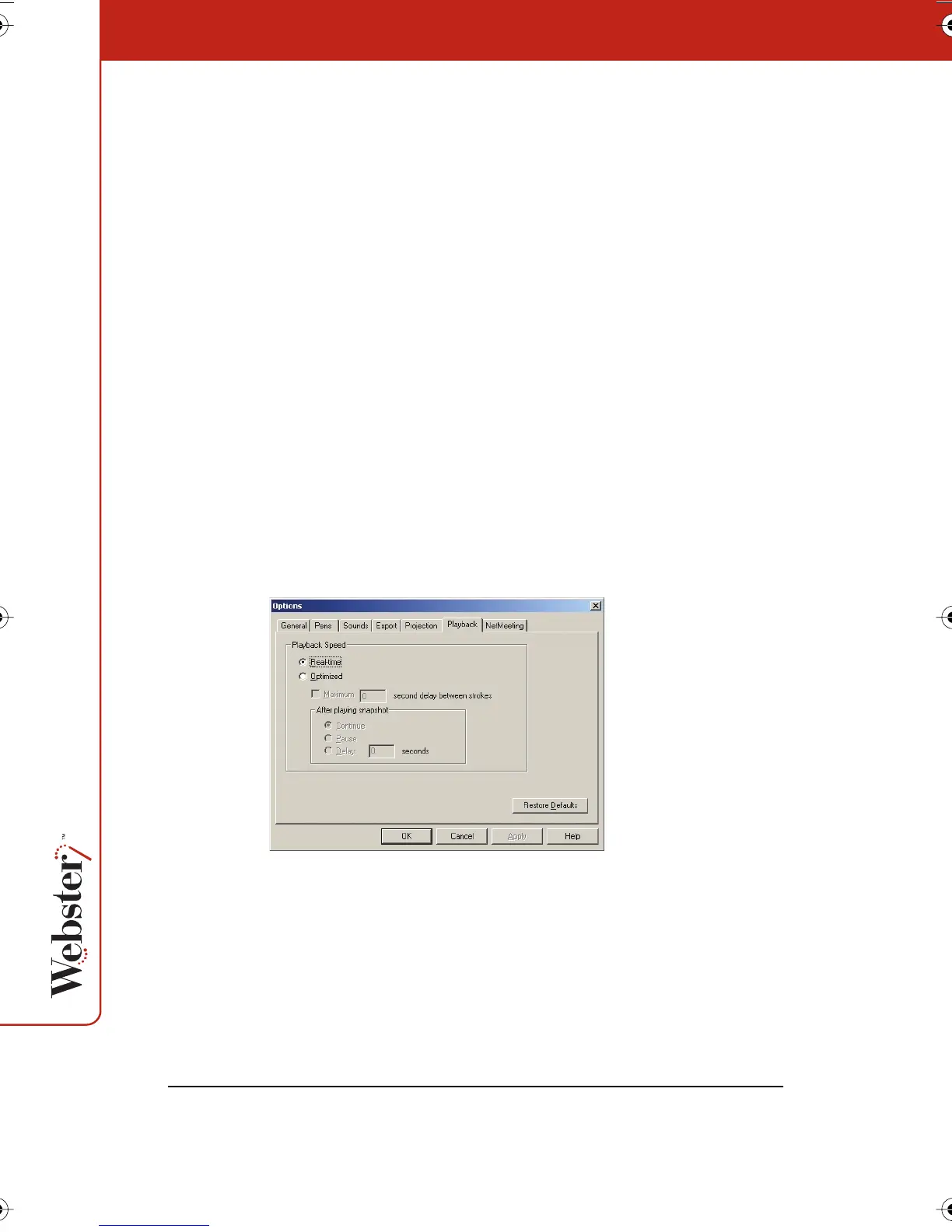
2 Choose the “Playback” tab. The following dialog appears.
“Real-time”: Check to play back all pen strokes, erasures, and
pauses at the same speed that they were created, including any
pause that occurred between strokes.
“Optimized”: Check to optimize playback speed, so that pauses
between strokes are eliminated.
Webster_draft2.book.mif Page 86 Friday, October 11, 2002 10:07 AM



 To Next Page