75
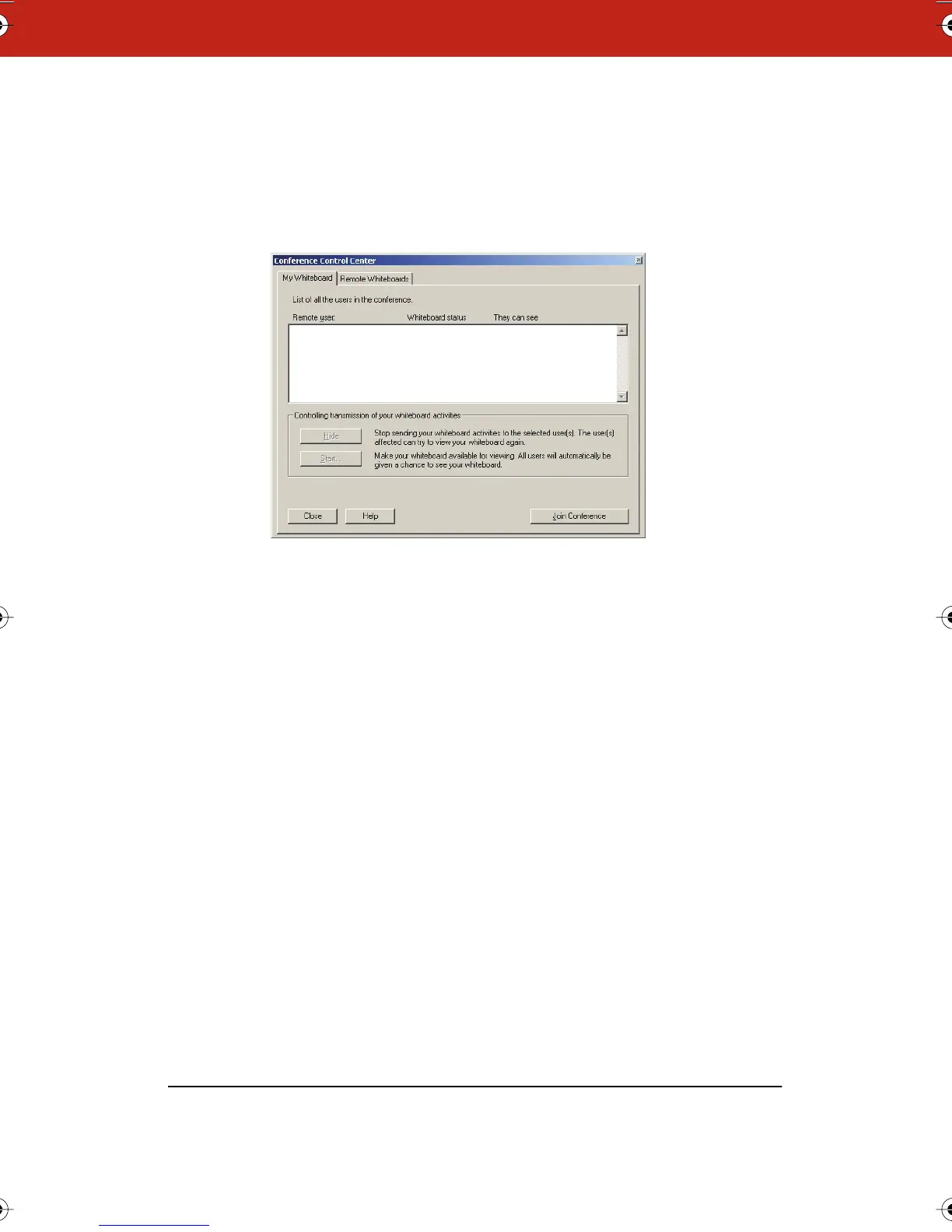
To use the control center:
1 Choose “Control Center” from the Conference menu to view the
status of all users in the conference. You see the following
dialog.
2 To stop sharing your whiteboard activity in the conference, click
“Hide.”
3 To share your whiteboard activity in the conference, click “Start.”
4 If you are disconnected from a conference or want to join a
conference in progress, click “Join Conference.”
5 To view the status of individual remote whiteboards, click the
“Remote Whiteboards” tab and click “Show.”
Conference View Preferences
Webster enables you to control whether remote viewers see
everything, new writing, or just your current whiteboard.
Webster_draft2.book.mif Page 75 Friday, October 11, 2002 10:07 AM



 To Next Page