53
To password protect a file in Windows:
1 Open the Webster file.
2 Choose “Password” from the File menu. The following dialog
appears.
3 Enter a password.
4 Enter the password a second time as confirmation.
5 Click “OK” to apply your password and close the dialog.
6 Save the file.
Playing Back Snapshots
Webster software records all writing and erasing in a snapshot and
enables you to review everything you did in the order it occurred. In
addition, you can play back a sequence of snapshots. To play them
back in another order, reorganize the snapshots. Refer to “Copying
and Moving Snapshots” on page 54.
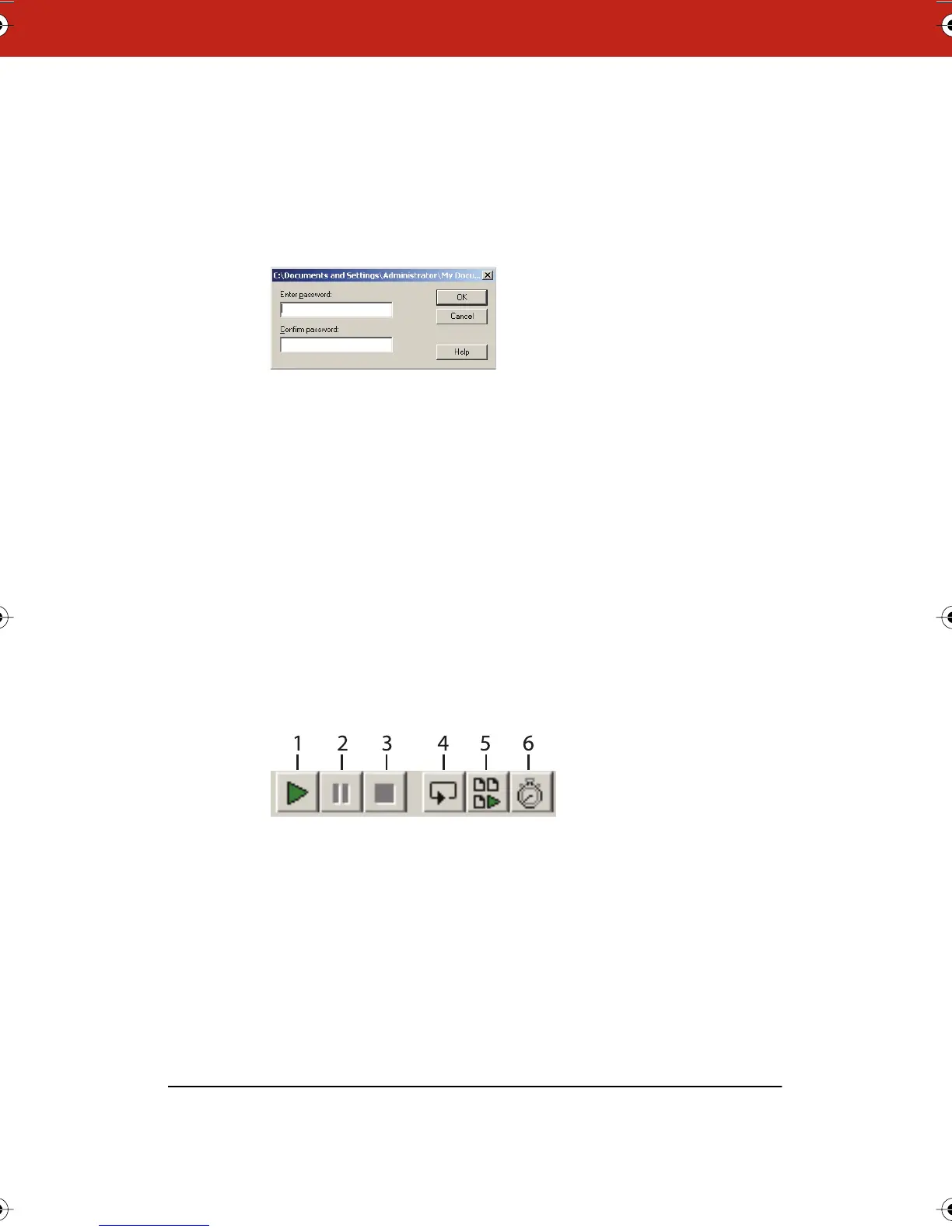
Webster playback shortcuts appear on the command toolbar.
1 Play: Click to play back the selected snapshot, or choose “Play”
from the Playback menu.
2 Pause: Click to pause playback, or choose “Pause” from the
Playback menu. Click again to continue playback.
3 Stop: Click to stop playback, or choose “Stop” from the Playback
menu. Click Play to continue playback.
Webster_draft2.book.mif Page 53 Friday, October 11, 2002 10:07 AM



 To Next Page