64
Snapshots and Current Board,” “Selected Snapshot(s),” or
“Current Board.”
4 Click “Print” to open the Print dialog, or click “Cancel” to close
the window and return to the main window.
Each snapshot printout contains a footer that includes the file name,
the snapshot caption, and the page number. To change the footer,
rename the snapshot. Refer to “Renaming Snapshots” on page 56.
Adding a Backdrop to a Snapshot
To help you create custom snapshots that include a repeated image
or design, Webster enables you to add a backdrop to your snapshots.
Backdrops are image files that you created in another application or
in Webster. You can use backdrops:
• As grids or patterns for repeated use (such as music paper)
• As forms (such as patient admission forms)
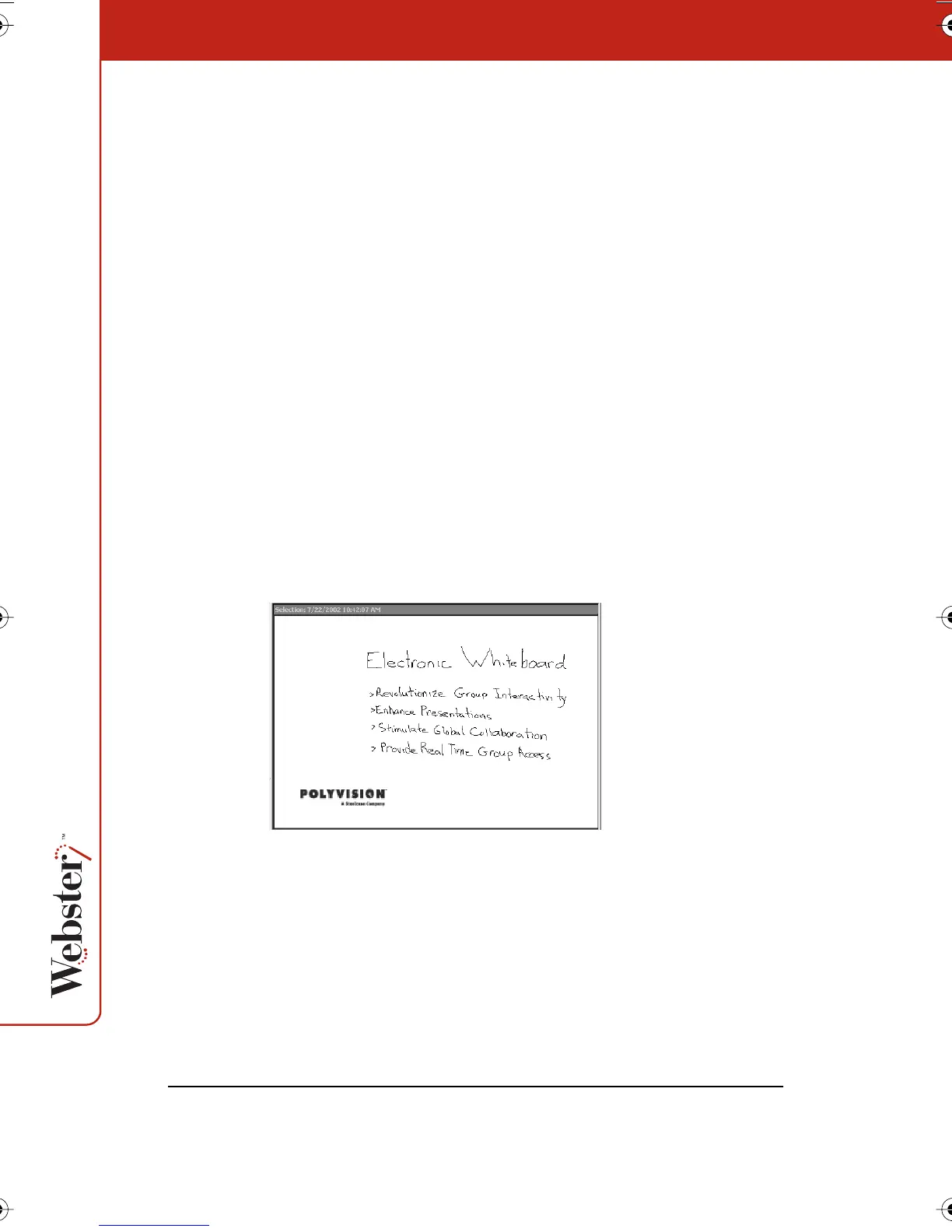
• For headers or footers (for example, to incorporate a logo as
shown below)
Backdrops can be reused even after the whiteboard is erased. You
can remove a backdrop at any time, and only one backdrop can be
used in a snapshot at a time. Backdrops are not available for
snapshots taken in projection mode. Refer to “Using Webster with a
Projector” on page 37.
Webster_draft2.book.mif Page 64 Friday, October 11, 2002 10:07 AM



 To Next Page