84
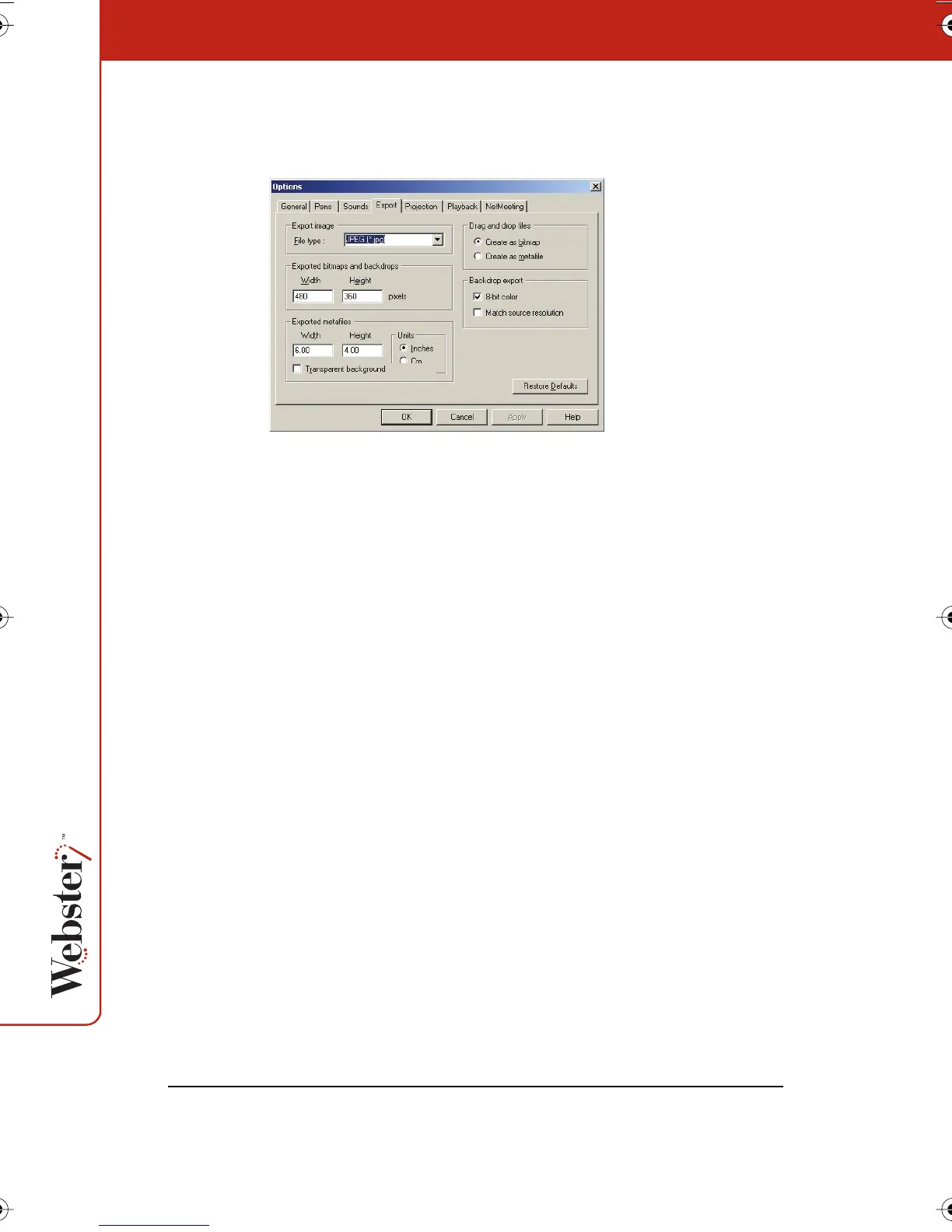
2 Click the “Export” tab. The following dialog appears.
“Export image”: Choose the default exported image file type. This
file type appears as the default in the “Export Image” dialog.
“Exported bitmap and backdrops” (Windows), “Export Image
Dimensions” (Macintosh): Define the default pixel width and height
of the resulting image when you export in one of the bitmap formats.
“Exported metafiles”: In Windows, define the width and height in
inches or centimeters of the resulting image when you export a
snapshot as a metafile. Check “Transparent background” if you want
the background of the resulting metafile to be transparent.
Otherwise the background is filled.
“Drag and drop file”: Choose the file type of the resulting image
when you drag and drop a snapshot into another application. In
Windows, the options are bitmap or metafile. On a Macintosh, the
options are picture, bitmap, Compressed PICT, JPEG, MacPaint,
Photoshop, PNG, QuickTime Image, SGI, TGA, Adobe PDF, and TIFF
formats.
“Backdrop export”: (Windows only) When you export a snapshot or
the current board to use as a backdrop, check to make the resulting
image file “8-bit color,” which saves memory and “Match source
resolution,” which retains the resolution of the original source
graphic rather than filling the board’s dimensions.
Webster_draft2.book.mif Page 84 Friday, October 11, 2002 10:07 AM



 To Next Page