12
2.4.5.3 Select ALL
Using the following two methods, you can select all models in the scene.
A. Click Edit-> Select ALL menu.
B. Use the shortcut Ctrl+A.
Note: When models are too small to be seen, or out of viewing scope, please click Center and On
Platform buttons after selecting all models to bring them to the printing scope.
2.4.5.4 Duplicate
After a model is selected, you can duplicate it by using the following two methods:
A. Click the Edit-> Duplicate menu.
B. Use the shortcut Ctrl+D.
2.4.5.5 Delete
After a model is selected, you can delete it by using the following two methods:
A. Click the Edit-> Delete menu.
B. Use the shortcut Del.
2.5 Edit Supports
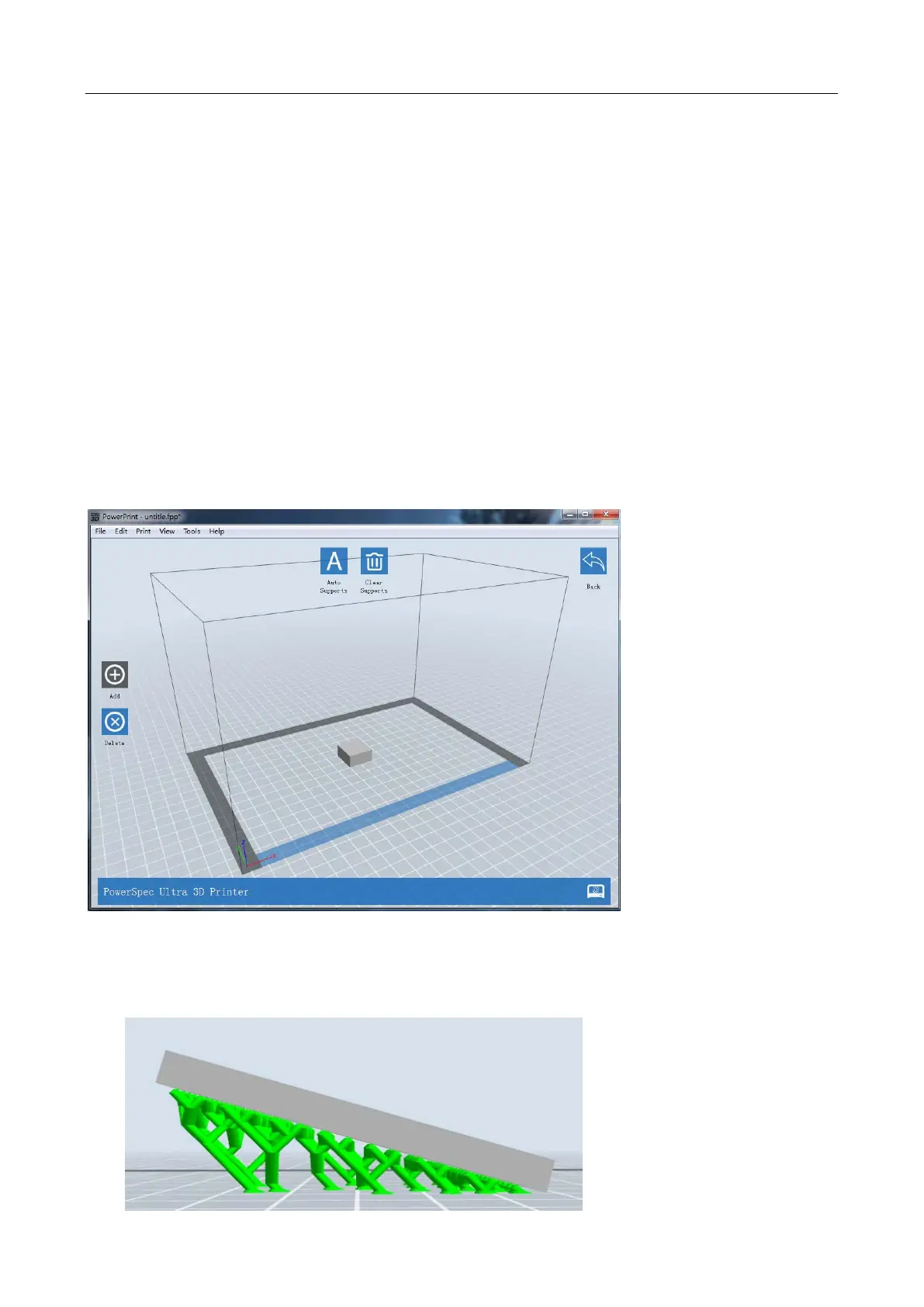
After a model file is loaded, click Edit->Supports in the top menu and you can edit the support structures of your
model. Click Back on the top-right corner to exit when finishing any edits.
2.5.1 Auto Supports
Select this option to have your model built with support structures. Powerprint software will automatically
generate supports for any overhanging sections of your model, and it will generate new support structures to
replace original ones included in your model file.


 To Next Page