22
2.9.5 Machine Information
When the printer has been connected, click Tools->Machine Information menu to review the information
about the machine, including MACHINE TYPE, MACHINE NAME, FIRMWARE VERSION, etc.
2.9.6 Driver Installation
A. Open the root directory of the software
B. Open the driver folder located in the root directory and find the driver. There are two driver
installation packages, please install one of them according to your computer system. For
64bit edition, please install dpinst_amd64.exe file and for 32bit edition, please install
dpinst_x86.exe file.
2.10 Other Functions
2.10.1 Preferences
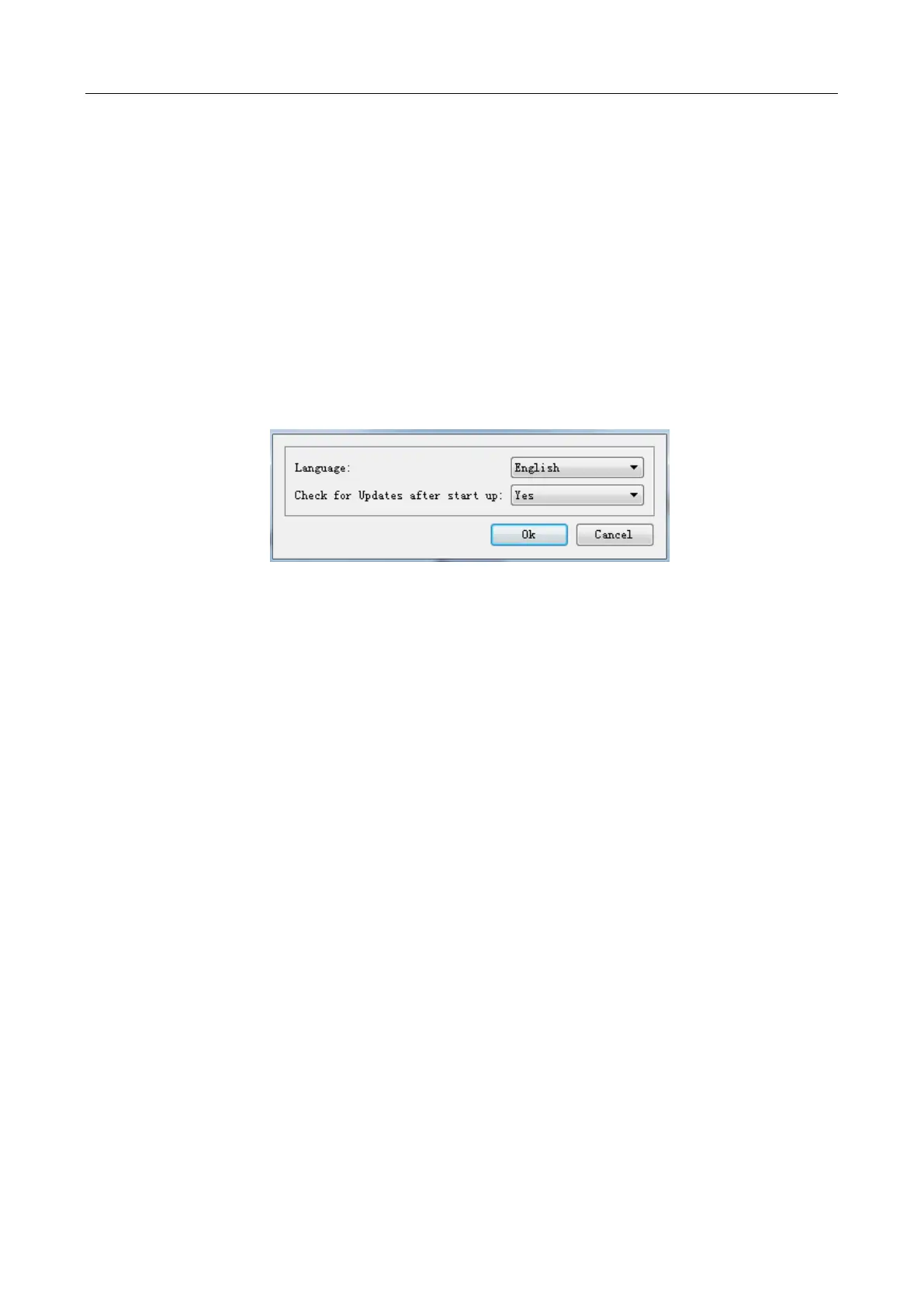
Click File-> Preferences menu to select the interface language and etc.
A. Language
Software supports English, Japanese, Simplified Chinese, and Traditional Chinese.
B. Check for Update after Startup
Select the Yes option to auto-check for updates after starting up it. The software
will remind you to update to new version when it is available after checking.
2.10.2 Help Contents
Click Help-> Help Contents menu to be directed to online user manual.
2.10.3 Check for Updates
A. Automatic Update
Refer to 2.9.1 to set auto update.
B. Manual Update
Click Help-> Check for Updates menu to check new version of software online. If a new version is
available, it will remind you to download and install the new one. Please refer to the Chapter
1.1~1.2 to install the software.
2.10.4 Software Information
Click Tool s-> About Powerprint menu to review information about the software, including software version
and copyrights.


 To Next Page